
iPod guide
iPod Mini 1st and 2nd Generation guide
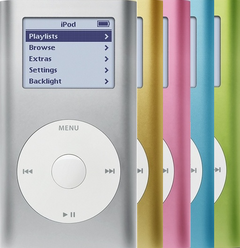
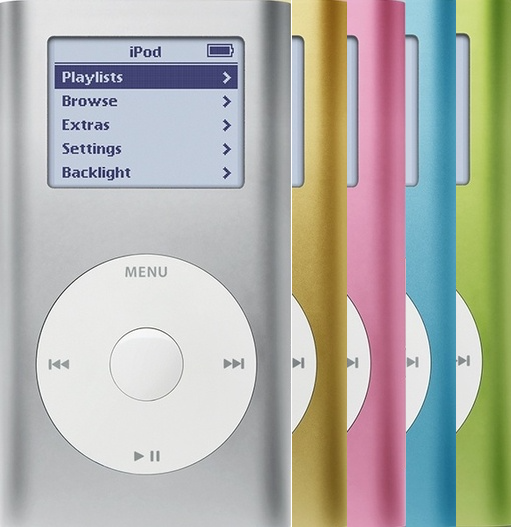
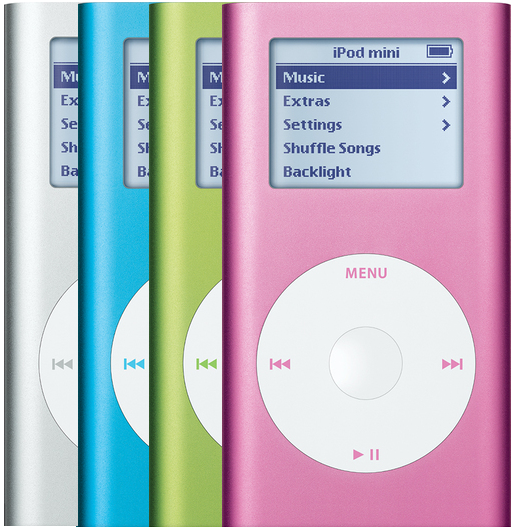
Apple made the iPod Mini in two generations, a 1st Gen launched in 2004 and a 2nd Gen in 2005. Both are small click-wheel iPods built around a colored anodized aluminum tube with white caps, a 1.67-inch grayscale screen and a 1-inch Microdrive (a tiny hard drive) of 4GB or 6GB. Both read A1051, so the engraving on the back is the real tell; colored rather than gray click wheel lettering points to a 2nd Gen as well, though on a silver Mini it settles nothing. Reported faults on these models most often involve the battery and charging, then the Microdrive, then the click wheel.
Shop iPod Mini 1st Gen partsShop iPod Mini 2nd Gen partsGet a free repair quote
Which one do you have?
Both generations read A1051, so the model number won't settle it. Look at the back: a 4GB or 6GB engraving means a 2nd Gen, and a back with no capacity on it means a 1st Gen.
| Detail | iPod Mini 1st Gen | iPod Mini 2nd Gen |
|---|---|---|
| Sold | Announced Jan 6, 2004, on sale Feb 20, 2004; replaced by the 2nd Gen on Feb 23, 2005 | Feb 23, 2005, until September 2005 (the iPod nano took its place) |
| Model number | A1051 (EMC 1984) | A1051 (EMC 2044) |
| Capacities | 4GB | 4GB or 6GB |
| Order numbers | M9160LL/A silver, M9436LL/A blue, M9435LL/A pink, M9434LL/A green, M9437LL/A gold | 4GB: M9800LL/A silver, M9802LL/A blue, M9804LL/A pink, M9806LL/A green; 6GB: M9801LL/A silver, M9803LL/A blue, M9805LL/A pink, M9807LL/A green |
| Case | Anodized aluminum tube in silver, gold, blue, pink or green, white caps; 3.6 by 2.0 by 0.5 in, 3.6 oz; 1.67-inch grayscale screen | Same anodized aluminum tube, white caps, size and weight as the 1st Gen (3.6 by 2.0 by 0.5 in, 3.6 oz), in silver or brighter blue, pink or green (no gold); 1.67-inch grayscale screen |
| How to tell | A plain back with no 4GB or 6GB mark, and gray lettering on the click wheel on every color. Any gold Mini is a 1st Gen. | Its capacity, 4GB or 6GB, is engraved on the back. The click wheel lettering matches the case color (on a silver Mini, rely on the back). Every 6GB Mini is a 2nd Gen. |
iPod Mini 1st Gen
- Sold
- Announced Jan 6, 2004, on sale Feb 20, 2004; replaced by the 2nd Gen on Feb 23, 2005
- Model number
- A1051 (EMC 1984)
- Capacities
- 4GB
- Order numbers
- M9160LL/A silver, M9436LL/A blue, M9435LL/A pink, M9434LL/A green, M9437LL/A gold
- Case
- Anodized aluminum tube in silver, gold, blue, pink or green, white caps; 3.6 by 2.0 by 0.5 in, 3.6 oz; 1.67-inch grayscale screen
- How to tell
- A plain back with no 4GB or 6GB mark, and gray lettering on the click wheel on every color. Any gold Mini is a 1st Gen.
iPod Mini 2nd Gen
- Sold
- Feb 23, 2005, until September 2005 (the iPod nano took its place)
- Model number
- A1051 (EMC 2044)
- Capacities
- 4GB or 6GB
- Order numbers
- 4GB: M9800LL/A silver, M9802LL/A blue, M9804LL/A pink, M9806LL/A green; 6GB: M9801LL/A silver, M9803LL/A blue, M9805LL/A pink, M9807LL/A green
- Case
- Same anodized aluminum tube, white caps, size and weight as the 1st Gen (3.6 by 2.0 by 0.5 in, 3.6 oz), in silver or brighter blue, pink or green (no gold); 1.67-inch grayscale screen
- How to tell
- Its capacity, 4GB or 6GB, is engraved on the back. The click wheel lettering matches the case color (on a silver Mini, rely on the back). Every 6GB Mini is a 2nd Gen.
A replaced tube can carry the wrong engraving, or none. Settings > About on the iPod names the model with no tools; with the iPod open, the click wheel cable is marked 632-0246-A on a 1st Gen and 632-0303-A on a 2nd Gen, and the logic board 820-1626-A on a 1st Gen and 820-1648-A or 820-1804-A on a 2nd Gen. HP sold the 2nd Gen too, as the Apple iPod mini from HP: those carry HP's logo on the back and list PW753AA (4GB) or PX762AA (6GB) in the About screen as their model.
What goes wrong, and the sign that gives it away
-
The battery runs down fast, or it only runs on the charger
The sign: After a full charge (test a 1st Gen on a wall charger, not the computer) it goes flat much sooner than before, dies the moment it comes off the charger, or only comes to life while plugged in.Apple's rating for a new Mini was as much as 8 hours of music on a 1st Gen and 18 on a 2nd Gen. A worn battery can also starve the Microdrive as it tries to spin, so the drive keeps clicking and trying again or the Apple logo loops; if that ends once the iPod has charged, blame the battery. The same new battery fits both generations, and fitting it needs no soldering. If a Mini that sat unused for about a year lights up the Apple logo on the charger and then cuts out, its battery has run down too far to take a charge. If a fresh battery also empties while the iPod sits idle, check that battery before anything else, because new ones can be duds, then the logic board.
Won't hold a chargeKeeps turning offWon't turn on"Please wait, very low battery"How to test the batteryiPod Mini 1st/2nd Gen battery replacement guide
-
Dark spots on the screen: check the battery first
The sign: Spots or darker patches pressed into the picture, even with a flat case. On a Mini the battery is tucked behind the display, which is where a swelling cell shows; the metal tube seldom bulges, and the click wheel isn't affected.Stop charging and unplug it; don't squeeze, bend or puncture a swollen cell, and if it runs very hot or smells, leave the battery in and get in touch with us.A battery that has swollen is spent and unsafe to keep using, so the fix is a new one. The pressure marks on the screen usually clear up after the new battery goes in. Once it is out, cover the old cell's contacts with tape or bag it up, and hand it in where batteries are collected, not with household trash or recycling. Can't tell whether it is the battery or the screen? Our free diagnostic sorts it out.
Lines on the screenBroken screenWon't hold a chargeiPod Mini 1st/2nd Gen battery replacement guide
-
It gets hot
The sign: Mild warmth near the dock end during play or charging is expected; real heat isn't. If it heats up again every time after cooling, suspect the battery; if something rattles inside when you tilt it gently, the logic board; if the heat began once the iPod had been opened, a cable or part pinched inside.Should it feel very hot or smell, unplug it, keep it closed, move it onto a non-flammable surface, then contact us.Too much heat usually comes from the logic board, though a failing battery can cause it as well, and our free diagnostic tells which one. After a repair, a squashed cable or a part pushing against the board can short it and warm it up, so let it cool down fully before opening it again.
OverheatingiPod Mini 1st/2nd Gen logic board replacement guide
-
Won't charge, or the computer can't see it
The sign: Swapping the cable and charger changes nothing, and inside the dock connector on the bottom you can see corrosion, dirt, or bent or broken pins. Before judging a 2nd Gen, plug it into a USB port built into the computer (a keyboard port or hub won't do) and give a very flat battery up to 30 minutes.There is no separate charging port to buy: the Mini's 30-pin connector is built onto the logic board, so instead of soldering a new port in place, our fix is a used original board made by Apple. The small metal bracket that sits behind the bottom cap just braces the connector; it isn't the port. If the pins are clean and neither a new battery nor a trusted charger and cable gets it charging, the charging circuit on the board is probably to blame, and the fix is the same. A worn or dirty connector can also hide the iPod from a computer; if it charges but no computer finds it, check the Microdrive too (below), and once the drive, its cable and latches have been ruled out, suspect the board.
Won't chargeNot showing up in iTunesWon't synciPod Mini 1st/2nd Gen logic board replacement guide
-
Sad face, a folder icon, or clicking inside
The sign: Charge it fully first, since a weak battery can mimic some of these drive signs. Then put the Mini to your ear: a click, click, whir or a grinding noise strongly suggests the Microdrive, its tiny hard drive, is going. The sad iPod face points to the Microdrive first; once the drive is ruled out, the board and the drive cable are equal suspects, and the cable seldom fails unless the iPod has been opened; shown beside a low-battery warning, it can come from a worn battery or the charging circuit. A folder icon that returns again and again, especially after a restore that failed, most likely points to the drive.After a drop, drive symptoms most often mean the Microdrive, which is most at risk while spinning; in Diagnostic Mode, a high or climbing count of reallocated or pending sectors confirms a failing drive. If trouble started after a hard knock, or just after the iPod was opened, reseat the drive cable and shut every latch before buying anything; apart from that, the cable seldom fails, and a drive put in upside down simply isn't found. A replacement Microdrive arrives blank and has to be restored once it is in (until then it stays in Disk Mode or shows "No music"), and a restore wipes everything, songs and all, so save your music to a computer while one still detects the iPod (our flash mod comes back already restored and tested). A failing drive is a good moment to switch to flash, which puts an end to Microdrive failures.
Sad iPod faceFolder iconClicking noiseStuck on the Apple logoStuck in Disk ModeSays "No music"iPod Mini 1st/2nd Gen hard drive (Microdrive) replacement guide
-
Frozen, or it won't start up properly
The sign: It freezes or won't start up properly, with Hold off, the battery charged, no clicking and no sad face. Try a reset first (the steps are under the questions below); a fault that keeps coming back after resets is most likely damaged software, which a restore fixes, though restoring erases everything, songs included.So before that restore, copy your music off, if a computer still sees the iPod. Use iTunes for the restore, or the Finder on Macs running macOS Catalina or newer. A restore error can be the connection's fault rather than the iPod's, so connect it to one of the computer's own USB ports rather than a hub or keyboard, and swap the cable. A 1st Gen restore may pause on an image of a plug; it completes once the iPod sits on a wall charger. When restoring doesn't work, or the fault comes back afterwards, look to the Microdrive.
-
Only some songs skip or won't play
The sign: The same few songs skip, stop or won't play, while the rest of the library is fine.Those files are probably damaged, or saved in a format these iPods won't play; WMA, for example, never plays on a Mini. No new part is needed.
-
The screen is dark but the iPod still plays
The sign: Songs still play or a computer still lists it, but the screen stays black. Hold a flashlight to the glass: a faint menu you can just read means the backlight is out.Since the backlight comes as part of the screen, a dead light calls for a new screen; the cause is often the screen's own damaged cable, so the fix is still a new screen. After a drop or a repair, a screen cable that has come out or an open latch can also leave it dark; putting it back needs no new part, though the case has to come open. The two generations take different screens: the 1st Gen panel has a wider ribbon, about 20 mm against 16.5 mm. Same fault on a new screen? Then look at the logic board.
Black screenBacklight not workingiPod Mini 1st/2nd Gen screen replacement guide
-
Lines, a white picture or dead pixels
The sign: A white picture, black lines or dead pixels while the iPod otherwise works, often after a drop; lines that change as you press on the case most likely come from a loose or faulty screen cable. Dark spots alone: check the battery first (see above).A damaged LCD needs a new screen for your generation, and ink-like spots on a damaged panel can grow. Right after a repair, a white, flickering or lined picture may only be the screen cable, loosened or never pushed all the way in, with its latch still to close. Our free diagnostic tells a swollen battery from a damaged screen.
Lines on the screenWhite screenBroken screeniPod Mini 1st/2nd Gen screen replacement guide
-
Cracked or scratched window
The sign: The glass over the screen has a crack or scratches, while the picture beneath looks right.Only the glass lens needs replacing, not the LCD. It is set into the aluminum tube, and a single lens suits both generations.
Broken screenScratchesiPod Mini 1st/2nd Gen screen replacement guide
-
Scratched or dented case
The sign: The marks or dents are in the aluminum shell, and everything inside works.The Mini's housing is a single aluminum tube that forms the whole outside, and it is one size across both generations, so a tube from either fits any Mini; the click wheel, caps and insides are sold separately. Pick an original color or a new custom one. Original 1st Gen tubes have nothing engraved, so moving a 2nd Gen into one costs it the 4GB or 6GB marking. Our guide rates swapping the whole tube as difficult.
-
The click wheel or buttons don't respond
The sign: With the Hold switch off, nothing happens when you turn the wheel, or Menu, Next, Previous or Play/Pause stops working, one button or several. If it still acts locked with Hold off, a stuck Hold switch (below) is the other suspect, and our free diagnostic tells the two apart; if it began just after the iPod was opened, check the wheel's cable first.Those four buttons sit on the click wheel itself, so a new wheel is the normal cure. Right after a battery swap, this is the most frequent new fault: the wheel's plug isn't fully down on its connector, which has no latch to hold it, or the metal bracket was left out. A cable torn or creased while the iPod was apart means a new wheel. Wheels from the two generations look identical and fit either board's connector, yet the wrong one simply doesn't respond, with no harm done: colored rather than gray lettering marks a 2nd Gen wheel, while the number printed on its cable separates the two. If a wheel for the right generation, fully plugged in, still changes nothing, suspect the logic board.
Click wheel not workingButtons not workingiPod Mini 1st/2nd Gen click wheel and center button replacement guide
-
Only the center button fails, or it sticks
The sign: The ring and the other four buttons respond, but pressing the middle does nothing, or the button sticks. A sticking button that frees up after you press lightly on the wheel and shift it a touch is just out of line.The Mini has the center button's switch inside the click wheel, so when the ring works and the center doesn't, the wheel is usually at fault and a new one fixes it; if a new wheel for your generation doesn't, suspect the board, and a broken wheel can also make the button stick. To settle one that is out of line, press down lightly on the wheel and move it a fraction until it drops back into place. If it stopped just after the iPod was opened, first press the wheel's plug firmly down on its connector.
Center button not workingiPod Mini 1st/2nd Gen click wheel and center button replacement guide
-
Crackling, dropouts or sound in one ear only
The sign: During a song, wiggle the plug gently: sound that drops, crackles or moves to one side means the jack is worn.The Mini puts its jack and Hold switch on one small board that pushes straight onto the logic board, no cable in between, and that board fits every Mini. If the iPod has been apart, press that board firmly home first. One ear only, even with a new jack in, means the new jack is probably faulty. Silence from headphones and from a speaker dock, or after a new jack, points to the logic board. When it plays on headphones but not in one particular dock, speaker or car adapter, check that the accessory was made for your model.
Headphone jack not workingOnly plays in one earStatic or cracklingNo soundVolume too lowCar or dock troubleiPod Mini 1st/2nd Gen headphone jack and Hold switch replacement guide
-
Stuck on Hold, or it turns off when you slide Hold
The sign: The Hold switch is broken or stuck, the iPod stays locked even with the switch off, or sliding the switch shuts the iPod down.Because the Hold switch is mounted on the headphone jack board, a new jack board cures a broken or stuck switch; if it quit right after the iPod was opened, press that board firmly onto its connector first. If it is still locked with a good switch and board in place, the jack board's socket on the logic board could be damaged or could have torn off; either way, a new logic board puts it right. When sliding Hold switches it off, a logic board fault is most likely, and the Microdrive is the next suspect.
Hold switch not workingButtons not workingiPod Mini 1st/2nd Gen headphone jack and Hold switch replacement guide
-
Nothing at all, even on the charger
The sign: Still no sign of life after a good while charging (a 1st Gen belongs on a wall charger for this; a very flat 2nd Gen can take as long as 30 minutes on the computer before it wakes). A rattle when you tilt it gently, heat or a smell point the same way.Unplug it at once if it turns hot or smells.Completely dead even when charging points to the logic board rather than the battery. Corroded or bent dock pins end in the same fix, a new board, since the board carries the charging port. A Mini that instead flashes the Apple logo and then shuts off on the charger is showing life: see the battery fault above, and our free diagnostic tells which. Other signs of a board fault: beeping at start-up (other than an alarm or Diagnostic Mode), shutting down even with a sound battery and a drive that tests fine, or no life at all after a drop. We fit a used original board made by Apple; boards are built for one generation, and capacity plays no part since your drive sets it, so you only need the board for your generation.
Won't turn onKeeps turning offDroppedBeeping at start-upiPod Mini 1st/2nd Gen logic board replacement guide
-
It got wet
The sign: Since it got wet it won't charge or hold a charge, won't turn on, or acts up; check the dock connector pins for corrosion, which you can see without opening it.Water can ruin the battery, and moisture left inside eats away at the logic board. With the battery unplugged, the board and connectors can be cleaned with isopropyl alcohol of 90% or more and left until fully dry. The fix is a new battery, a logic board or both, and our free diagnostic tells which.
-
It stopped working after a repair or a knock
The sign: Whatever the symptom, it started just after the iPod had been opened up, or after a hard knock.If it turns very hot after a repair, unplug it, keep the case shut and contact us.Suspect first a connector that isn't all the way in: open it again and press each one you touched fully home, latches shut; the jack board and the click wheel plug have no latch, so push them firmly on. A brand-new battery or headphone jack can be faulty from the start. Static or a slipping tool can wreck the logic board. Small components near the dock connector can snag and break away while the board is slid in or out.
Not working after a repairDroppedHow to open the iPod Mini 1st/2nd Gen guide
-
A flash-modded Mini loses music or restarts
The sign: On a Mini that already has flash storage: its music disappears after a large sync; or, with a very big library, it restarts, skips, crashes on long playlists and its menus drag.Music lost after a large sync usually means the memory card is fake or faulty, one that claims more room than it really has; we test every card before it goes in, and our free diagnostic finds which it is. Restarts and sluggish menus with a huge library come from the iPod's own memory, so switch it into Disk Mode, then connect it and take some songs off.
Repair guides
- iPod Mini 1st/2nd Gen battery replacementModerate · 25 to 45 minutes · 12 steps
- iPod Mini 1st/2nd Gen hard drive (Microdrive) replacementModerate · 13 steps
- iPod Mini 1st/2nd Gen headphone jack and Hold switch replacement · 12 steps
- iPod Mini 1st/2nd Gen screen replacementModerate · 30 minutes to 1 hour · 14 steps
- iPod Mini 1st/2nd Gen click wheel and center button replacementModerate · About 15 minutes · 13 steps
- iPod Mini 1st/2nd Gen logic board replacementModerate · 30 minutes to 1 hour · 13 steps
- iPod Mini 1st/2nd Gen housing replacementDifficult · 13 steps
- How to open the iPod Mini 1st/2nd GenModerate · 13 steps
Parts and prices
- BatteryOne battery fits both generations: the two listings sell the same part.
- Microdrive (hard drive)Used original drives; a replacement arrives blank, so your music doesn't carry over. Either generation takes either drive, but ask us before you order the 6GB for a 1st Gen.
- Hard drive cableOne ribbon fits every Mini; a broken socket on the board needs more than a new ribbon.
- Screen (backlight included)Made for one generation: the ribbon on a 1st Gen panel is wider.
- Glass display lensEvery Mini takes the same lens; a crack in the glass over a working picture needs nothing more.
- Click wheel (center button included)Made for one generation. The 1st Gen has one gray-lettered wheel for all five colors; a 2nd Gen wheel has lettering in the case color.
- Headphone jack and Hold switchOne board, Hold switch included, fits every Mini.
- Logic board (charging port included)Made for one generation; capacity doesn't matter, since your drive moves across.
- Aluminum housing (tube only)Any tube fits any Mini. Original tubes for the 1st Gen carry no engraving and come in the paler 1st Gen shades (the one listed as gray is Apple's silver); a replacement tube's back may not show your iPod's capacity.
- Top capWhite on every Mini; one part serves both generations.
- Bottom capWhite on every Mini; one part serves both generations.
- Metal dock bracketHolds the dock connector in place from behind the bottom cap; it is a support, not the charging port.
- Top screwsThe two tiny Phillips #00 screws under the top cap.
Every part comes as "You fix it" (part only) or "We fix it" (we install it). Prices are today's.
Upgrades
Flash mod service
We remove the Microdrive and fit flash storage where it was, a memory card mounted on a flash adapter, in 128GB or 256GB on either generation, running Apple's own iPod software. It makes no noise and is ready instantly, with no spin-up wait. A spinning drive uses two to three times as much power as a card, so each charge stretches further, and the iPod is lighter without the drive. Flash puts an end to Microdrive failures, but a failure is still possible in the memory card, its adapter or a cable. Flash does nothing for a tired battery, a blank or cracked display, an unresponsive wheel or center button, or sound faults. We do the fitting ourselves, with no soldering, and never sell it as a kit. A new battery can go in during the same visit, and we can carry your music over to the flash storage as an add-on; that adds 1-2 business days, and if the old drive won't read, we refund it. It typically takes 3–5 business days on our bench, and refurbished Minis can be ordered with it too.
Questions
When did the iPod Mini come out?
Apple announced the iPod Mini on January 6, 2004, at Macworld, and it went on sale in the US on February 20, 2004, as a 4GB in five colors. The 2nd Gen replaced it on February 23, 2005, adding a 6GB model. Apple stopped selling the Mini in September 2005, when the iPod nano took its place.
What is the difference between the 1st and 2nd Gen iPod Mini?
Outside, they share the same aluminum tube and size and a 1.67-inch grayscale display. The 2nd Gen has its capacity engraved on the back, click wheel lettering in the case color, brighter blue, pink and green, no gold, and a 6GB option. Apple rated it for up to 18 hours of playback, against 8 for the 1st Gen, a gain that came from its board, not its battery. The 1st Gen box held a FireWire cable, a USB 2.0 cable and a power adapter; the 2nd Gen box dropped the FireWire cable and the power adapter but kept the USB 2.0 cable.
Is there a 3rd Gen, a black or an 8GB iPod Mini?
No. There were only two generations, with no later revision, and the iPod nano followed them. Apple made the Mini in silver, gold, blue, pink and green, and with a 4GB or 6GB drive. With our flash mod service, either generation can hold 128GB or 256GB.
Which parts swap between the 1st and 2nd Gen?
Most of them. The battery, Microdrive, drive cable, headphone jack and Hold switch board, glass lens, aluminum tube, white caps, dock bracket and top screws fit both. The click wheel, screen and logic board are each made for one generation; plug in the other generation's wheel and it won't respond. Parts don't cross between a Mini and a full-size iPod in either direction.
How do I charge an iPod Mini, and how long does it take?
A 1st Gen takes its charge from the computer, over 6-pin FireWire or high-power USB 2.0, or from its power adapter; when the battery is flat or you are testing it, use a wall charger, ideally Apple's A1070. A 2nd Gen takes its charge over high-power USB 2.0 from a port built into the computer (most keyboard ports don't deliver enough), or from FireWire with the optional cable; a very flat one may take up to half an hour on the computer before it can be used. Any Mini, either generation, can use Apple's A1070 wall charger. A full charge takes about 3 to 4 hours (1st Gen) or about 4 hours (2nd Gen), with roughly 80 percent after the first hour.
How long should an iPod Mini battery last?
New, the 1st Gen was rated by Apple for as long as 8 hours of playback and the 2nd Gen for 18. That gap comes from the 2nd Gen's board, so fitting a fresh battery will not make a 1st Gen last 18 hours. The battery is the same part for both, and Apple never gave its capacity; a pack this size claiming a far bigger mAh number has been relabeled, and it won't play longer.
How do I reset an iPod Mini?
Push the Hold switch to on and back to off. Then hold down the center button and Menu at once until the Apple logo shows up, about 6 to 8 seconds. Plug a 1st Gen into its wall charger before you start; a 2nd Gen with an empty battery should go on the computer first. A restore is a different step: it wipes the iPod clean, songs and all, so save your music before any restore.
Will I lose my music in a repair?
Your songs live on the drive, so a repair itself erases them only when the Microdrive or flash storage is replaced; a battery swap or any other repair leaves them where they are. A new drive starts out empty, and restoring wipes everything, songs included, so back your library up first, as long as a computer still lists the iPod; a Mini first set up on a Mac has to be copied from on a Mac, since iTunes for Windows sees only iPods that Windows formatted. With a flash mod, we can move your music across as an add-on, provided the old drive can still be read.
Is an iPod Mini worth repairing?
Apple has stopped repairing the Mini; we haven't. Our free diagnostic settles it: we check it over and email a quote; you are under no obligation, and if you decline, it comes back at our expense. Parts and work carry our 1-year limited warranty.