
iPod guide
iPod 3rd Generation guide
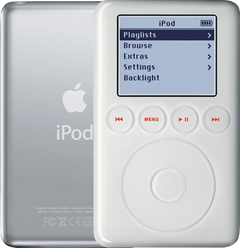
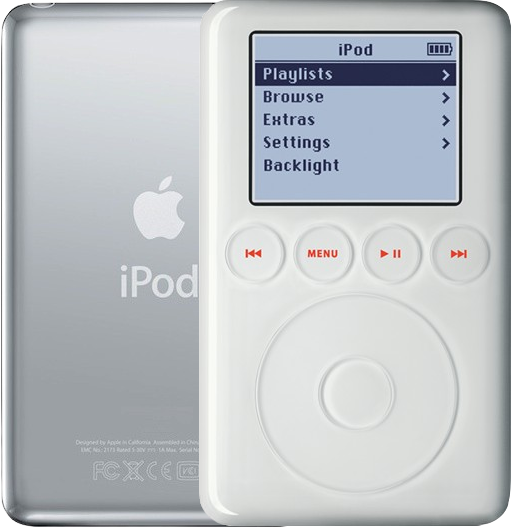
The iPod 3rd Gen, announced in April 2003 and sold until July 2004, was the first iPod with the dock connector on the bottom. Its white front holds a touch wheel with a row of four red-lit touch buttons above it, on a polished stainless steel back, and every one reads A1040, from the thin 10GB to the thick 40GB. It charges only from FireWire power, and battery and charging trouble leads its fault reports, well ahead of syncing, the touch controls and the hard drive.
Which one do you have?
Several iPods carry a "3rd generation" name. This one has four touch buttons side by side above a touch wheel, the dock connector on its bottom edge, and A1040 on the back.
| Detail | iPod 3rd Gen (this page) | iPod touch, nano or shuffle 3rd Gen (not this iPod) |
|---|---|---|
| Sold | Announced April 28, 2003; on sale from May 2, 2003, until July 19, 2004, with new lineups in September 2003 and January 2004 | touch 2009 to 2010; nano 2007 to 2008; shuffle 2009 to 2010 |
| Model number | A1040 on every capacity | A1318 (touch), A1236 (nano), A1271 (shuffle) |
| Capacities | 10GB, 15GB and 20GB in the thin case; 30GB and 40GB in the thick case | touch 32GB or 64GB; nano 4GB or 8GB; shuffle 2GB or 4GB |
| Order numbers | 10GB: M8976LL/A; 15GB: M8946LL/A or M9460LL/A; 20GB: M9244LL/A; 30GB: M8948LL/A; 40GB: M9245LL/A | |
| Case | White plastic front with the wheel and buttons built in, on a mirror-polished stainless steel back engraved with the capacity; 4.1 by 2.4 in; thin 0.62 in (about 16 mm) and about 5.6 oz, thick 0.73 in (about 18.5 mm) and about 6.2 oz | touch: black front, silver aluminum back; nano: short and wide, in colored aluminum; shuffle: a small aluminum stick |
| How to tell | Four touch buttons (Previous, Menu, Play/Pause, Next), lit red, sit in a line above a fixed touch wheel, under the screen; the dock connector is on the bottom edge, with no FireWire port on top | touch: a 3.5-inch touchscreen and no wheel; nano (the "fat nano"): a Click Wheel under a 2-inch color screen; shuffle: no screen, with its controls on the earphone cable. We don't service these three. |
iPod 3rd Gen (this page)
- Sold
- Announced April 28, 2003; on sale from May 2, 2003, until July 19, 2004, with new lineups in September 2003 and January 2004
- Model number
- A1040 on every capacity
- Capacities
- 10GB, 15GB and 20GB in the thin case; 30GB and 40GB in the thick case
- Order numbers
- 10GB: M8976LL/A; 15GB: M8946LL/A or M9460LL/A; 20GB: M9244LL/A; 30GB: M8948LL/A; 40GB: M9245LL/A
- Case
- White plastic front with the wheel and buttons built in, on a mirror-polished stainless steel back engraved with the capacity; 4.1 by 2.4 in; thin 0.62 in (about 16 mm) and about 5.6 oz, thick 0.73 in (about 18.5 mm) and about 6.2 oz
- How to tell
- Four touch buttons (Previous, Menu, Play/Pause, Next), lit red, sit in a line above a fixed touch wheel, under the screen; the dock connector is on the bottom edge, with no FireWire port on top
iPod touch, nano or shuffle 3rd Gen (not this iPod)
- Sold
- touch 2009 to 2010; nano 2007 to 2008; shuffle 2009 to 2010
- Model number
- A1318 (touch), A1236 (nano), A1271 (shuffle)
- Capacities
- touch 32GB or 64GB; nano 4GB or 8GB; shuffle 2GB or 4GB
- Case
- touch: black front, silver aluminum back; nano: short and wide, in colored aluminum; shuffle: a small aluminum stick
- How to tell
- touch: a 3.5-inch touchscreen and no wheel; nano (the "fat nano"): a Click Wheel under a 2-inch color screen; shuffle: no screen, with its controls on the earphone cable. We don't service these three.
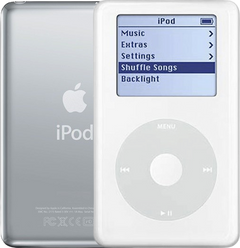
Look-alikes from the same years: the 2nd Gen (A1019) has its four buttons in a ring around the wheel and a covered FireWire port on top, and the 4th Gen (A1059) has a Click Wheel with the buttons printed on it. On an iPod whose back might have been replaced, Settings > About names the model.
What goes wrong, and the sign that gives it away
-
The battery runs down fast, or it only works on the charger
The sign: After a full charge on FireWire power it dies soon after you unplug it, runs only while plugged in, or falls far short of Apple's 8 hours of music.This iPod has no battery-health readout, so playing time is the test. A tired battery can also leave the drive too short of power to spin up, so you hear it click and try again, or the Apple logo appears and it switches off; if a long FireWire charge calms that down, the battery is most likely the cause. One new battery suits every 3rd Gen, thin or thick, plugs in without soldering, and wants a first charge of at least 3 hours on FireWire power, unbroken. If even a new battery drains while the iPod sits unused, make sure the new cell isn't faulty, then look at the logic board.
Won't hold a chargeKeeps turning offWon't turn on"Please wait, very low battery"How to test the batteryiPod 3rd Gen battery replacement guide
-
It won't charge, or it seems dead on USB
The sign: On a USB cable, charger, dock or car adapter it stays flat, because only FireWire power charges a 3rd Gen. If another FireWire charger and cable still bring no charge, check the dock connector's pins for bending, breaks or corrosion.A FireWire wall charger does the job (Apple's A1070 FireWire iPod Power Adapter is one), as does the 6-pin FireWire port of a computer that is switched on and awake; the little 4-pin kind gives no charge. The port is soldered onto the logic board, so for a damaged one we put in an original Apple board instead of soldering on a third-party port. If it takes some charge but never fills, a worn battery is the first suspect; clean pins plus a new battery that still won't charge point to the board's charging circuit, also fixed with a logic board. Charging but invisible to a computer? Try a different USB port and cable, then look into the dock connector: dirt, corrosion or bent pins there mean a logic board. With clean pins, rule out the drive, then its cable and every latch, and suspect the logic board last.
Won't charge"Please wait, very low battery"Not showing up in iTunesWon't synciPod 3rd Gen logic board replacement guide
-
Swollen battery, or it gets hot
The sign: Swelling only shows with the case open, as a puffy, rounded battery; a 3rd Gen case hardly ever bulges, so looking flat rules nothing out. Heat: tilt it gently once it is off the charger, and a rattle inside points to the logic board. Heat that returns every time it charges or plays can be the battery, but the board overheats more often, rattle or not, so our free diagnostic tells which.Stop charging and unplug it; never squeeze, bend or puncture the battery, and if it is very hot or smells, leave the battery where it is rather than prying the case open.A new battery cures a swollen or overheating cell; tape the old cell's terminals or bag it up, then hand it in where batteries are collected, since it doesn't belong with household waste or recycling. Heat from a logic board fault is fixed with a new logic board instead, and our free diagnostic tells which part is to blame. A swollen-battery iPod can still be mailed to us as normal.
OverheatingWon't hold a chargeiPod 3rd Gen battery replacement guide
-
Clicking, the sad iPod or a folder icon
The sign: Charge it fully on FireWire first, because a weak battery can also set the drive clicking. Then listen closely: a click-click-whir, a grinding sound, the sad iPod, or a folder icon that won't stay away most likely mean the hard drive.These drives were rated for about five years, and an original 3rd Gen drive is now over 20 years old. At start-up, a picture of a disk under a magnifying glass with a progress bar means the iPod is scanning its drive, which takes 15 to 20 minutes; keep it on power and let it finish. If the trouble began after the iPod was opened, check the drive cable and its latch first; otherwise the cable is rarely at fault on this model. A new drive or our flash mod starts out empty, so copy your music off while a computer still sees the iPod; should the drive start clicking or vanish from the computer partway through, quit copying and let our free diagnostic take over.
Clicking noiseSad iPod faceFolder iconStuck on the Apple logoStuck in Disk ModeNot showing up in iTunesWon't restoreiPod 3rd Gen hard drive replacement guide
-
Frozen, or stuck on the Apple logo
The sign: No lock icon shows, the drive sounds normal, and a reset clears it and keeps your songs: keep Menu and Play/Pause pressed together for 5 seconds or more, until the Apple logo returns.Stuck on the Apple logo with a flat battery? Leave it on its FireWire wall charger, since a flat one may reboot once or twice before it comes up. If it freezes again after the reset, restore it for fresh software; that wipes the whole iPod, your songs included, so save your music to a computer beforehand while one still recognizes it. On this model the restore may halt on a plug picture: connect its FireWire wall charger and it completes. Restore errors can come from the connection, so plug straight into the computer, not a hub, and try another cable. A restore that fails, or a freeze that comes back after the restore, points to the hard drive.
-
Only some songs skip or won't play
The sign: The same few tracks skip, stop or stay silent every time, while the rest of the library plays.Most likely those files are damaged, or they are WMA files, which these iPods never play. Check them on the computer, take them off the iPod and sync them over again; if the fault stays, save any songs found only on the iPod, then restore it (restoring wipes everything on it, songs too) and sync your library back.
-
A flash-modded iPod loses its music or crashes
The sign: Songs disappear, or it wants restoring again after you load a lot of music: the usual cause is a counterfeit or failing memory card. Sudden restarts, skipping on long playlists and sluggish menus with a huge library mean the library has outgrown the iPod's memory.Each card we fit is tested first, and the card, the adapter and the cables all fall under our 1-year limited warranty, so contact us instead of opening it. The song limit comes from the iPod's built-in memory and how much the library records per track, not from the card size, so trimming the library settles it.
-
The screen is dark but music still plays
The sign: Music still plays, or a computer still lists it, but nothing shows on the screen. Hold a flashlight to it: a menu you can barely see means the backlight is gone; a fully blank screen means the screen or its cable.When the menu is faintly visible, try Settings > Contrast first. The light is built into the screen on this model, so a dead light and a dead screen both mean a new screen, which fits every capacity. After a drop or a repair, a screen cable that isn't fully in the logic board, or its latch left open, darkens the screen too; reseating it means opening the iPod but needs no new part. If a fresh screen behaves the same way, suspect the logic board.
Black screenBacklight not workingiPod 3rd Gen screen replacement guide
-
Lines, dead dots or a white screen
The sign: Lines, dead dots, inky spots or a white picture that stay put while the iPod works most likely mean the LCD itself; lines that shift as you press on the front most likely mean the screen cable.A damaged LCD, often from a fall or a squeeze, needs a new screen, and inky spots can grow. A screen that stays lit and white but shows no picture, with no damage you can see, can be a loose screen cable, or one left half in after a repair: open it and check that it sits all the way in with its latch closed.
Lines on the screenWhite screenBroken screeniPod 3rd Gen screen replacement guide
-
Cracked or scratched front window
The sign: The crack or deep scratch is in the clear window, and the picture under it looks fine.That window comes with the front panel, so a fine picture under the crack means the screen needs nothing, and light scuffs often polish out. A replacement panel arrives with the touch wheel, its center button and all four touch buttons fitted, and suits every 3rd Gen, thin or thick.
Broken or cracked screenScratchesiPod 3rd Gen front panel and touch wheel replacement guide
-
Scratched or dented back
The sign: The marks are only in the polished stainless steel back; the front and the picture are fine.Polished steel marks easily, and a new back is purely cosmetic. Pick the right depth, thin or thick, before the capacity: a same-depth back from another capacity fits but carries that capacity's engraving. It comes bare, without the headphone jack or screws, unless you order the version that has the jack in place.
-
Touch wheel or buttons not responding
The sign: The wheel or any of the four buttons ignore a light touch, with no lock icon on the screen. Free check: if you touched them just as Hold went off, wait about 30 seconds, then switch Hold on and back off.They work by touch, with no click, so pressing harder won't help. Faults are rare on the 3rd Gen, which is why we suggest the free diagnostic before you buy a part. Check in this order: the touch wheel cable (seated all the way, if the case has been open), then the front panel that carries the wheel and buttons, then the logic board.
Buttons not workingWheel not workingiPod 3rd Gen front panel and touch wheel replacement guide
-
Only the center button fails
The sign: The wheel and the four buttons respond and no lock icon shows; a press in the middle does nothing.A dead center button on its own is very rare on this model. Right after the case was opened, a half-seated touch wheel cable is the first suspect, so seat it firmly; otherwise suspect the cable, the front panel and the logic board in turn, and start with our free diagnostic.
Center button not workingiPod 3rd Gen front panel and touch wheel replacement guide
-
A lock icon won't go away, or Hold does nothing
The sign: The lock icon stays up and nothing responds, though the Hold switch is off: most often the headphone jack cable is torn or pulled loose, probably the commonest damage from forcing the case open.Here the Hold slider rides on the headphone jack part and moves a tiny switch mounted on the logic board, so once the case has been apart, the two have to line up again. If the cable has only pulled out, press it all the way back into its socket and shut the latch; no part is needed. A torn cable or a broken or stuck slider means a new jack assembly, thin or thick to match your case. With a good slider and cable and still no way off Hold, the board's socket for the jack cable may be damaged, and a new logic board fixes that.
Hold switch not workingFrozenButtons not workingiPod 3rd Gen headphone jack and Hold switch replacement guide
-
Sound drops out, crackles or comes from one side
The sign: Wiggle the plug gently during a song: if the sound drops out, crackles or leaves one ear, the jack is worn.The jack, the Hold slider and the little remote port beside them come as a single part, and thin and thick cases each take their own: go by the depth, not the engraving. If the trouble began after the case was opened, seat the jack cable all the way and shut its latch before buying anything. If a freshly fitted jack still plays on one side, the new part is likely faulty. Silence through the headphones and through a speaker dock, or no improvement with a new jack, most likely means the logic board. Playing fine on headphones but not in one dock, speaker or car adapter? Check that the accessory lists your model; a dock or car adapter with only USB power never charges a 3rd Gen.
Headphone jack not workingOnly plays in one earStatic or cracklingNo soundVolume too lowCar or dock troubleiPod 3rd Gen headphone jack and Hold switch replacement guide
-
No sign of life, even on the charger
The sign: Nothing happens with a known-good FireWire charger and cable; a rattle when you tilt it gently, heat or an odd smell point the same way.Unplug it at once if it feels hot or smells.When even the charger brings no life, suspect the board before the battery, and a chip or other small piece has often come off and rattles around. We replace it with an original Apple board, and the same design suits every capacity, thin or thick. Two signs of life point to the board as well: beeping as it starts up to the main menu, unless it is an alarm or Diagnostic Mode (a test mode that beeps when it begins), and shutting off with a good battery and drive.
Won't turn onDroppedKeeps turning offBeeping or clickingiPod 3rd Gen logic board replacement guide
-
It got wet
The sign: After liquid got in, it won't turn on, won't charge, won't hold a charge or acts up, and the pins inside the dock connector may show corrosion.Water can ruin the battery and corrode the logic board and its connectors. Corrosion that hasn't gone too far can be cleaned off; a board damaged beyond cleaning, or a ruined battery, needs replacing, and our free diagnostic tells which.
-
Part of it quit after a drop
The sign: Something stopped working right after a fall or a hard knock, while the rest still works.A knock can jolt the battery plug, the hard drive cable or another connector out of its socket, and opening the iPod to press it back in fixes that. A drop most often hurts the hard drive, so listen for clicking as well. An iPod that is completely dead after a fall, above all with a rattle inside or heat, most likely needs a logic board.
-
It stopped working after a repair
The sign: The trouble started right after the case was opened, whatever the symptom.If it gets very hot after the repair, keep it closed, unplug it and contact us.Usually a connector you handled is not pushed fully home, or a latch is open, so open it again and seat each one; a hard drive put in upside down won't be found either. A brand-new drive needs a restore before any music plays, so Disk Mode or "No music" is expected until then, and a fresh battery can turn out faulty too. Static or a tool that slips can also kill the logic board, leaving it dead even on power.
Not working after a repairHow to open the iPod 3rd Gen guide
Repair guides
- iPod 3rd Gen battery replacementModerate · About 45 minutes · 14 steps
- iPod 3rd Gen hard drive replacementModerate · 35 to 50 minutes · 14 steps
- iPod 3rd Gen headphone jack and Hold switch replacementModerate · 12 steps
- iPod 3rd Gen screen replacementModerate · 30 to 45 minutes · 16 steps
- iPod 3rd Gen logic board replacementModerate · 15 steps
- iPod 3rd Gen back panel replacementModerate · 13 steps
- iPod 3rd Gen front panel and touch wheel replacementModerate · 17 steps
- How to open the iPod 3rd GenModerate · 12 steps
Parts and prices
- BatteryOne battery fits every 3rd Gen, thin case or thick; it plugs in, no soldering.
- Hard driveDrive height follows the case: 5 mm for thin, 8 mm for thick. Drives ending in 06 won't work, and a new drive stays blank until it is restored.
- Hard drive cableThe same cable suits all capacities in either case, and swapping it keeps your songs.
- Screen (backlight included)The same 2-inch monochrome screen fits every capacity.
- Front panel with touch wheelComes with the wheel, center button and four touch buttons built in; fits every 3rd Gen.
- Touch wheel cableLinks the wheel and buttons to the logic board; check it is seated before buying anything.
- Headphone jack and Hold sliderSold as thin (10GB, 15GB, 20GB) and thick (30GB, 40GB) versions; if the case or back was ever changed, measure the depth instead: 0.62 in thin, 0.73 in thick.
- Logic board (charging port included)One design for every capacity; two board versions exist, so fit one whose number matches your old board.
- Back panel (polished stainless steel)Match your case depth first, then the engraved capacity.
- Dock connector bezelPlastic trim around the opening only: it won't fix charging or syncing.
- Screw setCovers both screw types inside: T6 Torx for the logic board, small Phillips for the jack; no screwdriver included.
Every part comes as "You fix it" (part only) or "We fix it" (we install it). Prices are today's.
Upgrades
Flash mod service
We remove the hard drive and fit 128GB or 256GB of flash storage, connected through the iPod's original drive cable, then put Apple's software back on and test it. Without a spinning drive, hard-drive failures are over, though the card, its adapter or a cable may still give out, and our 1-year limited warranty includes them; the iPod also runs with no drive noise at all, plays without a spin-up wait and weighs less. A hard drive uses two to three times as much power as a memory card, so play time usually goes up, but flash won't revive a worn battery (you can add a new one while it is open), and it doesn't mend a screen, the touch controls, sound faults or the charging port. We do the fitting ourselves, never as a kit, and when the old drive can still be read, our music transfer add-on carries your songs over.
Questions
When did the iPod 3rd Gen come out?
Apple announced it on April 28, 2003, as the iTunes Music Store launched, and it was on sale from May 2, 2003. A September 8, 2003 lineup brought the 10GB, 20GB and 40GB, and on January 6, 2004 a new 15GB joined the 20GB and 40GB. Apple discontinued it on July 19, 2004, when the 4th Gen launched.
Is the 3rd Gen a "classic" iPod?
Not by Apple's naming. Apple's own name for it is the iPod (Dock Connector), and it counts it among the third-generation models; Apple first gave the classic name to its 2007 iPods. Lots of owners use "classic" for any older full-size iPod, so searches mix them up: this one has A1040 on the back and its four touch buttons lined up over the wheel.
What iPod is model A1040?
A1040 is Apple's model number for the iPod 3rd Gen, and it appears on the back of every capacity, 10GB through 40GB, thin case or thick. Since a back can be swapped, the model shown under Settings > About on the iPod itself is the surer check.
What changed from the 2nd Gen to the 3rd Gen?
The 2nd Gen (A1019) has a covered FireWire port on top and its four buttons in a ring around the touch wheel. The 3rd Gen moved the buttons into a line above the wheel, added the 30-pin dock connector along the bottom edge, and came in a redesigned, lighter case with an all-white front; the thin 10GB to 20GB case is slimmer as well. Batteries, touch wheels and boards don't swap between the two, and we don't offer 2nd Gen parts or repairs right now.
How is the 3rd Gen different from the 4th Gen?
The 4th Gen (A1059, July 2004) has a Click Wheel with Menu, Previous, Next and Play/Pause under its labels and a separate center button, where the 3rd Gen has touch buttons above a touch wheel. Apple rated the 4th Gen for 12 hours of music against 8, its case is slightly thinner, and it also charges from high-power USB 2.0. Front panels, screens, batteries and boards don't cross between them, and the reset differs: Menu and Play/Pause on the 3rd Gen, Menu and the center button on the 4th Gen.
What are the iPod 3rd Gen's specs?
A 2-inch monochrome screen (160 by 128 pixels) with a white backlight, a 1.8-inch hard drive of 10GB to 40GB, 32 MB of memory, and Apple's rating of 8 hours of music per charge. It plays AAC, MP3, Apple Lossless, WAV, AIFF and Audible files, but not WMA, and it can't show photos or video. The dock connector sits on the bottom; along the top are the Hold switch, the headphone jack and the remote port.
Why won't my 3rd Gen charge from USB?
It can't: this model takes a charge only from FireWire power, and its USB link is for syncing. Charge it from a FireWire wall charger, for example Apple's A1070 FireWire iPod Power Adapter, or from the 6-pin FireWire port of a computer that is running and not asleep; the little 4-pin port gives no power. A new battery that "won't charge" is nearly always sitting on a USB cable. Apple's Y-shaped dock cable can sync through a USB computer while its FireWire end draws power from the adapter; never connect both ends to the same computer.
Does it still work with today's computers?
Syncing works over USB or FireWire. The Finder syncs it on a Mac with Catalina or newer; on Windows use iTunes (the Microsoft Store version on Windows 10 or 11, version 12.10.11 on Windows 7 or 8). Macs from macOS 26 on no longer support FireWire, so connect by USB there; a Mac with nothing but USB-C ports needs an adapter from USB-C to USB. Music on an iPod set up with a Mac has to be copied off with a Mac, because iTunes for Windows only reads Windows-formatted iPods.
Is my 3rd Gen thin or thick, and why does it matter?
Measure it: a thin 3rd Gen is 0.62 in deep (about 16 mm) and holds 10GB, 15GB or 20GB, while a thick one is 0.73 in (about 18.5 mm) and holds 30GB or 40GB. Go by the ruler rather than the engraving, because a previous owner may have fitted a different back. Depth decides the hard drive (5 mm or 8 mm), the jack assembly and the back panel; the battery, screen, front panel, drive cable and logic board suit both.
Will I lose my music in a repair?
Your songs live on the hard drive, so only a drive or flash storage job leaves you without them; a battery, screen, jack or drive cable repair doesn't touch them. A reset keeps your music, while a restore wipes everything, songs included. While a computer still sees the iPod, save your music to it first; once it stops showing up, talk to us before ordering, because rescuing songs from a failing drive is case by case. With a flash mod, our music transfer add-on moves everything across when the old drive still reads, and the add-on is refunded if the old drive won't read.
Is my iPod 3rd Gen worth repairing?
Apple stopped repairing these iPods; we still do, along with every full-size iPod from the 3rd Gen through the 7th Gen and the iPod mini. Begin with our free diagnostic: we look it over and email you a quote for the full repair, you are under no obligation, and if you turn it down we send it back at our expense. Batteries and flash parts are new, the other 3rd Gen parts we fit are used, original Apple parts, and our repairs carry a limited warranty for one year. A working 3rd Gen plays your own library with no subscription and no connection.
Can I put more storage in it?
Yes, two ways. A bigger hard drive works within the same case: a thin 10GB can move up to 15GB or 20GB, a thin 15GB to 20GB, and a thick 30GB to 40GB; with the drives we carry, 20GB is as far as the thin case goes. Or our flash mod service replaces the drive with 128GB or 256GB of flash storage, fitted by us; the flash parts aren't sold for home installs.
Is there a bigger battery for the 3rd Gen?
We don't offer one. The battery we sell holds about as much as the original, or a little more, and suits both cases. Higher-capacity cells do exist for this iPod, but we haven't verified that they fit, and some arrive with their wires reversed, so we give no steps for them.
How do I reset it or put it in Disk Mode?
For a reset that keeps your music, press Menu and Play/Pause together for 5 seconds or more, until the Apple logo shows. For Disk Mode, push the Hold switch firmly off, reset it, release the buttons at the Apple logo, then keep Previous and Next held until Disk Mode appears; another reset takes it out. Click-wheel combinations, such as Menu with the center button, do nothing on this touch-wheel iPod.