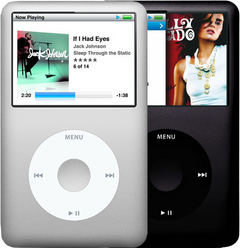
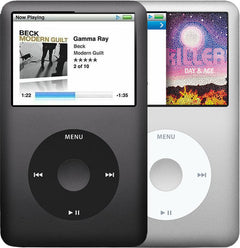
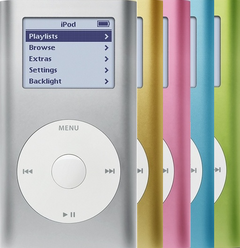

Flash Mod Service
installed by iMods
for the iPod 3rd Gen A1040
- Mail-in service
- Typically 1–3 business days on our bench
- 1-year limited warranty
iPod 3G — Flash Mod Service (installed by iMods)
New · Model A1040
$139.90
Sold out
Not for sale right now
We are not selling this part at the moment.
- Condition: new flash storage, fitted and tested by us
- 1-year limited warranty · 30-day returns from delivery
- Free pry tool in the box
- Completed repairs aren't refundable. If a part we fitted fails within a year, we repair it again.
Questions about this flash mod? Chat with us or email sales@imods.com.
Not sure what's wrong? Get your free repair quoteService details
About this service
Overview
We replace the hard drive in your iPod 3rd Gen with flash storage and can fit a new battery at the same time: nothing left to click, stall or seize, a lighter iPod, and longer play on a charge. Mail it in; we fit it, restore it, test it and send it back.
At a glance
Satisfaction guaranteed.
Your iPod 3rd Gen, flash-modded
A flash mod takes out your iPod 3rd Gen’s hard drive and puts flash storage in its place: a memory card on a flash adapter. People also search for it as an SD card mod or an SSD upgrade. It ends hard-drive failures: there is no mechanical drive left to click, stall or seize. The iPod gets lighter and plays longer on a charge. You choose 128GB or 256GB.
Mail us your iPod and we do the rest: we fit the flash storage in the size you choose, add a new battery if you want one, restore Apple’s software, test it, and send it back with a 1-year limited warranty. It typically takes 1–3 business days on our bench.
Rather buy one built for you? Every refurbished iPod 3rd Gen we sell can be ordered with flash storage: see them all.
What a flash mod fixes
If your iPod 3rd Gen’s hard drive is failing, now is the ideal time for a flash upgrade. When the hard drive is the cause, a flash mod fixes the problems below, because the part that fails is the part we take out.
- A sad face on the screen.
- A folder icon that keeps coming back.
- Clicking or grinding from inside.
- Freezing or skipping songs.
- Stuck on the Apple logo, or it keeps turning itself off.
- It won’t restore.
- It doesn’t show up on the computer, or a sync stops partway.
Not sure it’s the hard drive? Our free diagnostic tells you, with no obligation.
Why flash
No more hard-drive failures
Flash storage has no heads, platters or motor, so the clicking, stalling and seizing that end an old hard drive can’t happen. The hard drives in full-size iPods were rated for five years; the newest are now about 12 years old, the oldest over 20.
Longer battery life
Your iPod spins its hard drive up again and again to load more music, and a spinning drive draws two to three times the power of a memory card. With flash, your iPod plays longer on a charge.
Up to 256GB of room
Far more room than the original 10GB to 40GB drive: 128GB or 256GB.
No spin-up wait
A hard drive has to spin up before it can load your next songs. Flash storage is ready in a split second, so a new album starts without that wait.
Silent
No spinning, no clicking: flash storage makes no sound at all.
Lighter, with no drive to crash
A drop most often damages the hard drive, and a hard drive is most fragile while it spins. Flash storage has no heads or platters to crash, and with no hard drive inside, your iPod weighs less. The screen and case can still break in a fall.
Better for workouts
No spinning drive for a run, a ride or a bumpy commute to jolt. A hard drive is most easily hurt while it spins, and it spins up again and again to load more music.
Every card tested
We test every memory card before we fit it. Fake cards that claim more space than they have are common, and they lose music once they fill up.
Why keep your iPod? Apple no longer repairs these iPods. We do: Apple now repairs only the last two iPod touch models, and a flash mod from us keeps your iPod playing, instead of in a drawer or a landfill. If it stopped working because its hard drive failed, a flash mod brings it back. And it plays your own music, offline: no subscription, no algorithms, no notifications.
What’s included
The price includes the flash adapter, the memory card, fitting, restore and test. Not included: moving the songs from your old hard drive (back up your library first, or add our $149 music transfer), and repairs to any other part of the iPod. Shipping: choose “We Fix It + box” and we send you our protective box, a bubble mailer and a prepaid USPS label, or choose “We Fix It” and pack it yourself in any sturdy box.
How it works
- Order online. Choose the size and the battery above. Pick “We Fix It + box” if you would like our shipping box and prepaid label.
- Mail your iPod. Two things go in the box: your iPod and your work order. No cables, cases or docks. No printer? Put a note in the box with your name, return address, email, order number and what is wrong with it, if anything. Mailing instructions
- We fit and test it. Flash storage in, a new battery if you chose one, Apple’s software restored, then tested: it plays, charges and syncs. Typically 1–3 business days on our bench.
- It comes back to you. Shipped back with a 1-year limited warranty, satisfaction guaranteed.
Before you send it: your music
The flash storage replaces the hard drive, so the songs on it don’t carry over on their own. Sync or back up your library with iTunes or the Finder before you send the iPod, or add our music transfer. If the iPod still shows up on your computer, copy off anything you want to keep: here is how to copy music from an iPod to a computer. If the iPod was set up on a Mac, copy the music on a Mac: iTunes for Windows only recognizes iPods formatted on Windows. If it clicks or drops off the computer while you copy, stop and send it for our free diagnostic.
If it no longer shows up, contact us before you order: what we can do for the songs on a failing hard drive is case by case, and songs can’t always be recovered.
Music transfer, $149, with your flash mod. Tick “Add music transfer” when you order. If your old hard drive still shows up on our bench computer, we copy everything on it, your songs and playlists, onto the new flash storage, so your iPod comes back with its library on it. If the hard drive won’t read, we refund the $149. It adds 1–2 business days. When it comes back, sync it only with a library that has those songs: a sync makes the iPod match the computer. To put them in your library first, copy them off the iPod.
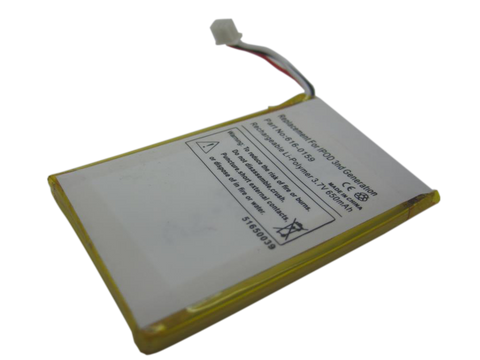
Add a new battery
We can fit a new battery while your iPod 3rd Gen is open: choose it under “Add a new battery” when you order. The new battery is 25% off with your flash mod.
Our new battery matches or slightly exceeds the iPod’s original capacity, and one battery fits both the thin and the thick 3rd Gen.
A swollen battery is worn out and no longer safe: stop charging it. On the 3rd Gen it rarely bulges the case, so a flat case doesn’t rule it out. You can still mail the iPod to us as normal.
Apple’s figures for a new iPod 3rd Gen: 8 hours of music, and about 3 hours for a full charge (about 1 hour to 80%). With flash, the iPod plays longer on a charge than it did with its hard drive. These iPods have no battery-health screen: a battery that runs out much sooner than Apple’s rating is most likely worn out.
Fit and specs
Which iPods this flash mod fits
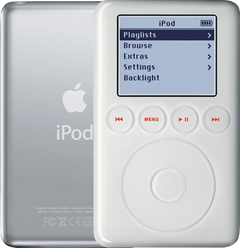
This flash mod is for every iPod 3rd Gen (model A1040 on the back, 2003), 10GB to 40GB, thin and thick. Not sure which iPod you have? Identify it by the model number on the back; if the back may have been replaced, Settings > About shows the model.
| Order number | Capacity | Color | Case |
|---|---|---|---|
| M8976LL/A | 10GB | White | Thin (0.62 in) |
| M8946LL/A | 15GB | White | Thin (0.62 in) |
| M9460LL/A | 15GB | White | Thin (0.62 in) |
| M9244LL/A | 20GB | White | Thin (0.62 in) |
| M8948LL/A | 30GB | White | Thick (0.73 in) |
| M9245LL/A | 40GB | White | Thick (0.73 in) |
Not this iPod? See every flash mod we fit.
Flash capacity and how many songs fit
We fit 128GB or 256GB in the iPod 3rd Gen.
The limit on how many songs fit is set by the iPod’s own memory and by how much your library stores about each song (titles, artwork), not by the size of the memory card. By the adapter maker’s rough figures, that is about 20,000 songs on the 3rd Gen.
A library too big for the iPod’s memory brings its own faults: sudden restarts, skips and crashes on big playlists, and sluggish menus. If that happens, put the iPod in Disk Mode and remove some songs.
Specifications
| Detail | This service |
|---|---|
| Service | Mail-in flash mod, fitted by us |
| For | iPod 3rd Gen, model A1040 |
| Flash sizes | 128GB or 256GB |
| What we fit | A flash adapter and a memory card, in place of the hard drive |
| Songs (approx.) | About 20,000 songs, by the adapter maker’s rough figures |
| Battery | Keep yours, or add a new battery |
| Software | Apple’s own iPod software, restored on the new storage |
| Turnaround | Typically 1–3 business days on our bench |
| Shipping box | Optional: our box, bubble mailer and prepaid label (“We Fix It + box”) |
| Warranty | 1-year limited warranty from the date of delivery |
How we fit it
How we install your flash mod
On our bench we open your iPod, take out the hard drive and fit the flash adapter and its memory card where the drive was, on the iPod’s own drive cable.
We fit the new battery if you chose one, restore Apple’s software on the new storage and test the iPod: it plays, charges and syncs. No soldering.
After your flash mod: syncing and restore tips
Your iPod comes back with Apple’s software already restored and tested, ready for your music. If it asks for your language when you turn it on, turn the wheel to yours and press the Center button: every iPod asks after a restore, a forced restart or a flat battery.
Connect it and sync: in the Finder on a Mac with macOS Catalina or later, or in iTunes on a Windows PC or an older Mac. On Windows 10 or 11, get iTunes from the Microsoft Store (or apple.com/itunes); on Windows 7 or 8, use iTunes 12.10.11. A Mac laptop with Apple silicon asks you to Allow the accessory, and a Mac with only USB-C ports needs a USB-C to USB adapter. If the iPod doesn’t appear in the Finder sidebar, turn on Finder > Settings > Sidebar > “CDs, DVDs, and iOS Devices”. Here is how to put music on an iPod.
While it is connected, a “Do not disconnect” screen is normal, not an error: eject the iPod before you unplug it. If you ever restore it yourself, copy off anything you want to keep first: a restore erases every song on it.
Charging: the 3rd Gen charges only from FireWire power, never over USB. Use a FireWire wall charger (Apple’s A1070 is the ideal choice) or a computer’s FireWire port, but not a 4-pin one. On USB alone a flat 3rd Gen can look dead even with a healthy battery, and a USB-powered dock or car adapter won’t charge it. If the battery is flat when it arrives, leave it on FireWire power while it starts up.
It syncs over USB or FireWire; on a Mac with macOS 26 or later, use USB, because FireWire isn’t supported there. If a restore you run yourself stops at a picture of a plug, connect it to FireWire power to let it finish.
Something not right? Our 1-year limited warranty covers our work: contact us.
Troubleshooting
Hard drive failure: how to tell
These checks help you tell whether the hard drive is the cause:
- A sad face is always hardware: the hard drive or its cable.
- A folder icon that keeps coming back, especially after a failed restore, most likely means the hard drive.
- Hold the iPod to your ear: unusual clicking patterns, like a “click, click, whir” or grinding, are a strong sign the hard drive is failing.
On the iPod 3rd Gen, a start-up screen with a disk, a magnifying glass and a progress bar is the iPod checking its own drive (15 to 20 minutes), not a freeze: leave it on power.
Diagnostic Mode gives a firmer answer: on the 3rd Gen its drive scan (HDD SCAN) reads the whole drive and takes about 20 minutes. If the iPod still shows up on a computer, copy your music off before you run it. Here is how to use Diagnostic Mode.
Not sure the drive is the only problem? Send it for our free diagnostic: we test it and email you a quote, with no obligation, and if you don’t like the quote, we ship it back at our expense.
Problems a flash mod won’t fix
A flash mod replaces the hard drive. It won’t fix a worn battery (add a new one when you order), a cracked or blank screen, the touch wheel or the buttons above it not responding, sound problems, or a damaged dock connector (the charging port). If one of those is part of the problem, start with our free diagnostic: we test the iPod and quote the whole repair, with no obligation.
Worth knowing
- Apple calls the 3rd Gen the iPod (Dock Connector).
- To reset it without losing your music, hold Menu and Play/Pause for at least 5 seconds; the click-wheel iPods use Menu and Center instead.
Questions
Frequently asked questions
How many songs fit?
About 20,000 songs on the 3rd Gen, by the adapter maker’s rough figures. The limit is the iPod’s own memory and how much your library stores about each song (titles, artwork), not the size of the memory card.
Want more room later?
We can fit a bigger card in the same flash mod, up to the largest size we offer for your iPod; ask us for a price.
Will the battery last longer?
Yes. Flash uses less power: a spinning drive draws two to three times the power of a memory card, so a flash build plays longer on a charge. How much longer depends on what you play: lossless files gain the most, while the screen light uses far more power whatever the storage. A worn battery still limits it: if yours runs out much sooner than Apple’s rating, add a new one when you order.
Does flash make syncing faster?
Not on a full-size iPod: its USB 2.0 or FireWire link and the flash adapter set the speed, so a sync runs at about the pace of the original drive or a little slower. Filling a big card the first time takes hours, and the biggest cards can take half a day or more.
Does playing music wear the card out?
Barely. Memory cards wear when data is written to them, and playing music only reads.
Does it work in the cold?
The hard drive in a full-size iPod is rated to run only above 5 °C (41 °F), and a cold drive may refuse to start. The memory card we fit is rated from -25 °C (-13 °F), so the cold no longer stops the storage. Apple still rates the iPod itself for 0 to 35 °C (32 to 95 °F), and play time can shorten in the cold.
Heading for the mountains?
Hard drives can fail in the thin air above about 10,000 feet, because their heads ride on a cushion of air. Flash storage has no drive heads, so thin air does not affect the storage. (Apple’s 10,000-foot rating for the iPod itself still applies.)
Can a flash mod still fail?
Flash ends hard-drive failures, not every fault: a memory card, the adapter or a cable can still fail. They are covered by our 1-year limited warranty.
What happens to my music?
The flash storage replaces the drive, so the music on it does not carry over on its own. Sync or back up your library with iTunes or the Finder before you send the iPod, or add our music transfer ($149) when you order: if your old drive still reads, we copy everything on it onto the new flash storage. If it won’t read, we refund the $149.
Does it work with my Mac or PC?
Yes. It syncs like any iPod: in the Finder on a Mac with macOS Catalina or later, or in iTunes on a Windows PC or an older Mac.
Do I need to restore it when it arrives?
No. We restore Apple’s software and test it before it ships: connect it and sync your music. With the music transfer, your library is already on it: sync it only with a library that has those songs.
How long does it take?
Typically 1–3 business days on our bench after your iPod arrives, then the trip back to you. The music transfer adds 1–2 business days.
What do I send you?
Your iPod and your work order (or a note with your name, return address, email, order number and what is wrong with it, if anything). Nothing else: no cables, cases or docks.
What does the warranty cover?
Parts and repairs carry a 1-year limited warranty from the date of delivery, covering the specific component we repaired or replaced. Completed repairs aren’t refundable; the warranty covers them.
Can I buy the flash adapter and card to fit myself?
No. The flash mod is a service: we fit it, restore Apple’s software, test it and cover it with our 1-year limited warranty.
Is the 3rd Gen an iPod classic?
Not by Apple’s name: Apple first used “iPod classic” for the 2007 models. Apple calls this one the iPod (Dock Connector), the third-generation iPod from 2003 (model A1040). Many people call every older full-size iPod a classic, so it is often searched that way too.
Free diagnostic
Broken iPod? We can help.
Mail us your iPod and we will test it and send you a free repair quote. If you don't like our price, we will ship your iPod back at our expense.
How mail-in repair works
Order the free diagnostic
Choose your iPod. Add our shipping box and prepaid label if you need one.
Mail us your iPod
Pack it with your work order. No printer? Put a note in the box with your name, return address, email, order number and what is wrong.
Approve your quote
We test it and email your free repair quote. Most repairs are finished within 1 to 3 business days after you approve the quote.