


iPod guide
iPod Classic 6th and 7th Generation guide
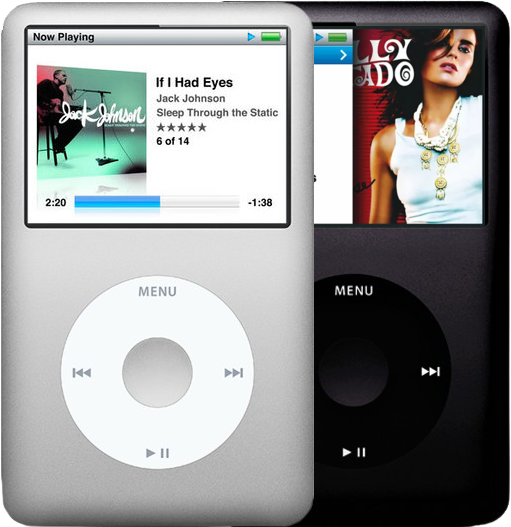
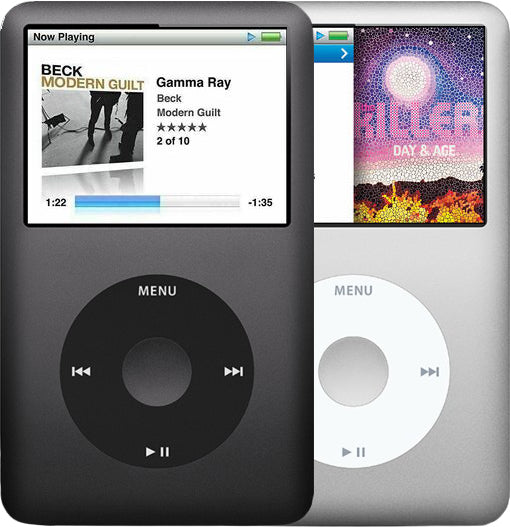
The iPod Classic 6th Gen (2007 to 2009) and 7th Gen (2009 to 2014) are click-wheel iPods with an anodized aluminum front on a polished steel back and an 80GB, 120GB or 160GB hard drive inside. Both read A1238 on the back, so capacity and case depth are what tell them apart. The hard drive and the battery draw the most questions from owners, well ahead of the screen, charging port, click wheel and headphone jack.
Shop iPod Classic 6th Gen partsShop iPod Classic 7th Gen partsGet a free repair quote
Which one do you have?
Every one of them reads A1238 on its back, so the model number won't decide it. Check the capacity first; on a 160GB, measure how deep the case is.
| Detail | iPod Classic 6th Gen | iPod Classic 7th Gen |
|---|---|---|
| Sold | Sep 2007 to Sep 2009 (80GB and 160GB until Sep 2008, then the 120GB) | Sep 2009 to Sep 2014 |
| Model number | A1238 | A1238 |
| Capacities | 80GB and 120GB (thin case); 160GB (thick case) | 160GB (thin case) |
| Order numbers | MB029LL/A silver, MB147LL/A black (80GB); MB562LL/A silver, MB565LL/A black (120GB); MB145LL/A silver, MB150LL/A black (160GB) | MC293LL/A (silver), MC297LL/A (black, with a dark gray front) |
| Case | Silver or black aluminum front (dark gray on the black 120GB), polished steel back; 4.1 by 2.4 in; 0.41 in (10.5 mm) deep, or 0.53 in (13.5 mm) on the 160GB; 4.9 to 5.7 oz | Silver or dark gray aluminum front, polished steel back; thin only: 0.41 in (10.5 mm) deep, 4.1 by 2.4 in (103.5 by 61.8 mm); 4.9 oz |
| How to tell | Any 80GB or 120GB, or a 160GB in the deeper 0.53 in case. (Within the 6th Gen, the 120GB has Genius in its menus; the 2007 models don't.) | A 160GB in the thin 0.41 in case. It is the only one of the two with Genius Mixes. |
A new back can carry the wrong engraving, and a new drive or flash storage reports its own capacity: on a repaired iPod, Settings > About names the model. Similar-looking iPod Video 5th Gen units have a plastic front and say A1136.
What goes wrong, and the sign that gives it away
-
The battery runs down fast or dies off the charger
The sign: Not opened lately, yet it dies soon after you unplug it, or a full charge is gone long before Apple's 30 to 40 hours of music.
These iPods can't show battery health, so playing time is your test. A tired battery can also leave the drive clicking and restarting as it spins up: if a full charge on a wall charger stops that, the battery is to blame. A new battery in the size that matches your case, thin or thick, fixes it.
Won't hold a chargeKeeps turning offWon't turn on"Please wait, very low battery"How to test the batteryiPod Classic 6th/7th Gen battery replacement guide
-
Swollen battery, or it gets hot
The sign: Swelling can show as dark pressure spots or marks on the picture, a screen lifting or bowing, or a case bulging near the top: the battery lies behind the display here, so it shows there, not on the click wheel. Heat: it gets hot while charging or playing, and again after it has cooled.
Unplug it and stop charging it; don't squeeze, bend or puncture it, and if it is very hot or smells, leave the battery in. A new battery fixes the swelling, but heat on its own is most often a logic board fault, above all with a rattle inside; a failing battery can do it too, and our free diagnostic tells which. A seam that gapes with no other sign is often bent metal tabs inside the back, not a swollen cell.
OverheatingWon't hold a chargeiPod Classic 6th/7th Gen battery replacement guide
-
Won't charge, or a computer can't find it
The sign: Another cable and charger change nothing, and a look into the charging port at the bottom shows corrosion, dirt or bent pins.
There is no port sold on its own: it is built into the logic board, so we swap in an original board made by Apple instead of soldering a new port on (the plastic bezel around it is just trim). If the port looks clean and a new battery still won't charge it, the likely fault is the board's charging circuit, with the same fix. If it charges but a computer still can't see it, change the USB port and the cable, then check the hard drive (below), which can hide it too.
Won't chargeNot showing up in iTunesWon't synciPod Classic 6th/7th Gen logic board replacement guide
-
Clicking noises, the red X or the folder icon
The sign: On a fully charged iPod (top it up on a wall charger first), hold it to your ear: a click-click-whir, grinding or a high squeak strongly suggests a failing hard drive. A red X (these models never show the sad face) almost always points to the drive as well, and so does a folder icon that keeps returning.
The drives were rated for about five years and the newest are now around 12 years old, and a drop most often harms the drive, above all while it spins; don't hit the iPod to wake it. If there was no clicking before the red X or folder and the iPod was opened lately, check the drive cable and its latch first. A new drive or a flash mod (which ends hard drive failures) starts out blank, so copy your music off while a computer still sees the iPod.
Clicking noiseRed X iconFolder iconStuck on the Apple logoStuck in Disk ModeNot showing up in iTunesiPod Classic 6th/7th Gen hard drive replacement guide
-
Frozen or stuck on the Apple logo
The sign: No clicking and no red X, and a reset, which keeps your songs, clears it: switch Hold on, then off, and keep Menu and Center pressed until the Apple logo appears.
If it keeps coming back, a restore is next, and it erases everything, songs included: copy your music to a computer first if one still sees the iPod. Restore errors can come from the connection, so plug straight into the computer with a different cable; the Won't restore page also covers DFU mode. A restore that fails, or a fault that returns after one, points to the hard drive.
-
The screen is dark but the iPod still plays
The sign: Music plays or the computer sees it, yet the screen stays dark. Shine a flashlight at it: a faintly visible menu means the backlight is gone; a blank screen means the screen or its cable.
Because the backlight comes built into the screen, a failed light and a failed screen both call for a new screen. After a drop or a repair, a screen cable that has slipped from its connector does the same; reseating it needs no new part, though the iPod has to be opened (a broken latch on the board's screen connector means a new logic board). If a second, working screen behaves the same way, look at the logic board.
Black screenBacklight not workingiPod Classic 6th/7th Gen screen replacement guide
-
Lines, spots or a white screen
The sign: Lines, dead dots or inky blotches that never move, on a screen that sits flat in a case with no bulge, point to the LCD itself; lines that change as you press on the case most likely mean a loose or faulty screen cable. Not sure whether it is the battery or the screen? Unplug it and let our free diagnostic tell which.
A damaged LCD needs a new screen, and inky blotches can grow over time. A white picture with the light on and no damage you can see can be that cable too; on a 6th Gen that just had a new screen, it may be a 7th Gen screen fitted by mistake, which gives nothing but white there, while a 6th Gen screen suits both models.
Lines on the screenWhite screenBroken screeniPod Classic 6th/7th Gen screen replacement guide
-
Cracked or scratched window
The sign: The picture under the crack is fine: the clear window belongs to the faceplate, not the screen.
A new faceplate cures a window that is cracked or badly scratched, and every faceplate suits every 6th and 7th Gen; light scuffs often polish out.
Broken or cracked screenScratchesiPod Classic 6th/7th Gen front panel and metal frame replacement guide
-
Scratched or dented back
The sign: The marks are in the polished steel back only; the front and the picture are fine.
Polished steel picks up marks and dents easily. A new back has to be the same depth as your case, thin or thick, and comes as the bare shell: the battery, headphone jack and dock bezel move across, unless you pick a standard engraved back (not a custom one) and add the option that has the jack and battery already in.
ScratchesiPod Classic 6th/7th Gen back panel and dock bezel replacement guide
-
The click wheel or buttons don't respond
The sign: The whole wheel, or any of Menu, Next, Previous and Play/Pause, stops responding or comes and goes, with no lock icon showing.
Most of the time a new click wheel sorts it out, and the same wheel suits every 6th and 7th Gen; an iPod Video 5th Gen wheel looks nearly the same and will even plug in, but it is thicker and won't work here. If someone has had it open, make sure the wheel's ribbon is pushed right in and its latch is shut. If a new wheel changes nothing, look at the logic board.
Click wheel not workingButtons not workingiPod Classic 6th/7th Gen click wheel and center button replacement guide
-
Only the center button fails
The sign: The wheel and the other four buttons work; only a press in the middle does nothing.
On these models the center switch is built into the board and the button is only a cap, so a new cap won't help and a new wheel usually doesn't either. If it stopped right after the iPod was opened, first seat the click wheel ribbon all the way and shut its latch; otherwise the likely fix is a logic board. A center button that physically sticks is a separate, rare fault: it has usually shifted out of line and can be realigned.
Center button not workingiPod Classic 6th/7th Gen logic board replacement guide
-
Sound cuts out, one ear only, or stuck on Hold
The sign: Wiggle the plug during a song: crackling, dropouts or pauses with any headphones mean a worn jack. A lock icon that won't clear with Hold off is the Hold switch.
Jack and Hold switch come as one part, so a single replacement covers both. Silence from a speaker dock too, or after a new jack, points to the logic board. When it plays on headphones but not in one car or dock, check that the accessory is made for your model.
Headphone jack not workingOnly plays in one earStatic or cracklingNo soundHold switch not workingCar or dock troubleiPod Classic 6th/7th Gen headphone jack and Hold switch replacement guide
-
Nothing at all, even on the charger
The sign: No sign of life after 30 minutes on a charger. A rattle when you tilt it, or heat or a smell, points the same way.
Unplug it straight away if it feels hot or smells odd. Beeping as it starts up (when it isn't Diagnostic Mode or an alarm), or shutting off with a good battery and drive, also points to the board. We replace it with an original board made by Apple: the 2007 and Late 2008 boards are interchangeable, and a 7th Gen needs a 7th Gen board.
Won't turn onOverheatingDroppedKeeps turning offiPod Classic 6th/7th Gen logic board replacement guide
-
It got wet
The sign: Shine a light down the headphone jack: if the small dot at the bottom, white when dry, now looks red or pink, liquid got in.
Water can kill the battery, leaving one that won't charge or won't keep a charge, and it corrodes the charging port and the board's connectors. The fix is a new battery, a logic board or both, and the free diagnostic tells you which.
Got wetiPod Classic 6th/7th Gen logic board replacement guide
-
It stopped working after a repair
The sign: The trouble began right after the iPod was opened, whatever the symptom.
The first suspect is a connector you touched that isn't fully seated, or a latch left open, so open it again and press each one home. If the battery's connector tore away from the board, a new logic board is the fix, and a brand-new part can itself be faulty. If it gets very hot after a repair, keep it closed, unplug it and contact us.
Not working after a repairHow to open an iPod Classic 6th/7th Gen guide
Repair guides
- iPod Classic 6th/7th Gen battery replacementVery difficult · 30 minutes to 2 hours · 13 steps
- iPod Classic 6th/7th Gen hard drive replacementVery difficult · 11 steps
- iPod Classic 6th/7th Gen headphone jack and Hold switch replacementVery difficult · 45 minutes to 2 hours · 13 steps
- iPod Classic 6th/7th Gen screen replacementVery difficult · 30 minutes to 1 hour · 14 steps
- iPod Classic 6th/7th Gen click wheel and center button replacementVery difficult · 30 minutes to 1 hour · 15 steps
- iPod Classic 6th/7th Gen logic board replacementVery difficult · 1 to 2 hours · 17 steps
- iPod Classic 6th/7th Gen back panel and dock bezel replacementVery difficult · 12 steps
- iPod Classic 6th/7th Gen front panel and metal frame replacementVery difficult · 13 steps
- How to open an iPod Classic 6th/7th GenVery difficult · 20 to 30 minutes the first time, plus closing · 12 steps
Parts and prices
-
BatteryThin for the 80GB, 120GB and 7th Gen; thick only for the 2007 160GB.
-
Hard driveArrives blank, so the music doesn't carry over. Thick and thin drives don't swap, and the 7th Gen drive runs only on the 7th Gen board.
-
Hard drive cableRead the number on your old cable first; the thick cable is only for the original thick 160GB drive.
-
Screen (backlight included)The 6th Gen screen works in both; the 7th Gen screen only in a 7th Gen.
-
Click wheelOne wheel fits every 6th and 7th Gen, thin or thick; the center cap is sold apart.
-
Center buttonA cap only: it won't fix a center press that doesn't register.
-
Headphone jack and Hold switchThin for the 80GB, 120GB and 7th Gen; thick only for the 2007 160GB.
-
Logic board (charging port included)6th Gen: the 2007 board (80GB, thick 160GB) and the Late 2008 board (120GB) swap with each other.
-
Faceplate (clear window included)Any faceplate fits any 6th or 7th Gen, thin or thick.
-
BackplateMatch your case depth, thin or thick.
Every part comes as "You fix it" (part only) or "We fix it" (we install it). Prices are today's.
Upgrades
Flash mod service
We remove the hard drive and put flash storage in its place, so a hard-drive failure can't happen again (a cable, the adapter or the memory card can still fail, and those parts fall within the 1-year limited warranty); it is silent, draws less power so the iPod plays longer, and weighs less. The 6th Gen takes 128GB, a limit set by Apple's software, so a thick 160GB ends up with a little less room; the 7th Gen takes 128GB up to 1TB. We fit it ourselves, never as a kit, and only a flash build can take the 2000mAh extended-life battery, which we fit only with this service.
iPod Classic 6th GenFrom $149.90iPod Classic 7th GenFrom $149.90
Questions
When did the iPod Classic 6th and 7th Gen come out?
The first two, an 80GB and a thick 160GB, came out on September 5, 2007. The thin 120GB replaced both on September 9, 2008, and the thin 160GB, the 7th Gen, took over from the 120GB on September 9, 2009. Apple stopped selling it on September 9, 2014. It was the last click-wheel iPod.
What is the difference between the 6th and 7th Gen?
The 7th Gen is a 160GB in the thin case, with a single-platter drive and Genius Mixes; the 6th Gen is every 80GB and 120GB, plus the thick 160GB. The 120GB and the 7th Gen work with earphones that have an inline remote, while on the 2007 models the music plays but the remote does nothing. Inside, the 7th Gen's drive runs only on a 7th Gen logic board, and it takes flash storage up to 1TB, where the 6th Gen stops at 128GB.
Is the 120GB a 6th or a 7th Gen?
A 6th Gen. The thin 120GB from September 2008 is sometimes called the 6.5 Gen, but it is 6th Gen hardware: it takes the thin battery and the 6th Gen screen. Only the thin 160GB from 2009 is a 7th Gen.
What iPod is model A1238?
A1238 is on the back of every iPod Classic 6th and 7th Gen, so it tells you it is a 6th or 7th Gen, but not which. An 80GB or 120GB is a 6th Gen; a 160GB is a 6th Gen if the case is 0.53 in deep and a 7th Gen if it is 0.41 in. If the back has been swapped, Settings > About on the iPod gives the model.
Do parts swap between the 6th and 7th Gen?
Many do. The click wheel, center cap and faceplate fit every model, and a 7th Gen accepts a 6th Gen screen, though not the reverse. Batteries, headphone jacks, drive cables and backs come in two depths: the thin ones fit the 80GB, 120GB and 7th Gen alike, the thick ones only the 2007 160GB, and the depths don't swap. Thin 80GB and 120GB drives fit any thin model, but the 7th Gen's own drive runs only on a 7th Gen logic board.
Will I lose my music in a repair?
Your songs sit on the hard drive, so only a drive or flash storage repair removes them; a battery, screen or wheel repair leaves them alone. A restore wipes everything on it, songs included: save your music to a computer first while one still lists the iPod. With a flash mod, we can copy the music across for you as an add-on, if the old drive still reads.
Is a 6th or 7th Gen worth repairing?
Apple doesn't repair these models any more, but we do. Our free diagnostic answers it: we check the iPod over and send you a quote by email; you are under no obligation, and if you turn the quote down, we send it back at our expense. Our limited warranty covers parts and work for one year.
Does a bigger battery or hard drive fit?
A bigger battery won't fit beside the hard drive: there is room for the standard one only. In the thin case, an 80GB can move up to the 120GB drive and no further; the thick 160GB drive needs the thick case and its parts, a 6th Gen conversion we do, so contact us before ordering. Once flash storage replaces the drive, the 2000mAh extended-life battery fits, and we fit it only as part of our flash mod service.