
Accidents & repairs
iPod flash mod problems
Flash upgrade (SD, CF or SSD) not recognized, not restoring, or showing no music? Pick what happens and your model to see the checks and the likely fixes.
What exactly happens?
Which iPod do you have?
Most common causes, by model
A brand new flash drive must be restored when it is first installed: restore it in iTunes or the Finder, then sync your music. If the computer doesn't see it at all, check that the cable is fully in and every latch is closed, that the card or adapter isn't upside down, and that the card sits fully in its adapter; if all of that is right, the logic board may be at fault.
Free checks first
- Restore it: use Finder on a Mac with macOS Catalina or later, or iTunes on an older Mac or a PC. Connect the iPod straight to the computer, find it, then choose Restore iPod. A restore erases all songs on the iPod.
- The 6th Gen takes 128GB of flash storage, the most Apple's software sees on it.
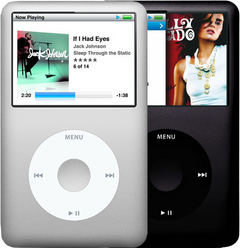
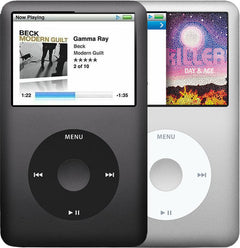
iPod Classic (A1238) flash mod problemsiPod Classic 6th Gen (A1238) flash mod problemsiPod Classic 7th Gen (A1238) flash mod problems
-
Most likely
Brand new hard drive or flash drive not restored yet
A brand new hard drive or flash drive must be restored when it is first installed. Until then the iPod can sit in Disk Mode, not sync or say "No music", and a blank new drive is likely to show a folder icon or similar. Restore the iPod with iTunes or the Finder, then sync your music to it.
Free check first Connect it to the computer, then choose Restore iPod in iTunes or the Finder.
-
Next most likely
Hard drive cable not fully in, or a latch left open
After the iPod has been opened, a hard drive cable that isn't pushed fully in, or a drive or cable latch left open, stops the drive from working.
Free check first Open it again, push the hard drive cable fully in and close every latch.
-
Also possible
Hard drive cable that does not work with flash adapters
iPod Classic 6th Gen only
The 6th Gen uses two hard drive cables, one for the 80GB (thin) drive and one for the 160GB (thick) drive, and they do not swap. The 160GB cable does not work with flash adapters; the 80GB cable does.
Free check first Check which cable is in: a flash adapter needs the 80GB (thin) cable.
-
Also possible
Drive or flash adapter installed upside down
A hard drive or flash adapter fitted the wrong way round isn't recognized.
Free check first Check that it sits the right way round in its connector.
-
Also possible
Memory card not fully in, or not supported
A memory card that isn't pushed fully into its adapter, or one the adapter doesn't support, isn't recognized. Push it fully in; if that doesn't help, try another card.
Free check first Check that the card sits fully in its adapter.
-
Also possible
Fake or faulty memory card
Loses its music or needs restoring again after a big sync? Most often a fake or faulty memory card. We test every memory card before we fit it. Missing or garbled characters in Diagnostic Mode's drive details point to the hard drive cable.
Flash Mod Service (installed by iMods)
Replaces the hard drive with flash memory: silent, no moving parts
Flash Mod Service (installed by iMods)
Replaces the hard drive with flash memory: silent, no moving parts
Step-by-step guide iPod Classic 6th/7th Gen hard drive replacement (11 steps)
-
Also possible
Logic board
If the drive, its cable and the latches are all right and the computer still doesn't see the iPod, the logic board may be at fault. We fix it by replacing the logic board.
Replacement Logic Board
-
Also possible
Library too big for the iPod's memory
A library too big for the iPod's memory brings its own faults: sudden restarts, skips and crashes on big playlists, and sluggish menus.
Free check first Put it in Disk Mode, connect it and remove some songs.
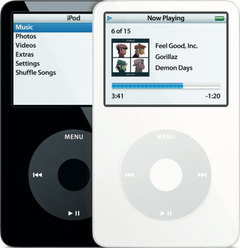
iPod Video (A1136) flash mod problemsiPod Video 5th Gen (A1136) flash mod problems
-
Most likely
Brand new hard drive or flash drive not restored yet
A brand new hard drive or flash drive must be restored when it is first installed. Until then the iPod can sit in Disk Mode, not sync or say "No music". Restore the iPod with iTunes or the Finder, then sync your music to it.
Free check first Connect it to the computer, then choose Restore iPod in iTunes or the Finder.
-
Next most likely
Hard drive cable not fully in, or a latch left open
After the iPod has been opened, a hard drive cable that isn't pushed fully in, or a drive or cable latch left open, stops the drive from working.
Free check first Open it again, push the hard drive cable fully in and close every latch.
-
Also possible
Hard drive cable that does not work with flash adapters
The iPod Video uses two hard drive cables, Toshiba and Hitachi, and they do not swap. The rarer Hitachi cable does not work with flash adapters; the Toshiba cable does.
Free check first Check which cable is in: a flash adapter needs the Toshiba cable.
-
Also possible
Drive or flash adapter installed upside down
A hard drive or flash adapter fitted the wrong way round isn't recognized.
Free check first Check that it sits the right way round in its connector.
-
Also possible
Memory card not fully in, or not supported
A memory card that isn't pushed fully into its adapter, or one the adapter doesn't support, isn't recognized. Push it fully in; if that doesn't help, try another card.
Free check first Check that the card sits fully in its adapter.
-
Also possible
Fake or faulty memory card
Loses its music or needs restoring again after a big sync? Most often a fake or faulty memory card. We test every memory card before we fit it. Missing or garbled characters in Diagnostic Mode's drive details point to the hard drive cable.
Flash Mod Service (installed by iMods)
Replaces the hard drive with flash memory: silent, no moving parts
Step-by-step guide iPod Video 5th Gen hard drive replacement (14 steps)
-
Also possible
Logic board
If the drive, its cable and the latches are all right and the computer still doesn't see the iPod, the logic board may be at fault. We fix it by replacing the logic board.
Replacement Logic Board
30GB 5G · 30GB 5.5G Enhanced · 60GB 5G · 80GB 5.5G Enhanced
-
Also possible
Library too big for the iPod's memory
A library too big for the iPod's memory brings its own faults: sudden restarts, skips and crashes on big playlists, sluggish menus, and an Apple logo that stays lit.
Free check first Put it in Disk Mode, connect it and remove some songs.
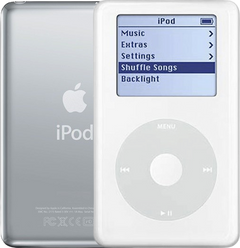
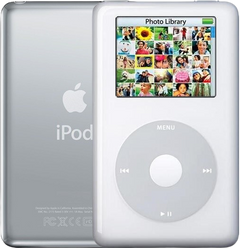
iPod 4th Gen or iPod Photo (A1059 and A1099) flash mod problemsiPod 4th Gen (A1059) flash mod problemsiPod Photo (A1099) flash mod problems
-
Most likely
Brand new hard drive or flash drive not restored yet
A brand new hard drive or flash drive must be restored when it is first installed. Until then the iPod can sit in Disk Mode, not sync or say "No music". Restore the iPod with iTunes or the Finder, then sync your music to it.
Free check first Connect it to the computer, then choose Restore iPod in iTunes or the Finder. On the 4th Gen and iPod Photo the restore can stop at a picture of a plug: connect it to a wall charger to finish. Generic or incompatible wall chargers don't always give the iPod the right voltage: Apple's A1070 wall charger works with every model and is the ideal choice.
-
Next most likely
Hard drive cable not fully in, or a latch left open
After the iPod has been opened, a hard drive cable that isn't pushed fully in, or a drive or cable latch left open, stops the drive from working.
Free check first Open it again, push the hard drive cable fully in and close every latch.
-
Also possible
Drive or flash adapter installed upside down
A hard drive or flash adapter fitted the wrong way round isn't recognized.
Free check first Check that it sits the right way round in its connector.
-
Also possible
Memory card not fully in, or not supported
A memory card that isn't pushed fully into its adapter, or one the adapter doesn't support, isn't recognized. Push it fully in; if that doesn't help, try another card.
Free check first Check that the card sits fully in its adapter.
-
Also possible
Fake or faulty memory card
Loses its music or needs restoring again after a big sync? Most often a fake or faulty memory card. We test every memory card before we fit it. Missing or garbled characters in Diagnostic Mode's drive details point to the hard drive cable.
Flash Mod Service (installed by iMods)
Replaces the hard drive with flash memory: silent, no moving parts
Flash Mod Service (installed by iMods)
Replaces the hard drive with flash memory: silent, no moving parts
Step-by-step guide iPod 4th Gen and iPod Photo hard drive replacement (12 steps)
-
Also possible
Logic board
If the drive, its cable and the latches are all right and the computer still doesn't see the iPod, the logic board may be at fault. We fix it by replacing the logic board.
Replacement Logic Board
Replacement Logic Board
Late 2004 to early 2005 · Mid-2005
-
Also possible
Library too big for the iPod's memory
A library too big for the iPod's memory brings its own faults: sudden restarts, skips and crashes on big playlists, and sluggish menus.
Free check first Put it in Disk Mode, connect it and remove some songs.
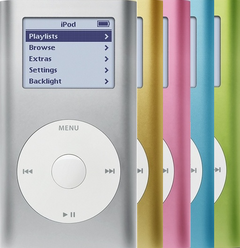
iPod Mini (A1051) flash mod problemsiPod Mini 1st Gen (A1051) flash mod problemsiPod Mini 2nd Gen (A1051) flash mod problems
-
Most likely
Brand new hard drive or flash drive not restored yet
A brand new hard drive or flash drive must be restored when it is first installed. Until then the iPod can sit in Disk Mode, not sync or say "No music". Restore the iPod with iTunes or the Finder, then sync your music to it.
Free check first Connect it to the computer, then choose Restore iPod in iTunes or the Finder. On the Mini 1st Gen the restore can stop at a picture of a plug: connect it to a wall charger to finish. Generic or incompatible wall chargers don't always give the iPod the right voltage: Apple's A1070 wall charger works with every model and is the ideal choice.
-
Next most likely
Hard drive cable not fully in, or a latch left open
After the iPod has been opened, a hard drive cable that isn't pushed fully in, or a drive or cable latch left open, stops the drive from working.
Free check first Open it again, push the hard drive cable fully in and close every latch.
-
Also possible
Microdrive or flash adapter installed upside down
A microdrive or flash adapter fitted the wrong way round isn't recognized.
Free check first Check that it sits the right way round in its connector.
-
Also possible
Memory card not fully in, or not supported
A memory card that isn't pushed fully into its adapter, or one the adapter doesn't support, isn't recognized. Push it fully in; if that doesn't help, try another card.
Free check first Check that the card sits fully in its adapter.
-
Also possible
Fake or faulty memory card
Loses its music or needs restoring again after a big sync? Most often a fake or faulty memory card. We test every memory card before we fit it. Missing or garbled characters in Diagnostic Mode's drive details point to the hard drive cable.
Flash Mod Service (installed by iMods)
Replaces the hard drive with flash memory: silent, no moving parts
Flash Mod Service (installed by iMods)
Replaces the hard drive with flash memory: silent, no moving parts
Step-by-step guide iPod Mini 1st/2nd Gen hard drive (Microdrive) replacement (13 steps)
-
Also possible
Logic board
If the drive, its cable and the latches are all right and the computer still doesn't see the iPod, the logic board may be at fault. We fix it by replacing the logic board.
Replacement Logic Board
Replacement Logic Board
-
Also possible
Library too big for the iPod's memory
A library too big for the iPod's memory brings its own faults: sudden restarts, skips and crashes on big playlists, and sluggish menus.
Free check first Put it in Disk Mode, connect it and remove some songs.
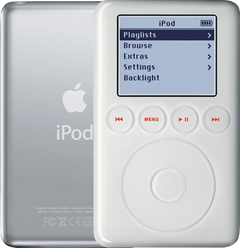
iPod 3rd Gen (A1040) flash mod problemsiPod 3rd Gen (A1040) flash mod problems
-
Most likely
Brand new hard drive or flash drive not restored yet
A brand new hard drive or flash drive must be restored when it is first installed. Until then the iPod can sit in Disk Mode, not sync or say "No music". Restore the iPod with iTunes or the Finder, then sync your music to it.
Free check first Connect it to the computer, then choose Restore iPod in iTunes or the Finder. On the 3rd Gen the restore can stop at a picture of a plug: connect it to its FireWire wall charger to finish. Generic or incompatible wall chargers don't always give the iPod the right voltage: Apple's A1070 wall charger works with every model and is the ideal choice.
-
Next most likely
Hard drive cable not fully in, or a latch left open
After the iPod has been opened, a hard drive cable that isn't pushed fully in, or a drive or cable latch left open, stops the drive from working.
Free check first Open it again, push the hard drive cable fully in and close every latch.
-
Also possible
Drive or flash adapter installed upside down
A hard drive or flash adapter fitted the wrong way round isn't recognized.
Free check first Check that it sits the right way round in its connector.
-
Also possible
Memory card not fully in, or not supported
A memory card that isn't pushed fully into its adapter, or one the adapter doesn't support, isn't recognized. Push it fully in; if that doesn't help, try another card.
Free check first Check that the card sits fully in its adapter.
-
Also possible
Fake or faulty memory card
Loses its music or needs restoring again after a big sync? Most often a fake or faulty memory card. We test every memory card before we fit it. Missing or garbled characters in Diagnostic Mode's drive details point to the hard drive cable.
Flash Mod Service (installed by iMods)
Replaces the hard drive with flash memory: silent, no moving parts
Step-by-step guide iPod 3rd Gen hard drive replacement (14 steps)
-
Also possible
Logic board
If the drive, its cable and the latches are all right and the computer still doesn't see the iPod, the logic board may be at fault. We fix it by replacing the logic board.
Replacement Logic Board
-
Also possible
Library too big for the iPod's memory
A library too big for the iPod's memory brings its own faults: sudden restarts, skips and crashes on big playlists, and sluggish menus.
Free check first Put it in Disk Mode, connect it and remove some songs.
Upgrade to SD card not working
The iPod is not recognized, or will not restore, after an SD card upgrade.
See iPod not showing up in iTunes
Free checks first
- Restore error right after a flash install? Check the card and the adapter first: the card pushed fully in, another card, and the adapter not upside down. Then check the hard drive cable and its latch.
iPod Classic 6th and 7th GeniPod Classic 6th GeniPod Classic 7th Gen
-
Most likely
Brand new hard drive or flash drive not restored yet
A brand new hard drive or flash drive must be restored when it is first installed. Until then the iPod can sit in Disk Mode, not sync or say "No music", and a blank new drive is likely to show a folder icon or similar. Restore the iPod with iTunes or the Finder, then sync your music to it.
Free check first Connect it to the computer, then choose Restore iPod in iTunes or the Finder.
-
Next most likely
Hard drive cable not fully in, or a latch left open
After the iPod has been opened, a hard drive cable that isn't pushed fully in, or a drive or cable latch left open, stops the drive from working.
Free check first Open it again, push the hard drive cable fully in and close every latch.
-
Also possible
Hard drive cable that does not work with flash adapters
iPod Classic 6th Gen only
The 6th Gen uses two hard drive cables, one for the 80GB (thin) drive and one for the 160GB (thick) drive, and they do not swap. The 160GB cable does not work with flash adapters; the 80GB cable does.
Free check first Check which cable is in: a flash adapter needs the 80GB (thin) cable.
-
Also possible
Drive or flash adapter installed upside down
A hard drive or flash adapter fitted the wrong way round isn't recognized.
Free check first Check that it sits the right way round in its connector.
-
Also possible
Memory card not fully in, or not supported
A memory card that isn't pushed fully into its adapter, or one the adapter doesn't support, isn't recognized. Push it fully in; if that doesn't help, try another card.
Free check first Check that the card sits fully in its adapter.
-
Also possible
Logic board
If the drive, its cable and the latches are all right and the computer still doesn't see the iPod, the logic board may be at fault. We fix it by replacing the logic board.
Replacement Logic Board
iPod Video 5th GeniPod Video 5th Gen
-
Most likely
Brand new hard drive or flash drive not restored yet
A brand new hard drive or flash drive must be restored when it is first installed. Until then the iPod can sit in Disk Mode, not sync or say "No music". Restore the iPod with iTunes or the Finder, then sync your music to it.
Free check first Connect it to the computer, then choose Restore iPod in iTunes or the Finder.
-
Next most likely
Hard drive cable not fully in, or a latch left open
After the iPod has been opened, a hard drive cable that isn't pushed fully in, or a drive or cable latch left open, stops the drive from working.
Free check first Open it again, push the hard drive cable fully in and close every latch.
-
Also possible
Hard drive cable that does not work with flash adapters
The iPod Video uses two hard drive cables, Toshiba and Hitachi, and they do not swap. The rarer Hitachi cable does not work with flash adapters; the Toshiba cable does.
Free check first Check which cable is in: a flash adapter needs the Toshiba cable.
-
Also possible
Drive or flash adapter installed upside down
A hard drive or flash adapter fitted the wrong way round isn't recognized.
Free check first Check that it sits the right way round in its connector.
-
Also possible
Memory card not fully in, or not supported
A memory card that isn't pushed fully into its adapter, or one the adapter doesn't support, isn't recognized. Push it fully in; if that doesn't help, try another card.
Free check first Check that the card sits fully in its adapter.
-
Also possible
Logic board
If the drive, its cable and the latches are all right and the computer still doesn't see the iPod, the logic board may be at fault. We fix it by replacing the logic board.
Replacement Logic Board
30GB 5G · 30GB 5.5G Enhanced · 60GB 5G · 80GB 5.5G Enhanced
iPod 4th Gen and iPod PhotoiPod 4th GeniPod Photo
-
Most likely
Brand new hard drive or flash drive not restored yet
A brand new hard drive or flash drive must be restored when it is first installed. Until then the iPod can sit in Disk Mode, not sync or say "No music". Restore the iPod with iTunes or the Finder, then sync your music to it.
Free check first Connect it to the computer, then choose Restore iPod in iTunes or the Finder. On the 4th Gen and iPod Photo the restore can stop at a picture of a plug: connect it to a wall charger to finish. Generic or incompatible wall chargers don't always give the iPod the right voltage: Apple's A1070 wall charger works with every model and is the ideal choice.
-
Next most likely
Hard drive cable not fully in, or a latch left open
After the iPod has been opened, a hard drive cable that isn't pushed fully in, or a drive or cable latch left open, stops the drive from working.
Free check first Open it again, push the hard drive cable fully in and close every latch.
-
Also possible
Drive or flash adapter installed upside down
A hard drive or flash adapter fitted the wrong way round isn't recognized.
Free check first Check that it sits the right way round in its connector.
-
Also possible
Memory card not fully in, or not supported
A memory card that isn't pushed fully into its adapter, or one the adapter doesn't support, isn't recognized. Push it fully in; if that doesn't help, try another card.
Free check first Check that the card sits fully in its adapter.
-
Also possible
Logic board
If the drive, its cable and the latches are all right and the computer still doesn't see the iPod, the logic board may be at fault. We fix it by replacing the logic board.
Replacement Logic Board
Replacement Logic Board
Late 2004 to early 2005 · Mid-2005
iPod Mini 1st and 2nd GeniPod Mini 1st GeniPod Mini 2nd Gen
-
Most likely
Brand new hard drive or flash drive not restored yet
A brand new hard drive or flash drive must be restored when it is first installed. Until then the iPod can sit in Disk Mode, not sync or say "No music". Restore the iPod with iTunes or the Finder, then sync your music to it.
Free check first Connect it to the computer, then choose Restore iPod in iTunes or the Finder. On the Mini 1st Gen the restore can stop at a picture of a plug: connect it to a wall charger to finish. Generic or incompatible wall chargers don't always give the iPod the right voltage: Apple's A1070 wall charger works with every model and is the ideal choice.
-
Next most likely
Hard drive cable not fully in, or a latch left open
After the iPod has been opened, a hard drive cable that isn't pushed fully in, or a drive or cable latch left open, stops the drive from working.
Free check first Open it again, push the hard drive cable fully in and close every latch.
-
Also possible
Microdrive or flash adapter installed upside down
A microdrive or flash adapter fitted the wrong way round isn't recognized.
Free check first Check that it sits the right way round in its connector.
-
Also possible
Memory card not fully in, or not supported
A memory card that isn't pushed fully into its adapter, or one the adapter doesn't support, isn't recognized. Push it fully in; if that doesn't help, try another card.
Free check first Check that the card sits fully in its adapter.
-
Also possible
Logic board
If the drive, its cable and the latches are all right and the computer still doesn't see the iPod, the logic board may be at fault. We fix it by replacing the logic board.
Replacement Logic Board
Replacement Logic Board
iPod 3rd GeniPod 3rd Gen
-
Most likely
Brand new hard drive or flash drive not restored yet
A brand new hard drive or flash drive must be restored when it is first installed. Until then the iPod can sit in Disk Mode, not sync or say "No music". Restore the iPod with iTunes or the Finder, then sync your music to it.
Free check first Connect it to the computer, then choose Restore iPod in iTunes or the Finder. On the 3rd Gen the restore can stop at a picture of a plug: connect it to its FireWire wall charger to finish. Generic or incompatible wall chargers don't always give the iPod the right voltage: Apple's A1070 wall charger works with every model and is the ideal choice.
-
Next most likely
Hard drive cable not fully in, or a latch left open
After the iPod has been opened, a hard drive cable that isn't pushed fully in, or a drive or cable latch left open, stops the drive from working.
Free check first Open it again, push the hard drive cable fully in and close every latch.
-
Also possible
Drive or flash adapter installed upside down
A hard drive or flash adapter fitted the wrong way round isn't recognized.
Free check first Check that it sits the right way round in its connector.
-
Also possible
Memory card not fully in, or not supported
A memory card that isn't pushed fully into its adapter, or one the adapter doesn't support, isn't recognized. Push it fully in; if that doesn't help, try another card.
Free check first Check that the card sits fully in its adapter.
-
Also possible
Logic board
If the drive, its cable and the latches are all right and the computer still doesn't see the iPod, the logic board may be at fault. We fix it by replacing the logic board.
Replacement Logic Board
Says no music but memory is full
After a flash upgrade it says No music, but the storage shows as full: restore it.
Free checks first
- Restore it: use Finder on a Mac with macOS Catalina or later, or iTunes on an older Mac or a PC. Connect the iPod straight to the computer, find it, then choose Restore iPod. A restore erases all songs on the iPod.
iPod Classic 6th and 7th GeniPod Classic 6th GeniPod Classic 7th Gen
-
Most likely
Brand new hard drive or flash drive not restored yet
A brand new hard drive or flash drive must be restored when it is first installed. Until then the iPod can sit in Disk Mode, not sync or say "No music", and a blank new drive is likely to show a folder icon or similar. Restore the iPod with iTunes or the Finder, then sync your music to it.
Free check first Connect it to the computer, then choose Restore iPod in iTunes or the Finder.
iPod Video 5th GeniPod Video 5th Gen
-
Most likely
Brand new hard drive or flash drive not restored yet
A brand new hard drive or flash drive must be restored when it is first installed. Until then the iPod can sit in Disk Mode, not sync or say "No music". Restore the iPod with iTunes or the Finder, then sync your music to it.
Free check first Connect it to the computer, then choose Restore iPod in iTunes or the Finder.
iPod 4th Gen and iPod PhotoiPod 4th GeniPod Photo
-
Most likely
Brand new hard drive or flash drive not restored yet
A brand new hard drive or flash drive must be restored when it is first installed. Until then the iPod can sit in Disk Mode, not sync or say "No music". Restore the iPod with iTunes or the Finder, then sync your music to it.
Free check first Connect it to the computer, then choose Restore iPod in iTunes or the Finder. On the 4th Gen and iPod Photo the restore can stop at a picture of a plug: connect it to a wall charger to finish. Generic or incompatible wall chargers don't always give the iPod the right voltage: Apple's A1070 wall charger works with every model and is the ideal choice.
iPod Mini 1st and 2nd GeniPod Mini 1st GeniPod Mini 2nd Gen
-
Most likely
Brand new hard drive or flash drive not restored yet
A brand new hard drive or flash drive must be restored when it is first installed. Until then the iPod can sit in Disk Mode, not sync or say "No music". Restore the iPod with iTunes or the Finder, then sync your music to it.
Free check first Connect it to the computer, then choose Restore iPod in iTunes or the Finder. On the Mini 1st Gen the restore can stop at a picture of a plug: connect it to a wall charger to finish. Generic or incompatible wall chargers don't always give the iPod the right voltage: Apple's A1070 wall charger works with every model and is the ideal choice.
iPod 3rd GeniPod 3rd Gen
-
Most likely
Brand new hard drive or flash drive not restored yet
A brand new hard drive or flash drive must be restored when it is first installed. Until then the iPod can sit in Disk Mode, not sync or say "No music". Restore the iPod with iTunes or the Finder, then sync your music to it.
Free check first Connect it to the computer, then choose Restore iPod in iTunes or the Finder. On the 3rd Gen the restore can stop at a picture of a plug: connect it to its FireWire wall charger to finish. Generic or incompatible wall chargers don't always give the iPod the right voltage: Apple's A1070 wall charger works with every model and is the ideal choice.
Not sure — free diagnostic
Mail us your iPod and we test it and send you a free repair quote. If you don't like the price, we ship it back at our expense.
Free
Which iPod do you have?
The page shows the causes for the iPod you pick.
Not sure which one? Identify your iPod