
Repair guide · iPod 4th Gen and iPod Photo
iPod 4th Gen and iPod Photo hard drive replacement
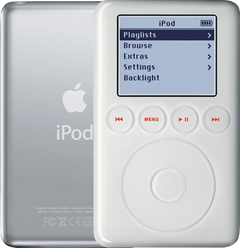
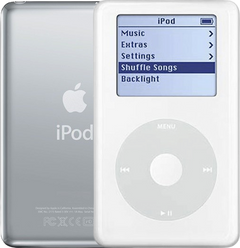
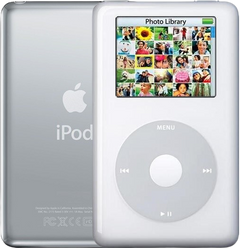
This guide covers the hard drive of the iPod 4th Gen (A1059, 20GB or 40GB) and the iPod Photo (A1099, 20GB to 60GB), and also its ribbon cable and the rubber bumpers that cushion it. The drive sits on top as soon as the case is open and unplugs at its own end; changing the cable also means freeing it at the logic board. Case depth decides the parts: thin cases take a 5 mm drive, thick cases an 8 mm one. A replacement drive doesn't carry your music and has to be restored, and a restore erases everything on the iPod, songs included. If your songs matter, we can often repair the original drive instead, and we also fit flash storage as a service.
Which drive, bumpers and cable fit: thin or thick?
Go by case depth, not only by the capacity on the back's engraving: a back swapped in the past can show the wrong one. Thin cases take a 5 mm drive and thick cases an 8 mm drive, all 1.8-inch Toshiba 50-pin drives. A thin back won't close over an 8 mm drive; forced, it presses on the drive stack and can mark or break the screen. Bumpers are depth-specific too and usually don't come with a replacement drive. The drive cable is one part, 632-0259-A, for every 4th Gen and iPod Photo. Not sure which you have? Identify your iPod
Before you start
- Copy your music off firstIf the iPod still shows up on a computer, copy off anything you want to keep. A replacement drive doesn't carry your music and must be restored, and a restore erases everything on the iPod, songs included. If the drive no longer shows up, we can often repair the original drive on these models and save the songs.
- Try the cable before the driveOn these iPods the drive cable is the first suspect for drive trouble. Clean its contacts with 99% isopropyl alcohol and reseat it before you buy a drive. Missing or garbled characters in the drive details of the diagnostic screen also point to the cable.
- Flash storage is a serviceWe also fit 128GB or 256GB flash storage in place of the drive, by mail. It is not a do-it-yourself step.
- Check for a swollen batteryA center button that sits low or feels jammed is the usual sign that the battery behind the wheel is swelling. If so, unplug the iPod, stop charging it and never press on, bend or pierce the battery. If the iPod is very hot or smells, don't open it: put it on a non-flammable surface away from anything that can burn, keep dry sand nearby, let it cool and contact us. If the battery smokes, sparks, hisses, pops or suddenly puffs up, cover it with all the sand at once, then get out of the room for half an hour and air it out. If it's still burning or you can't smother it, call the fire service. Don't touch the iPod until the half hour is up. If it is swollen, replace the battery first (our battery guide), then carry on with this repair.
- Set up the benchWork on a hard, non-flammable surface with a soft cloth on it, and keep a container of dry sand within reach.
- Ground yourselfWear an anti-static wrist strap, or at least touch bare metal first, and leave the replacement parts in their bags until you fit them.
Tools
- Plastic opening tools, one wide and one thinFor the case clips. Each of our drive parts comes with one plastic pry tool.
- Plastic spudgerFor the connector bar at the logic board and the battery plug.
- T6 Torx screwdriverOnly if the headphone ribbon has to be reseated at the jack board.
- 99% isopropyl alcoholTo clean the drive cable's contacts before you blame the drive.
- Anti-static wrist strap or matThe logic board is exposed while the drive is out.
- Soft clothFor the polished back, and to rest the drive on.
- Computer with iTunes or the Finder, and a wall chargerA replacement drive must be restored, which erases everything on the iPod, songs included. Apple's A1070 iPod power adapter is the ideal wall charger if the restore asks for power.
Step by step
New to opening this iPod? How to open the iPod 4th Gen and iPod Photo
-
Step 1: Unplug it, switch it off and lock Hold
Disconnect any cable, charger or computer first. Switch the iPod off by holding Play/Pause until the screen goes dark, then slide the Hold switch to locked, so its orange bar shows.
-
Step 2: Release the case clips
Our opening guide has the detail. In short: with the screen up and the dock connector toward you, start on the right-hand long side with the wide plastic tool, its edge tilted toward the steel back, and free the five tabs on that side. Then the two clips beside the dock connector (lightly past the thin steel there), the five tabs on the left-hand side, and the top edge.
-
Step 3: Turn it over, open the back, unplug two things
Holding the two halves together with your fingers, turn the iPod over so the screen faces the cloth, dock connector away from you; don't let the front drop away from the back. Lift the back along one long side like a book cover and lay it flat beside the front half, inside up; the orange headphone ribbon still links them, so never pull the back straight off; if it tightens as the back opens, stop and ease the back closer to the front. Ease the small white battery plug out of its socket on the logic board by its body, not the wires. Then lift the headphone ribbon's connector straight up off the board and set the back aside.
Yanking the back away before the headphone ribbon is free can tear its socket off the logic board.
-
Step 4: Lift the drive and unplug it
The drive lies on top in the front half. Raise it at the dock-connector end; its orange ribbon stays attached at the far end. Holding the drive, pull the ribbon's connector straight off the drive's pins, rocking it gently from side to side if it sticks. For a drive swap, the other end of the ribbon can stay plugged into the logic board.
Pull on the connector, never the ribbon, and take care not to bend the drive's pins.
-
Step 5: Changing the cable? Free it at the board
Peel back the black adhesive strip over the ribbon's connector on the logic board, flip the connector's black bar up (it swings through 90 degrees toward the ribbon) and slide the ribbon out.
Look the old ribbon over while it is out: a crease, a crack or a warped board end causes faults.
-
Step 6: Move the bumpers
Fitting a replacement drive? Take the rubber bumpers, and any foam, off the old drive and fit them to the replacement in the same places. If they are missing, torn or hard, use a replacement set for your case depth: a thin set won't hold a thick drive, nor a thick set a thin one.
-
Step 7: Fit the replacement cable, if you are changing it
Slide the replacement ribbon squarely into the connector on the logic board, press the black bar down to lock it, and lay the strip back over it.
-
Step 8: Connect the drive and seat it
Push the ribbon's connector fully onto the drive's pins (the replacement drive, or your own after a cable swap), the same way round as before: a drive fitted the wrong way round on its connector isn't recognized. Lay the drive back in the front half, where a small plastic guide pin lines it up.
Check the drive's height before you fit it: 5 mm for a thin case, 8 mm for a thick one. Never press an 8 mm drive under a thin back.
-
Step 9: Reconnect: headphone ribbon, then battery
Lay the back beside the front. Headphone ribbon next, jack-board end first: that end sits under a small black latch on the jack board's underside, you can't see it, and it slips out easily while the case is open. If you aren't sure it is fully in, reseat it now, while the logic-board end is still unplugged: take out the jack board's two silver T6 screws, turn the board over, flip the latch up, push the ribbon fully in, close the latch and screw the board back. Then press the ribbon's connector straight down onto its socket on the logic board. The Hold check in the test confirms both ends: the lock icon must come and go with the switch. Plug the battery in last, by the plug's body.
-
Step 10: Restore a replacement drive before closing
Changed only the cable? Don't restore: the drive still holds your music, and a restore would wipe it. Go straight to the test in the next step and check that your music plays.
Fitted a replacement drive? Rest the back loosely in place and switch Hold off. Connect the iPod straight to a USB port on the computer, not a hub or keyboard port, and choose Restore in iTunes (or in the Finder on macOS Catalina or later). The restore puts fresh software on the drive and erases everything on the iPod, songs included.
If the restore stops at a picture of a plug, connect the iPod to a wall charger to finish: Apple's A1070 adapter is ideal, as generic chargers don't always give the right voltage. Then sync your music back.
-
Step 11: Test everything before closing
With the back resting loosely in place, Hold off and the iPod on the computer or a wall charger, check that the screen shows a clear picture, the wheel scrolls and every button responds, the center one included, a song plays in both ears through headphones, and the lock icon comes and goes with Hold. Then disconnect the charger and the computer: it must keep running on its battery.
If the drive isn't recognized or a part doesn't work, disconnect the charger and the computer, unplug the battery, reseat the ribbon for that part (the drive ribbon at both ends, bar closed), and plug the battery back in last before testing again.
-
Step 12: Snap the case shut
Line the halves up and press them together from one side across to the other with even pressure until every clip catches. Then look into the dock opening: nothing should block the connector.
If it only closes when you squeeze hard, stop: an 8 mm drive in a thin case, the wrong bumpers or a caught cable is in the way, and forcing it can break the screen.
Close it up and test
- Restored and syncedIt starts up normally, the music plays, and it shows up on the computer.
- The seam is evenThe back closes flat with no pressure.
- Keep the old drive if it held songsIf there was music on it you couldn't copy off, we can often repair the original drive and save the songs.
If it doesn't work afterwards
- Folder icon, sad face, or it isn't recognized
- Most often the drive ribbon isn't fully in at one end, the board connector's bar is open, or the drive sits on its connector the wrong way round. Disconnect the charger, open it, unplug the battery, reseat the ribbon at both ends with the bar closed, turn the drive the right way round on its connector if needed, and plug the battery back in last. Folder icon
- It clicks
- A loose or damaged cable can make the drive click and drop out; clean and reseat the cable first, with the charger disconnected and the battery unplugged (battery back in last). Repeated clicking on a good cable means the drive itself is failing. Clicking noise
- The restore stops at a picture of a plug
- That can happen on these models: connect it to a wall charger to finish. A generic charger may not give the right voltage; Apple's A1070 is the ideal one. iPod won't restore
- The restore fails
- Connect it straight to the computer, try another cable and restore again (it erases everything, songs included). If it still fails, suspect the drive cable, then the drive. iPod won't restore
- Stuck in Disk Mode, or 'No music'
- A replacement drive that hasn't been restored yet behaves like this. Restore it (that erases everything on the iPod, songs included), then sync your music. Stuck in Disk Mode
- The case won't close
- An 8 mm drive in a thin case, or bumpers for the wrong depth. Thin cases need the 5 mm drive and the thin bumpers.
Questions
Will a replacement drive have my music on it?
No. It doesn't carry your music; you restore it, which erases everything on the iPod, songs included, then sync your music back from the computer. Copy off anything the computer doesn't have while the old drive still works; if it no longer does, we can often repair it and save the songs.
Can I upgrade the hard drive on an iPod 4th generation or Photo?
A thin case takes only 5 mm drives (20GB or 30GB). Going bigger means an 8 mm drive plus three more parts: a thick back, thick bumpers and the thick-case headphone jack (its flex cable stays as it is). For more space without changing the case, we fit flash storage as a service. Whatever storage goes in, it has to be restored afterwards, and a restore erases everything on the iPod, songs included.
Which drive is in an A1059?
The 4th Gen (A1059) 20GB uses a 5 mm drive and the 40GB an 8 mm drive, both 1.8-inch Toshiba 50-pin drives at 4200 rpm.
Do the 4th Gen and iPod Photo share a drive cable?
Yes. One cable, 632-0259-A, fits every 4th Gen and iPod Photo, thin or thick.
Do I need replacement bumpers?
Only if yours are missing, torn or hard. A replacement drive usually comes without them, so move yours across, or fit the set for your case depth.
Can I fit flash storage instead?
Yes, as a mail-in service: we fit 128GB or 256GB flash storage on Apple's own software. It isn't a do-it-yourself part.
Can you do it for me?
Yes. Choose We Fix It on the drive page and mail your iPod in: we fit the drive and send it back. Turnaround is typically 3 to 5 business days, with a 1-year limited warranty.