
Startup & storage
iPod folder icon
A folder with an exclamation point on the screen? Pick what you see and your model to see what it means and what each fix costs.
What exactly happens?
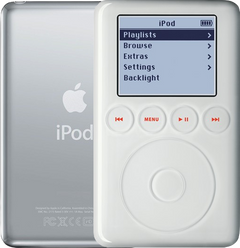
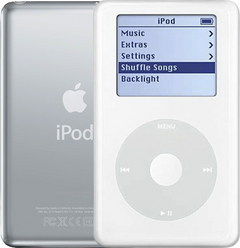
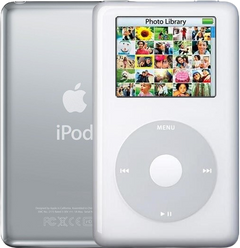
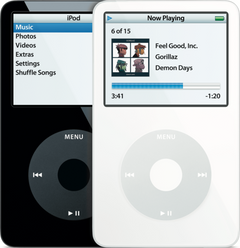
Which iPod do you have?
Most common causes, by model
Also searched as folder error · folder with exclamation point · folder with exclamation mark · folder exclamation icon
Apple's steps for the folder icon: reset it, charge it, then restore it. Damaged software can cause the folder, and a restore can fix that. If the folder comes back, the hard drive is the most likely fault. On the 4th Gen and Photo, check the hard drive cable first, then the drive: our Hard Drive Repair Service is probably the best first option. On the other models, a drive failure is the ideal time for a flash upgrade.
Free checks first
- If it still shows up on a computer, copy your music off before anything else (copy the whole iPod_Control folder to keep more than the songs); if it clicks or drops off the computer while copying, stop and get it diagnosed.
- Reset it: press and hold Menu and the center (Select) button for 8 seconds, or until the Apple logo appears. If that fails, put the iPod on a table and press the center button without touching the wheel.
- Reset the 3rd Gen: hold Menu and Play/Pause until the Apple logo appears.
- Leave it on the charger for at least 30 minutes: a very empty battery has to charge before the iPod can start.
- On the 3rd Gen, charge from a FireWire charger or a 6-pin FireWire port on a computer that is on and awake: its USB cable syncs but never charges it.
- Restore it: use Finder on a Mac with macOS Catalina or later, or iTunes on an older Mac or a PC. Connect the iPod straight to the computer, find it, then choose Restore iPod. A restore erases all songs on the iPod.
- On the 3rd Gen, 4th Gen, iPod Photo and Mini 1st Gen the restore can stop at a picture of a plug: connect it to the wall charger (3rd Gen: its FireWire wall charger) to finish. Generic or incompatible wall chargers don't always give the iPod the right voltage: Apple's A1070 wall charger works with every model that charges over USB (all but the 3rd Gen, which needs its FireWire charger) and is the ideal choice.
- Watch when the folder appears: right as the Apple logo shows points to the hard drive cable first; after a few seconds on the Apple logo, to the hard drive.
- Hold the iPod up to your ear: unusual clicking patterns are a strong sign that the hard drive is failing.
- Check the hard drive's health in Diagnostic Mode: on a healthy drive the reallocated sectors (reallocs) and pending sectors read zero or close to it. A high number, or numbers that rise each time you check, mean the drive is failing; pending sectors are the sharper warning.
iPod Classic (A1238) folder iconiPod Classic 6th Gen (A1238) folder iconiPod Classic 7th Gen (A1238) folder icon
Most likely: Failing hard driveNext: Loose or damaged hard drive cable · 1 more cause
-
Most likely
Failing hard drive
Repeated clicking (the click of death: click, click, whir, or grinding) or the red X usually mean the hard drive is failing. A failed drive is the ideal time for a flash upgrade: flash storage has no heads, platters or motor, so the clicking, stalling and seizing that end an old hard drive can't happen. If your old drive still reads, add our music transfer ($149) and we copy everything on it onto the new flash storage.
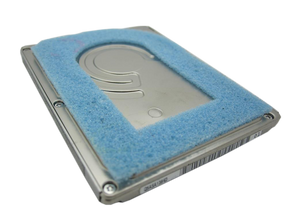
Replacement Hard Drive
For the iPod Classic 6th Gen
80GB · 120GB · 160GB
128GB Flash Mod Service (installed by iMods)
For the iPod Classic 6th Gen
Replaces the hard drive with flash memory: silent, no moving parts
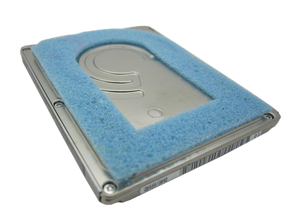
Replacement Hard Drive 160GB (Late 2009)
For the iPod Classic 7th Gen
Flash Mod Service (installed by iMods)
For the iPod Classic 7th Gen
Replaces the hard drive with flash memory: silent, no moving parts
Step-by-step guide iPod Classic 6th/7th Gen hard drive replacement (11 steps)
-
Next most likely
Loose or damaged hard drive cable
A loose or damaged hard drive cable can make the drive click, drop out or show the red X. Unless the problem started after a repair, the cable itself is rarely the fault on the 6th and 7th Gen: if the hard drive isn't to blame, the logic board is just as likely as the cable.
Free check first Push the cable back in first; replace it only if that does not help.
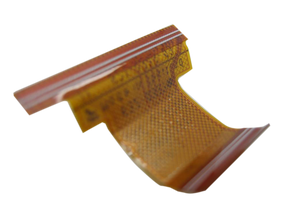
Hard Drive Cable
For the iPod Classic 6th Gen
Thin · Thick
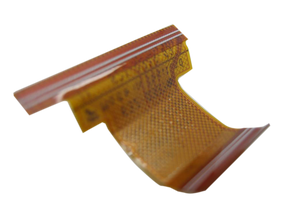
Hard Drive ZIF Ribbon Cable
For the iPod Classic 7th Gen
-
Also possible
Damaged iPod software
The iPod's software is damaged, so it can't start properly or keeps freezing. Restoring it puts fresh software on it; a restore erases the songs on the iPod.
Free check first If it still shows up on a computer, copy your music off first, then restore it with iTunes (or Finder on a Mac with macOS Catalina or later). If the restore fails, or the problem comes back, the hard drive is the likely fault.
iPod Video (A1136) folder iconiPod Video 5th Gen (A1136) folder icon
Most likely: Failing hard driveNext: Loose or damaged hard drive cable · 1 more cause
-
Most likely
Failing hard drive
Repeated clicking (the click of death: click, click, whir, or grinding) or the sad iPod face usually mean the hard drive is failing. A failed drive is the ideal time for a flash upgrade: flash storage has no heads, platters or motor, so the clicking, stalling and seizing that end an old hard drive can't happen. If your old drive still reads, add our music transfer ($149) and we copy everything on it onto the new flash storage.
Flash Mod Service (installed by iMods)
Replaces the hard drive with flash memory: silent, no moving parts
Step-by-step guide iPod Video 5th Gen hard drive replacement (14 steps)
-
Next most likely
Loose or damaged hard drive cable
A loose or damaged hard drive cable can make the drive click, drop out or show the sad iPod face. Unless the problem started after a repair, the cable itself is rarely the fault on the iPod Video: if the hard drive isn't to blame, the logic board is just as likely as the cable.
Free check first Push the cable back in first; replace it only if that does not help.
-
Also possible
Damaged iPod software
The iPod's software is damaged, so it can't start properly or keeps freezing. Restoring it puts fresh software on it; a restore erases the songs on the iPod.
Free check first If it still shows up on a computer, copy your music off first, then restore it with iTunes (or Finder on a Mac with macOS Catalina or later). If the restore fails, or the problem comes back, the hard drive is the likely fault.
iPod 4th Gen or iPod Photo (A1059 and A1099) folder iconiPod 4th Gen (A1059) folder iconiPod Photo (A1099) folder icon
Most likely: Loose or damaged hard drive cableNext: Failing hard drive · 1 more cause
-
Most likely
Loose or damaged hard drive cable
On the 4th Gen and Photo, an iPod that seems too weak to spin up its hard drive often has a hard drive cable problem. A loose or damaged hard drive cable can make the drive click, drop out or show the sad iPod face. A cable fault sounds like click, whir; a failing drive sounds more like click, click, whir.
Free check first Clean the hard drive cable's contacts with 99% isopropyl alcohol (IPA) and re-seat it first; if that fails, it's likely a bad hard drive (our Hard Drive Repair Service is probably the best first option).
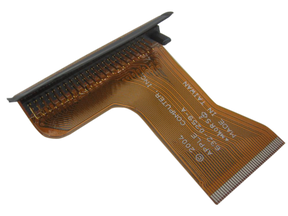
Hard Drive IDE Ribbon Cable
For the iPod Photo
-
Next most likely
Failing hard drive
Repeated clicking (the click of death: click, click, whir, or grinding) or the sad iPod face usually mean the hard drive is failing. Flash storage is the silent alternative to a new drive. On the 4th Gen and Photo we can often fix the hard drive without replacing it, and in most cases all songs are saved.
Hard Drive Repair Service
For the iPod 4th Gen
Mail it in: we repair your drive, and in most cases your songs are saved
Hard Drive Repair Service
For the iPod Photo
Mail it in: we repair your drive, and in most cases your songs are saved
Replacement Hard Drive
For the iPod 4th Gen
20GB · 40GB
Flash Mod Service (installed by iMods)
For the iPod 4th Gen
Replaces the hard drive with flash memory: silent, no moving parts
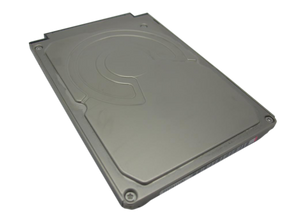
Replacement Hard Drive
For the iPod Photo
20GB · 30GB · 40GB · 60GB
Flash Mod Service (installed by iMods)
For the iPod Photo
Replaces the hard drive with flash memory: silent, no moving parts
Step-by-step guide iPod 4th Gen and iPod Photo hard drive replacement (12 steps)
-
Also possible
Damaged iPod software
The iPod's software is damaged, so it can't start properly or keeps freezing. Restoring it puts fresh software on it; a restore erases the songs on the iPod.
Free check first If it still shows up on a computer, copy your music off first, then restore it with iTunes (or Finder on a Mac with macOS Catalina or later). On the 4th Gen and iPod Photo the restore can stop at a picture of a plug: connect it to a wall charger to finish. Generic or incompatible wall chargers don't always give the iPod the right voltage: Apple's A1070 wall charger works with every model and is the ideal choice. If the restore fails, or the problem comes back, the hard drive cable, then the hard drive, is the likely fault (our Hard Drive Repair Service is probably the best first option).
iPod Mini (A1051) folder iconiPod Mini 1st Gen (A1051) folder iconiPod Mini 2nd Gen (A1051) folder icon
Most likely: Failed microdrive (the Mini's hard drive)Next: Loose or damaged hard drive cable · 1 more cause
-
Most likely
Failed microdrive (the Mini's hard drive)
When the Mini's tiny hard drive (the microdrive) fails, it shows the sad iPod face or a folder icon, or makes clicking noises. Replace it with a used original microdrive, or upgrade to flash: a failed drive is the ideal time for it. Flash storage has no heads, platters or motor, so the clicking, stalling and seizing that end an old hard drive can't happen. If your old drive still reads, add our music transfer ($149) and we copy everything on it onto the new flash storage.
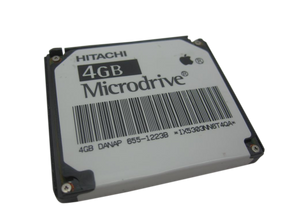
Replacement Microdrive (4GB)
For the iPod Mini 1st Gen
Flash Mod Service (installed by iMods)
For the iPod Mini 1st Gen
Replaces the hard drive with flash memory: silent, no moving parts
Replacement Microdrive
For the iPod Mini 2nd Gen
4GB · 6GB
Flash Mod Service (installed by iMods)
For the iPod Mini 2nd Gen
Replaces the hard drive with flash memory: silent, no moving parts
Step-by-step guide iPod Mini 1st/2nd Gen hard drive (Microdrive) replacement (13 steps)
-
Next most likely
Loose or damaged hard drive cable
A loose or damaged hard drive cable can make the drive click, drop out or show the sad iPod face. Unless the problem started after a repair, the cable itself is rarely the fault on the Mini: if the microdrive isn't to blame, the logic board is just as likely as the cable.
Free check first Push the cable back in first; replace it only if that does not help.
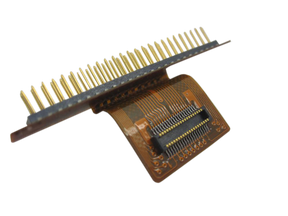
Hard Drive Cable
For the iPod Mini 1st Gen
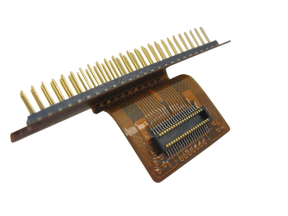
Hard Drive Ribbon Cable
For the iPod Mini 2nd Gen
-
Also possible
Damaged iPod software
The iPod's software is damaged, so it can't start properly or keeps freezing. Restoring it puts fresh software on it; a restore erases the songs on the iPod.
Free check first If it still shows up on a computer, copy your music off first, then restore it with iTunes (or Finder on a Mac with macOS Catalina or later). On the Mini 1st Gen the restore can stop at a picture of a plug: connect it to a wall charger to finish. Generic or incompatible wall chargers don't always give the iPod the right voltage: Apple's A1070 wall charger works with every model and is the ideal choice. If the restore fails, or the problem comes back, the hard drive (Mini: microdrive) is the likely fault.
iPod 3rd Gen (A1040) folder iconiPod 3rd Gen (A1040) folder icon
Most likely: Failing hard driveNext: Loose or damaged hard drive cable · 1 more cause
-
Most likely
Failing hard drive
Repeated clicking (the click of death: click, click, whir, or grinding) or the sad iPod face usually mean the hard drive is failing. A failed drive is the ideal time for a flash upgrade: flash storage has no heads, platters or motor, so the clicking, stalling and seizing that end an old hard drive can't happen. If your old drive still reads, add our music transfer ($149) and we copy everything on it onto the new flash storage.
Replacement Hard Drive
10GB · 15GB · 20GB · 30GB · 40GB
Flash Mod Service (installed by iMods)
Replaces the hard drive with flash memory: silent, no moving parts
Step-by-step guide iPod 3rd Gen hard drive replacement (14 steps)
-
Next most likely
Loose or damaged hard drive cable
A loose or damaged hard drive cable can make the drive click, drop out or show the sad iPod face. Unless the problem started after a repair, the cable itself is rarely the fault on the 3rd Gen: if the hard drive isn't to blame, the logic board is just as likely as the cable.
Free check first Push the cable back in first; replace it only if that does not help.
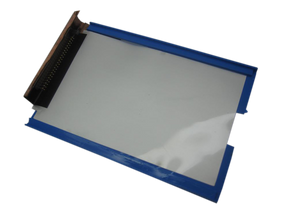
Hard Drive IDE Ribbon Cable
-
Also possible
Damaged iPod software
The iPod's software is damaged, so it can't start properly or keeps freezing. Restoring it puts fresh software on it; a restore erases the songs on the iPod.
Free check first If it still shows up on a computer, copy your music off first, then restore it with iTunes (or Finder on a Mac with macOS Catalina or later). On the 3rd Gen the restore can stop at a picture of a plug: connect it to its FireWire wall charger to finish. Generic or incompatible wall chargers don't always give the iPod the right voltage: Apple's A1070 wall charger works with every model and is the ideal choice. If the restore fails, or the problem comes back, the hard drive is the likely fault.
More causes on this page, depending on what happens
2 causes, listed by what happens to your iPod
- Hard drive cable not fully in, or a latch left openStarted after a repair or part swap
- A connector not seated after the repairStarted after a repair or part swap
Started after a repair or part swap
The folder icon appeared after the iPod was opened.
iPod Classic 6th and 7th GeniPod Classic 6th GeniPod Classic 7th Gen
Most likely: Hard drive cable not fully in, or a latch left openNext: Loose or damaged hard drive cable · 1 more cause
-
Most likely
Hard drive cable not fully in, or a latch left open
After the iPod has been opened, a hard drive cable that isn't pushed fully in, or a drive or cable latch left open, stops the drive from working.
Free check first Open it again, push the hard drive cable fully in and close every latch.
-
Next most likely
Loose or damaged hard drive cable
A loose or damaged hard drive cable can make the drive click, drop out or show the red X. Unless the problem started after a repair, the cable itself is rarely the fault on the 6th and 7th Gen: if the hard drive isn't to blame, the logic board is just as likely as the cable.
Free check first Push the cable back in first; replace it only if that does not help.
Hard Drive Cable
For the iPod Classic 6th Gen
Thin · Thick
Hard Drive ZIF Ribbon Cable
For the iPod Classic 7th Gen
-
Also possible
A connector not seated after the repair
After a battery or part swap, a connector that is not fully seated can leave the iPod dead or half-working. We can also look at it: the free diagnostic finds the issue and whether it can be fixed without new parts.
Free check first Open it again and push every connector you touched fully back in.
iPod Video 5th GeniPod Video 5th Gen
Most likely: Hard drive cable not fully in, or a latch left openNext: Loose or damaged hard drive cable · 1 more cause
-
Most likely
Hard drive cable not fully in, or a latch left open
After the iPod has been opened, a hard drive cable that isn't pushed fully in, or a drive or cable latch left open, stops the drive from working.
Free check first Open it again, push the hard drive cable fully in and close every latch.
-
Next most likely
Loose or damaged hard drive cable
A loose or damaged hard drive cable can make the drive click, drop out or show the sad iPod face. Unless the problem started after a repair, the cable itself is rarely the fault on the iPod Video: if the hard drive isn't to blame, the logic board is just as likely as the cable.
Free check first Push the cable back in first; replace it only if that does not help.
-
Also possible
A connector not seated after the repair
After a battery or part swap, a connector that is not fully seated can leave the iPod dead or half-working. We can also look at it: the free diagnostic finds the issue and whether it can be fixed without new parts.
Free check first Open it again and push every connector you touched fully back in.
iPod 4th Gen and iPod PhotoiPod 4th GeniPod Photo
Most likely: Hard drive cable not fully in, or a latch left openNext: Loose or damaged hard drive cable · 1 more cause
-
Most likely
Hard drive cable not fully in, or a latch left open
After the iPod has been opened, a hard drive cable that isn't pushed fully in, or a drive or cable latch left open, stops the drive from working.
Free check first Open it again, push the hard drive cable fully in and close every latch.
-
Next most likely
Loose or damaged hard drive cable
On the 4th Gen and Photo, an iPod that seems too weak to spin up its hard drive often has a hard drive cable problem. A loose or damaged hard drive cable can make the drive click, drop out or show the sad iPod face. A cable fault sounds like click, whir; a failing drive sounds more like click, click, whir.
Free check first Clean the hard drive cable's contacts with 99% isopropyl alcohol (IPA) and re-seat it first; if that fails, it's likely a bad hard drive (our Hard Drive Repair Service is probably the best first option).
Hard Drive IDE Ribbon Cable
For the iPod Photo
-
Also possible
A connector not seated after the repair
After a battery or part swap, a connector that is not fully seated can leave the iPod dead or half-working. We can also look at it: the free diagnostic finds the issue and whether it can be fixed without new parts.
Free check first Open it again and push every connector you touched fully back in.
iPod Mini 1st and 2nd GeniPod Mini 1st GeniPod Mini 2nd Gen
Most likely: Hard drive cable not fully in, or a latch left openNext: Loose or damaged hard drive cable · 1 more cause
-
Most likely
Hard drive cable not fully in, or a latch left open
After the iPod has been opened, a hard drive cable that isn't pushed fully in, or a drive or cable latch left open, stops the drive from working.
Free check first Open it again, push the hard drive cable fully in and close every latch.
-
Next most likely
Loose or damaged hard drive cable
A loose or damaged hard drive cable can make the drive click, drop out or show the sad iPod face. Unless the problem started after a repair, the cable itself is rarely the fault on the Mini: if the microdrive isn't to blame, the logic board is just as likely as the cable.
Free check first Push the cable back in first; replace it only if that does not help.
Hard Drive Cable
For the iPod Mini 1st Gen
Hard Drive Ribbon Cable
For the iPod Mini 2nd Gen
-
Also possible
A connector not seated after the repair
After a battery or part swap, a connector that is not fully seated can leave the iPod dead or half-working. We can also look at it: the free diagnostic finds the issue and whether it can be fixed without new parts.
Free check first Open it again and push every connector you touched fully back in.
iPod 3rd GeniPod 3rd Gen
Most likely: Hard drive cable not fully in, or a latch left openNext: Loose or damaged hard drive cable · 1 more cause
-
Most likely
Hard drive cable not fully in, or a latch left open
After the iPod has been opened, a hard drive cable that isn't pushed fully in, or a drive or cable latch left open, stops the drive from working.
Free check first Open it again, push the hard drive cable fully in and close every latch.
-
Next most likely
Loose or damaged hard drive cable
A loose or damaged hard drive cable can make the drive click, drop out or show the sad iPod face. Unless the problem started after a repair, the cable itself is rarely the fault on the 3rd Gen: if the hard drive isn't to blame, the logic board is just as likely as the cable.
Free check first Push the cable back in first; replace it only if that does not help.
Hard Drive IDE Ribbon Cable
-
Also possible
A connector not seated after the repair
After a battery or part swap, a connector that is not fully seated can leave the iPod dead or half-working. We can also look at it: the free diagnostic finds the issue and whether it can be fixed without new parts.
Free check first Open it again and push every connector you touched fully back in.
Not sure — free diagnostic
Mail us your iPod and we test it and send you a free repair quote. If you don't like the price, we ship it back at our expense.
Free
Which iPod do you have?
The page shows the causes for the iPod you pick.
Not sure which one? Identify your iPod