
Repair guide · iPod Mini 1st/2nd Gen
iPod Mini 1st/2nd Gen hard drive (Microdrive) replacement
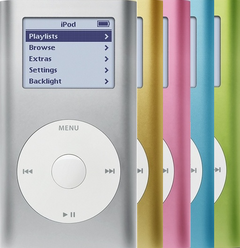
This guide covers the hard drive in the iPod Mini 1st Gen (2004) and 2nd Gen (2005), model A1051, and the ribbon cable between it and the logic board. The drive is a 1-inch microdrive. The 1st Gen came only as 4GB and the 2nd Gen as 4GB or 6GB, but both generations take the same drives, and a 6GB drive is an iPod Mini hard drive upgrade for a 4GB model. It sits under the battery on the back of the board: the job is the battery route plus one ribbon. A replacement drive starts empty and has to be restored, and a restore erases everything on the iPod, songs included, so copy your music off first if the old drive still shows up on your computer.
Which drive fits?
Capacity is set by the drive alone; the board takes either size. A 4GB drive also fits a 6GB Mini, which then holds 4GB. A 6GB drive fits a 1st Gen too, but our 6GB listing is set up for the 2nd Gen, so contact us before you order one for a 1st Gen. If the housing has ever been replaced, the back can mislead: go by the part number on the click wheel's cable or the number on the logic board. The drive ribbon is one part for every Mini, both generations and both sizes: it helps when the ribbon itself is creased or loose, but a replacement ribbon can't mend a damaged socket on the board. Not sure which you have? Identify your iPod
Before you start
- Copy your music offA replacement drive arrives empty, and the restore it needs wipes the whole iPod, songs included. If the old drive still shows up on your computer, copy your music off before you start.
- Rule out the battery and the ribbonA failing microdrive shows a sad iPod face or a folder icon, or clicks. A worn battery can be too weak to spin the drive up and make it click as well, so try the iPod on a charger first. Unless the trouble began after a repair, the ribbon is rarely the culprit: when the drive isn't to blame, the logic board is as likely as the ribbon.
- Check the battery for swellingYou will lift the battery off the drive. Dark or pressure spots on the screen, or a wheel that scrolls by itself, can mean it is swelling: stop charging it and handle it by its edges, never pressing on it. If the iPod is very hot or smells, don't open it: unplug it, set it on a non-flammable surface away from anything that can burn, keep a container of dry sand nearby, leave it until it is cool and contact us.
- Set up a safe benchWork on a non-flammable surface with a container of dry sand within reach. If the battery smokes, sparks, hisses, pops or suddenly swells, pour all of the sand over it in one go, then get out of the room and let fresh air in. If it keeps burning or anything else catches fire, call the fire service. Don't go back for half an hour, and don't touch the iPod until then.
- Run it down and ground yourselfIf there's no sign of swelling, play it until the battery is nearly flat: a cell with little charge is far less likely to catch fire if it gets damaged. Static can kill the logic board, so wear an anti-static strap or work on an anti-static mat, or at least touch bare metal first. Leave the replacement drive in its bag until you fit it.
Tools
- Phillips #00 screwdriverFor the two screws under the top cap.
- Thin plastic pry toolFor the caps. Every iMods drive and drive ribbon comes with one.
- SpudgerPlastic, with a fine tip, for the click wheel plug and the drive ribbon.
- Small snap-ring pliers or a small flat toolFor the metal bracket's corner arms.
- Hair dryerOn low, a few seconds on the top cap's glue only.
- TweezersGuide the insides back into the tube. Keep metal tips off the battery plug.
- Anti-static wrist strap or matThe board and the drive are bare once they are out of the tube.
- Computer with iTunes or the Finder, and a sync cableA replacement drive has to be restored before the iPod will play.
- Wall charger (1st Gen)A 1st Gen restore finishes on a wall charger, not on USB.
Step by step
New to opening this iPod? How to open the iPod Mini 1st/2nd Gen
-
Step 1: Lock it
Unplug any cable, then slide Hold on and let the screen go blank. Note which side the switch is on, for the top cap later.
-
Step 2: Top cap and two screws off
Give the glued top cap a brief burst of warm air from a hair dryer on low, aimed at the cap only, then lift it a little at a time round the seam. Take out the two Phillips #00 screws under it. Our opening guide shows each move.
-
Step 3: Bottom cap, bracket and wheel plug off
Pry the bottom cap off at points where there are no clips, squeeze the corner arms of the metal bracket and lift it out, then lift the orange click wheel plug straight off its socket. It has no latch, so keep the tool right at the plug.
-
Step 4: Slide the insides out
From the bottom opening, push evenly on the board near the lower edge of the click wheel. Once it is partway out of the top, hold the board by its two long edges, either side of the screen, and slide it the rest of the way. Never pull on the little headphone jack board up at the top end: its plug into the logic board breaks easily. The click wheel stays in the tube.
If it binds, don't force it: a swollen battery is a common reason, and forcing can scrape tiny parts off the board. Ease off and push again evenly with a slight wiggle. If it still won't come, stop and contact us.
-
Step 5: Unplug the battery and move it aside
Turn the assembly over: the battery lies on top of the drive. Steady its socket with a fingertip, lift the small white plug straight up by its body, never by the wires. Then peel the battery gently off its small sticky pad, if it has one, with your fingers or a plastic tool, and lay it to one side. Never put anything metal under it and never bend it: a punctured cell can catch fire.
If the battery is old or puffy, this is the time to replace it.
-
Step 6: Disconnect the drive from the board
The drive's orange ribbon runs to a connector on the logic board. Ease it off the board with the spudger or a fingertip right at the connector, then lift the drive away. The ribbon stays attached to the drive.
-
Step 7: Take the ribbon off the old drive
Peel back the black tape near the ribbon end and slide the rubber bumpers off the drive's corners. Note where each bumper sits, and keep the tape and bumpers: a replacement drive can arrive without them, or without a ribbon.
Then work the ribbon's connector off the drive a little at a time, rocking it side to side with even pressure so none of the pins bend. Fitting a replacement ribbon to your old drive? This is the same step.
Pried off in one go, the ribbon tears.
-
Step 8: Fit the ribbon to the drive
Line the ribbon's connector up square with the replacement drive's pins, the same way round as it was on the old drive, and press it on evenly. For a ribbon-only job, the replacement ribbon goes onto your old drive the same way. Put the bumpers back where they were and press the tape down.
A drive that sits crooked or the wrong way round in its connector isn't recognized.
-
Step 9: Reconnect the drive and the battery
Lay the drive back in its place, the same side up as the old one, and push the ribbon fully into the board connector. Then plug the battery back in, with the plug lined up on the pins and light pressure only, and lay the battery on the drive with its wires tucked in.
-
Step 10: Slide it back and refit the bottom end
Feed the insides back in from the top, gently, guiding with tweezers from the bottom. Hold the board by its long edges, either side of the screen, and never push or pull on the little jack board at the top end. Refit the two screws, press the wheel plug fully onto its socket and clip the bracket back in.
-
Step 11: Restore it
Slide Hold off first: with the top cap off, move the switch itself. Connect the iPod to your computer and restore it in iTunes (on a Mac running macOS Catalina or newer, the Finder does it). A replacement drive shows a folder icon until you do. Remember that a restore erases everything on the iPod, songs included.
On a 1st Gen the restore can stop at a picture of a plug. Connect it to a wall charger, not a computer's USB port, and it finishes. Apple's A1070 iPod charger is the ideal one; some generic chargers don't supply the right voltage. A 2nd Gen doesn't need this.
-
Step 12: Test before the caps go on
Slide Hold off if it isn't already. Sync a few songs and play them: that proves the drive and its ribbon. Try the wheel and all five buttons, since the wheel plug was off, sound through headphones, and charging (a wall charger for a 1st Gen). Then unplug the cable and check that it keeps running on its battery, which you unplugged in step 5.
-
Step 13: Caps back on
Fit the bottom cap with its pins lined up, so they can't cut the click wheel ribbon, then the top cap with its Hold slider on the same side as the switch. The opening guide gives three ways to make the caps stay; our parts come without adhesive.
Close it up and test
- No folder iconIt starts to the menu and plays the songs you synced.
- Everything else worksWheel, buttons, Hold, sound and charging, on the charger and off it.
If it doesn't work afterwards
- Still a folder icon after the restore finished
- Go back to the hardware. Unplug the cable, open it again and unplug the battery. Push the ribbon home at the board and at the drive, check it for creases or kinks, and make sure the drive isn't crooked or turned over in its connector. Plug the battery back in last. Folder icon on the iPod
- The restore won't finish
- Plug it straight into a USB port on the computer, not a hub or a keyboard, and try another cable. Still stuck? Put it in Disk Mode first: reset it (move Hold on, then off again, and press and keep holding Menu plus the center button), and the moment it restarts, hold the center button and Play/Pause until the Disk Mode screen appears. A 1st Gen that stops at a plug picture needs a wall charger. iPod won't restore
- It sits in Disk Mode or says No music
- That is how a freshly fitted drive behaves until it has been restored. Restore it (a restore erases everything on the iPod, songs included), then sync your music back. Stuck in Disk Mode
- It clicks or shows a sad face
- Charge it first: a weak battery can make a good drive click. Then unplug the cable, open it, unplug the battery and push the ribbon fully in at both ends; plug the battery back in last. If it still clicks, the drive is the likely fault. iPod clicking noise
- The computer doesn't see it
- Try another USB port and cable first. When no computer sees it, the drive is the usual suspect; if the drive, its ribbon and their connections are all fine, the logic board may be at fault. Not showing up in iTunes
- The wheel or buttons don't respond
- Unplug any charger, then check the click wheel plug is fully on and the metal bracket went back in. Click wheel not working
- It gets very hot or smells
- Unplug it, leave it closed on a non-flammable surface and contact us; don't open it again to look. Warmth at the bottom while it plays or charges is normal. Free repair quote
Questions
Can I upgrade an iPod Mini hard drive?
On a 2nd Gen, yes: a 6GB microdrive fits a 4GB model as a capacity upgrade. A 6GB drive fits a 1st Gen too, but our 6GB listing is set up for the 2nd Gen, so contact us first. Restore it after fitting; a restore erases everything on the iPod, songs included.
Can I fit flash storage instead?
We fit 128GB or 256GB flash storage in the Mini as a mail-in service, running Apple's own software. It has no moving parts, so it can't click or stall like an old drive. We don't publish DIY steps for it: choose the flash option on the drive page.
Do I need a replacement drive ribbon too?
Rarely. Push the old one back in first. Replace it when it is creased, torn or loose at its connector; one ribbon fits every Mini.
Are your microdrives original Apple drives?
Yes: they are used original Apple drives, Hitachi or Seagate, each with a 1-year limited warranty.
Will I lose my music?
With a replacement drive, yes: it arrives empty and the restore wipes the iPod. Copy your music off the old drive first if your computer can still see it.
Can you do it for me?
Yes. Choose We Fix It on the drive page and mail your iPod in. We fit the drive and send it back, typically in 3 to 5 business days, with a 1-year limited warranty.