
iPod guide
iPod 4th Generation and iPod Photo guide
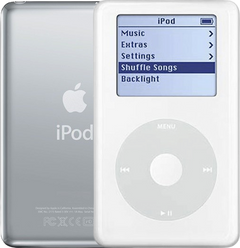
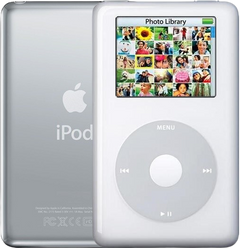
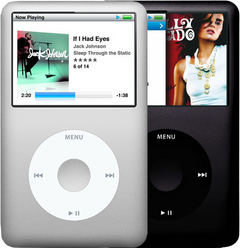
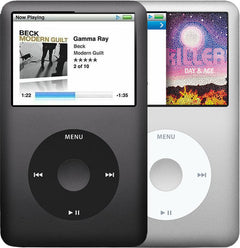
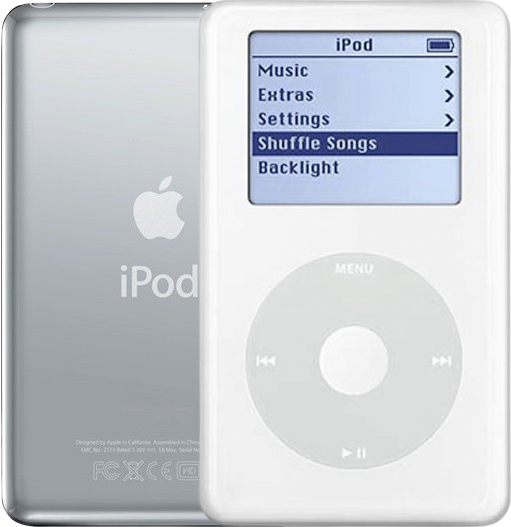
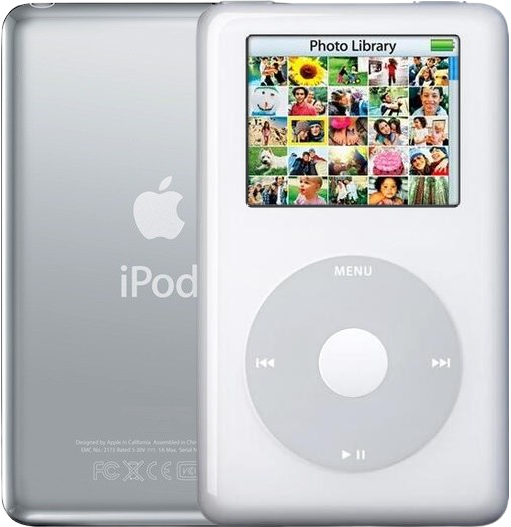
The iPod 4th Gen and the iPod Photo, which Apple later called the iPod with color display, are full-size click-wheel iPods from 2004 and 2005, with a white plastic front, a gray click wheel and a polished steel back. A gray screen means a 4th Gen (A1059) and a color screen a Photo (A1099), and each was made in a thin and a thick case. Questions about the battery, the click wheel and the hard drive come up most often.
Shop iPod 4th Gen partsShop iPod Photo partsGet a free repair quote
Which one do you have?
One look at the screen decides it: gray on the 4th Gen, color on the Photo. Then the depth of the case tells thin from thick, which matters for the hard drive, the back, the headphone jack and the drive bumpers.
| Detail | iPod 4th Gen | iPod Photo (iPod with color display) |
|---|---|---|
| Sold | Jul 2004 to Jun 2005 (the 40GB until Feb 2005) | Oct 2004 to Oct 2005 (named iPod with color display in Jun 2005) |
| Model number | A1059 (EMC 1995) | A1099 (EMC 2022) |
| Capacities | 20GB (thin case) or 40GB (thick case) | 20GB or 30GB (thin case); 40GB or 60GB (thick case) |
| Order numbers | M9282LL/A 20GB, M9787LL/A 20GB U2, PE435A 20GB HP; M9268LL/A 40GB, PE436A 40GB HP | MA079LL/A, MA127LL/A U2 and MA215LL/A Harry Potter (20GB); M9829LL/A and PS492AA HP (30GB); M9585LL/A (40GB); M9586LL/A, M9830LL/A and PS493AA HP (60GB) |
| Case | White plastic front, gray click wheel (U2: black front, red wheel), polished steel back; 4.1 by 2.4 in; 0.57 in deep (20GB) or 0.69 in (40GB); 5.6 to 6.2 oz | White plastic front, gray click wheel (U2: black front, red wheel), polished steel back; 4.1 by 2.4 in; 0.63 in deep (20GB, 30GB) or 0.75 in (40GB, 60GB); 5.9 to 6.4 oz |
| How to tell | A 2-inch black-and-white (grayscale) screen and A1059 on the back. | A 2-inch color screen that shows photos, and A1099 on the back. A bigger 2.5-inch screen that plays video means a 5th Gen instead. |
iPod 4th Gen
- Sold
- Jul 2004 to Jun 2005 (the 40GB until Feb 2005)
- Model number
- A1059 (EMC 1995)
- Capacities
- 20GB (thin case) or 40GB (thick case)
- Order numbers
- M9282LL/A 20GB, M9787LL/A 20GB U2, PE435A 20GB HP; M9268LL/A 40GB, PE436A 40GB HP
- Case
- White plastic front, gray click wheel (U2: black front, red wheel), polished steel back; 4.1 by 2.4 in; 0.57 in deep (20GB) or 0.69 in (40GB); 5.6 to 6.2 oz
- How to tell
- A 2-inch black-and-white (grayscale) screen and A1059 on the back.
iPod Photo (iPod with color display)
- Sold
- Oct 2004 to Oct 2005 (named iPod with color display in Jun 2005)
- Model number
- A1099 (EMC 2022)
- Capacities
- 20GB or 30GB (thin case); 40GB or 60GB (thick case)
- Order numbers
- MA079LL/A, MA127LL/A U2 and MA215LL/A Harry Potter (20GB); M9829LL/A and PS492AA HP (30GB); M9585LL/A (40GB); M9586LL/A, M9830LL/A and PS493AA HP (60GB)
- Case
- White plastic front, gray click wheel (U2: black front, red wheel), polished steel back; 4.1 by 2.4 in; 0.63 in deep (20GB, 30GB) or 0.75 in (40GB, 60GB); 5.9 to 6.4 oz
- How to tell
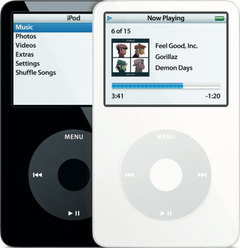
- A 2-inch color screen that shows photos, and A1099 on the back. A bigger 2.5-inch screen that plays video means a 5th Gen instead.
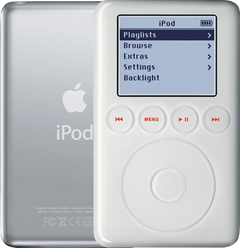
Settings > About names the model, handy when the back may not be the original. The two iPod Photo revisions differ by board number, which sits on the logic board inside the case, beneath the screen's ribbon: 820-1642-A for Late 2004 / Early 2005, 820-1764-A for Mid-2005. The screen panel shows which screen is fitted: two bars on a Late 2004 screen, one on a Mid-2005. Screens may have been swapped, so the board number is the surest test. A 3rd Gen looks similar but has four buttons in a row above its wheel.
What goes wrong, and the sign that gives it away
-
The battery runs flat fast, or it only works on the charger
The sign: Fully charged, it empties far sooner than it once did or dies as soon as the cable comes out, or it shows life only while plugged into a wall charger.Neither model has a battery-health screen, so a run-down test is your check. By Apple's figures, a new battery charges fully in about 4 hours on a 4th Gen and in up to 5 on an iPod Photo. A fresh battery usually cures it, and one battery suits both models, thin case or thick. Charge either model from a wall charger (for a 4th Gen we strongly recommend one like Apple's A1070); a completely drained iPod Photo may want as long as 30 minutes on the charger before its screen lights. If even a new battery drains while the iPod sits unused, test that new battery, and after it the logic board. If it clicks and reboots while plugged in, blame the battery last on these models: check the hard drive cable below.
Won't hold a chargeKeeps turning offWon't turn onWon't charge"Please wait, very low battery"How to test the batteryiPod 4th Gen and iPod Photo battery replacement guide
-
The center button stopped, or the wheel scrolls on its own
The sign: Only the center press is dead or jammed while Menu, Play/Pause and the two arrows still work, or the wheel moves by itself or quits, and the case still looks flat. On both models, that points first to a swollen battery.Stop charging it and unplug it; never squeeze, bend or pierce the battery, and if it feels very hot or there is a smell, keep the case shut and contact us.On these two models the battery sits directly under the click wheel; as it swells it presses up from below and jams the center button, rarely bulging the case and never marking the screen. Otherwise, check the battery inside before spending on a new wheel: replacing the battery is the cure, and it can ride along on a flash mod order. Tape over the old cell's contacts or bag it, then drop it at a battery collection point; it belongs in neither the household trash nor a recycling bin.
Center button not workingClick wheel not workingButtons not workingOverheatingiPod 4th Gen and iPod Photo battery replacement guide
-
It gets hot
The sign: It gets hot in use or on the charger. A rattle when you tilt it gently points to the logic board, the most common cause; without one it can still be the board, or a failing battery if it heats up again once cooled. Our free diagnostic tells which.First, unplug it and give it time to cool.Overheating is most often a logic board fault, and a failing battery can do it too. An iPod that has run hot for a while leaves dark or melted patches on the foam pad stuck to its drive, visible once opened. If it began right after a repair, see the last entry on this list. Keep it out of heat: Apple's range for using it is 0 to 35 °C.
OverheatingWon't turn oniPod 4th Gen and iPod Photo logic board replacement guide
-
It won't charge, or the computer can't see it
The sign: Another cable and charger make no difference, and the pins inside the bottom dock connector look bent, dirty or corroded.The 30-pin port is fixed to the logic board with solder, so rather than add a third-party port we fit a whole original Apple board. If the pins look clean and a new battery still won't charge, suspect the board's charging circuit; the fix is the same. When it charges but no computer sees it, try another cable, then check the drive and its cable below; if those and their latches check out, the board may be at fault. From a computer, a 4th Gen needs a USB 2.0 port with full power, or 6-pin FireWire, never a keyboard port, and neither model works with USB 1.1.
Won't chargeNot showing up in iTunesWon't synciPod 4th Gen and iPod Photo logic board replacement guide
-
No sign of life, even on the charger
The sign: No sign of life at all, even after a good while on a wall charger. Heat, an odd smell or a rattle when tilted gently point the same way.If it feels hot or smells, unplug it.Next, toggle Hold on and off and try a reset, as under Frozen below. Then rule out the wheel: when no lock icon appears and pressing the wheel doesn't wake it, open the case, look at the battery for swelling (on these models the battery lies behind the wheel) and reseat the click wheel cable before trying a new wheel. Past those checks, a dead iPod that won't wake even on the charger usually needs a logic board, as does one that died after a drop. Replacing it is the fix: a 4th Gen board never goes in an iPod Photo, nor the other way round.
Won't turn onDroppedBlack screeniPod 4th Gen and iPod Photo logic board replacement guide
-
It beeps at start-up or keeps turning itself off
The sign: It beeps as it boots to the menu, though Diagnostic Mode isn't starting and no alarm is set to Beep; or it keeps shutting down although the battery is good and the drive checks out.Either one points to the logic board, which we replace.
Keeps turning offClicking noiseiPod 4th Gen and iPod Photo logic board replacement guide
-
Clicking, the sad face or the folder icon
The sign: Listen closely as it starts: one click and a whir suggests the drive cable; click, click, whir or grinding suggests the drive itself.On these two models the cable is a common culprit and the first thing to check: give its contacts a wipe using 99% isopropyl alcohol, then seat it again. A folder icon that shows up together with the Apple logo also suggests the cable; one that comes several seconds into the logo suggests the drive, and the sad face always means one or the other. A folder icon can also be damaged software that a restore fixes (see Frozen below): if a computer still sees the iPod, save your music to it beforehand, since a restore wipes everything, your songs with it. When just the same handful of songs skip or refuse to play, the files themselves are probably damaged, or they are WMA, a format these iPods can't play: remove those tracks and sync them back before you blame the drive. For a drive that is failing, our Hard Drive Repair Service, offered for these two models only, is then probably the best first option: we can often mend the existing drive instead of swapping it, saving the songs in most cases. Rising or high reallocated or pending sector counts in Diagnostic Mode mean the drive is going, so copy your music off now; a new drive or flash storage starts out empty. To read those counts, reset it first (Menu and Center held until you see the Apple logo), then keep Center and Previous held as it starts again; on a 4th Gen press Next for the second page and select SMRT DAT: retracts, reallocs and pending should all be low.
Clicking noiseSad face iconFolder iconStuck on the Apple logoSkipping songsSaving the musiciPod 4th Gen and iPod Photo hard drive replacement guide
-
Frozen, or stuck on the Apple logo
The sign: No clicking from inside, and a reset gets it going for a while: push Hold to on and back, then keep Menu and Center pressed together until you see the Apple logo.If it keeps coming back, restore it, knowing a restore wipes the iPod completely, your songs too: copy the music to a computer first if one can still see it. On either model the restore can pause at the plug picture; it completes on a wall charger, ideally Apple's A1070, since generic ones don't always supply the right voltage. Some restore errors are just the connection, so plug into the computer directly rather than through a hub or keyboard, and swap the cable. A restore that fails, or a fault that returns after one, points to the drive cable first, the drive second. Two normal iPod Photo screens are not faults: a disk with a magnifier and a bar that fills slowly means it is testing its drive, which takes 15 to 20 minutes, and a red circle crossed by a line while plugged into a computer just asks you not to disconnect.
-
A new drive shows No music or stays in Disk Mode
The sign: It happens right after a new hard drive or flash storage went in: it stays in Disk Mode, won't sync, or reads No music.It needs one restore, from iTunes or the Finder, before music can go on; after that, sync your library to it. A restore wipes the iPod clean, songs included, which costs nothing on a new, empty drive. If the iPod doesn't recognize a new hard drive at all, check that it isn't fitted upside down in its connector.
Says "No music"Stuck in Disk ModeWon't syncWon't play musicFlash mod problemsiPod 4th Gen and iPod Photo hard drive replacement guide
-
The screen is dark, but it still plays
The sign: Songs play or the computer finds it, yet nothing shows. Shine a bright light at the screen: if the menu is faintly visible, the backlight has died; if there's nothing at all, it's the screen or its cable.A 4th Gen screen can also fade from time to time: resetting the contrast (keep Menu pressed for about 4 seconds) brings it back, though the fade may return after a restart. If it went dark after the case was opened, the screen cable may have come part way out, or its latch was left up. Since the light is built into the screen on both models, either fault takes a new screen, and the gray 4th Gen and color Photo screens are not interchangeable. When a second, working screen behaves the same (on an iPod Photo, one that matches your board, see below), the logic board is then the likeliest fault.
Black screenBacklight not workingiPod 4th Gen and iPod Photo screen replacement guide
-
iPod Photo: black screen after a new screen went in
The sign: iPod Photo only: the screen cable is seated with its latch closed, yet the picture never came back once a new screen was fitted. Count the bars on the screen panel: a single bar marks the Mid-2005 screen; two mark the Late 2004 kind.Apple built the iPod Photo in two revisions, each with its own board and screen. Its Mid-2005 board, number 820-1764-A, drives either screen; the earlier board, number 820-1642-A, stays dark with the one-bar screen and wants the two-bar Late 2004 screen. Apart from that pairing, every part swaps between the two revisions.
Black screeniPod 4th Gen and iPod Photo screen replacement guide
-
Lines, spots or a white screen
The sign: Lines, dead pixels or inky blotches that stay put while the iPod works point to the LCD itself; lines that shift when you press on the front most likely mean a loose or faulty screen cable, and so can a white picture, backlight on, with no visible damage.A damaged LCD, often from a fall or from pressing on the front, needs a new screen, and an inky blotch can spread. Right after a screen swap, the cable's latch is the most common reason for a white screen. If the white screen stays on the Apple logo, suspect the hard drive cable first and the drive after it, above. On an iPod Photo, match the new screen to your board, as above.
Lines on the screenWhite screenBroken screeniPod 4th Gen and iPod Photo screen replacement guide
-
Cracked or scratched front window
The sign: The crack or deep scratch is in the clear plastic window, and the picture underneath looks normal.The window belongs to the white front: the front panel on the 4th Gen, the faceplate on the iPod Photo. Light scuffs often polish out; for a crack, order the front for your model, since the Photo's has one fewer screw hole and won't close flush against an iPod 4th Gen back. A new front comes bare, so the click wheel and screen move across from yours. On a U2, a standard white front changes its black look.
Broken screenScratchesiPod 4th Gen and iPod Photo front panel replacement guide
-
Scratched or dented back
The sign: The marks are only on the polished steel back; the front, the picture and the sound are all fine.Mirror steel marks and dents easily. Thin and thick backs don't swap, so match your case depth; a Photo back can carry a different capacity's engraving within the same depth. A standard back fits the special editions (U2, HP, Harry Potter) without their engraving, and it comes empty unless you order the version with the headphone jack pre-installed.
ScratchesiPod 4th Gen and iPod Photo back panel replacement guide
-
The click wheel or a button doesn't respond
The sign: No lock icon is showing, yet the wheel or a button (Menu, Next, Previous, Play/Pause or Center) does nothing, and the battery, once checked, is not swollen: on these models a swollen battery can stop the whole wheel.Here the wheel carries all five buttons, the center switch among them, and one wheel suits both the 4th Gen and the Photo. Reseat the wheel's ribbon first: press it all the way home and shut its latch, more so if the iPod has been opened; after swapping a logic board or screen, check that ribbon for a tear. A new wheel means taking out the glued-in battery, so plan on fitting a fresh battery at the same time. Should a new wheel change nothing, look at the logic board next.
Click wheel not workingButtons not workingCenter button not workingiPod 4th Gen and iPod Photo click wheel and center button replacement guide
-
Stuck on Hold, or a lock icon that won't clear
The sign: The lock icon won't leave the screen though the Hold switch is pushed firmly off, very often straight after the case was opened, say for a new battery.Using an iPod Remote? Check its own Hold switch as well. Inside these models, Hold lives on the headphone jack board, which a thin flex cable links to the logic board, and that cable easily slips out the first time the case comes apart: press it fully into both boards before buying anything. If it still locks, the flex cable or the jack and Hold assembly is next, and if both are fine, the board's socket for that cable may be damaged. These iPods have no screen-lock code, so a locked one is most likely Hold.
Hold switch not workingButtons not workingFrozeniPod 4th Gen and iPod Photo headphone jack replacement guide
-
Sound in one ear, crackling, or no sound
The sign: Play a song and gently move the plug: if the sound drops, crackles or stays in one ear, the jack is worn.On these iPods, sound in one ear or a crackle comes from the jack board itself; the flex cable matters mainly when it sticks on Hold. On a 4th Gen, gently moving the plug about can sometimes clear a sound fault for a while, but if moving it makes the sound drop or crackle, the jack is worn. Thin and thick cases take different jack assemblies, so match the depth of your back. Silence from headphones and a speaker dock alike, or still no sound after a new jack, points to the logic board, while sound in just one ear after a new jack suggests the new jack itself is faulty. If it plays on headphones but not in one car or dock, check that the accessory lists your model.
Headphone jack not workingOnly plays in one earStatic or cracklingNo soundVolume too lowCar or dock troubleiPod 4th Gen and iPod Photo headphone jack replacement guide
-
It got wet
The sign: Since the water it won't turn on, won't charge, won't hold a charge or misbehaves, and the dock connector's pins may show corrosion.Water left inside attacks the battery and corrodes the logic board, and the pins where the drive, jack, wheel, screen and battery ribbons plug in tend to corrode. With the battery disconnected, a board can be cleaned using isopropyl alcohol of 90% or more and then left to dry fully; one corroded past cleaning needs replacing, and a battery that no longer charges needs a new one. When it died the moment it got wet, the board is the more likely of the two.
Got wetiPod 4th Gen and iPod Photo logic board replacement guide
-
It stopped working after a repair or a knock
The sign: The trouble began right after the case was opened, or right after a hard knock, whatever form it takes.If it has run hot since the repair, unplug it and wait for it to cool before opening it: a cable caught under a part, or a part pushing on the board, is the likely cause.After a repair, check first for a connector you touched that isn't pushed fully home or a latch left open, and reopen it to seat each one. After a knock, an iPod that is completely dead most likely needs a logic board (see above); if only part of it stopped working, a connector such as the battery or hard drive cable may have worked loose inside. New batteries are sometimes faulty from the start, and a static discharge or a slipping tool during the work can ruin the logic board, leaving it dead even when charging. Our free diagnostic finds the fault and tells you whether it needs new parts.
Not working after a repairDroppedHow to open the iPod 4th Gen and iPod Photo guide
Repair guides
- iPod 4th Gen and iPod Photo battery replacementModerate · 15 minutes to 1 hour · 13 steps
- iPod 4th Gen and iPod Photo hard drive replacementModerate · 12 steps
- iPod 4th Gen and iPod Photo headphone jack replacementModerate · 11 steps
- iPod 4th Gen and iPod Photo screen replacementModerate · iPod Photo: 20 to 30 minutes · 16 steps
- iPod 4th Gen and iPod Photo click wheel and center button replacementModerate · 30 to 45 minutes · 17 steps
- iPod 4th Gen and iPod Photo logic board replacementModerate · About 30 minutes (our iPod Photo figure) · 14 steps
- iPod 4th Gen and iPod Photo back panel replacementModerate · 11 steps
- iPod 4th Gen and iPod Photo front panel replacementModerate · 15 steps
- How to open the iPod 4th Gen and iPod Photo · 13 steps
Parts and prices
- BatteryBoth models, thin case or thick, use the same battery: pick a standard 750 mAh cell or the 1,200 mAh extended-life one.
- Hard driveThin cases take the 5 mm drive, thick cases the 8 mm one. It comes blank, so restore it once, then sync your music back; move your drive bumpers across.
- Hard Drive Repair ServiceMail-in, for these two models only: we can often repair the drive you have, and your songs usually survive it.
- Hard drive cableThe same cable for both models, in either case depth.
- Hard drive bumpersThin and thick sets; reuse yours unless they are missing, torn or gone hard.
- Screen (backlight included)4th Gen: the gray screen. iPod Photo: the two-bar Late 2004 screen runs on both boards; the one-bar Mid-2005 screen needs the Mid-2005 board.
- Click wheel (all five buttons)One wheel serves both models, center button included.
- Logic board (charging port included)iPod Photo: order the board whose printed number, 820-1642-A or else 820-1764-A, matches your old one; 4th Gen and Photo boards never swap.
- Headphone jack and Hold switchThin and thick versions: match your case depth, and move your old Hold slider across.
- Headphone jack flex cableEach model takes its own flex cable.
- Front panel / faceplate (window included)Get the front made for your model: a Photo faceplate won't close flush over a 4th Gen's back, and we have not verified a 4th Gen front on a Photo. Each comes without the wheel or screen (the 4th Gen panel can add a wheel to the order).
- BackplatePick your capacity: on the 4th Gen 20GB is thin and 40GB thick; on the Photo 20GB and 30GB are thin, 40GB and 60GB thick.
- Dock connector bezelPlastic trim around the bottom opening; it does not fix charging.
- Screw setA set per model: six logic board screws on a 4th Gen, five on a Photo.
Every part comes as "You fix it" (part only) or "We fix it" (we install it). Prices are today's.
Upgrades
Flash mod service
We remove the hard drive and put flash storage in its place, 128GB or 256GB, in either model. With nothing spinning, a hard-drive failure can't happen again (the flash card, adapter or cables can still fail, and the 1-year limited warranty covers them), and the iPod runs silent, weighs less and lasts longer per charge. A flash-modded 4th Gen holds about 20,000 songs, a limit that comes from the iPod's memory, not the card. We do the work ourselves by mail, never as a kit, and you can add a new battery, standard or the 1,200 mAh extended-life one, to the same order. It won't cure a worn battery, a screen, wheel or sound fault, or a damaged charging port.
Questions
When did the iPod 4th Gen and iPod Photo come out?
The 4th Gen arrived on July 19, 2004, as a 20GB and a 40GB; the 40GB went in February 2005, and on June 28, 2005 the monochrome models gave way to the color line. The iPod Photo followed on October 26, 2004 and was the first color-screen iPod. In June 2005 its name changed to iPod with color display, and on October 12, 2005 the 5th Gen iPod with video took its place.
How does the iPod 4th Gen differ from the iPod Photo?
Apple counts both as fourth-generation iPods, and they look alike: the same shape, a white front and a gray click wheel (the wheel is even the same part, though the fronts are not). The Photo has a 2-inch color screen (220 by 176) and shows photos, with TV out through an iPod AV cable, while the 4th Gen has a 2-inch grayscale screen (160 by 128). Case for case the Photo is a little thicker (0.63 in against 0.57 in thin, 0.75 in against 0.69 in thick), and Apple rates it at 15 hours of music, against 12 for the 4th Gen. The Photo does not play video, which came with the 5th Gen, and the 4th Gen has no photo viewing or TV out at all.
Is a "Classic 4th Gen" the same iPod?
Yes: plenty of people call it that, but Apple never gave this model the Classic name, which began with the iPod Classic 6th Gen in 2007. Apple's name for it is the iPod (Click Wheel), while the Photo was sold as the iPod photo, later the iPod with color display. Because Classic gets used for nearly every click-wheel iPod, check the back for the model number: A1059 or A1099 means this page.
Do parts swap between an iPod 4th Gen and an iPod Photo?
The battery, the click wheel and the hard drive cable are the same part in both, whatever the case depth. Screens, logic boards, fronts, headphone jack flex cables and screw sets are each made for one model. Within each model, the hard drive, back, headphone jack and drive bumpers come in thin and thick versions that don't swap. To go from a thin build to a thick one you need an 8 mm drive, plus the thick back, the thick bumpers and the thick headphone jack; never force a thin back over the 8 mm drive, which can mark or crack the screen.
Which iPod Photo screen or logic board do I need?
Open the case and read the board number; you will find it printed beneath the screen's ribbon. A Late 2004 / Early 2005 board (820-1642-A) works only with the Late 2004 screen, the one with two bars on its panel. The Mid-2005 one, 820-1764-A, runs either screen; from the factory it was paired with the one-bar Mid-2005 screen. Go by that number rather than the date, since some February 2005 60GB units carry the Mid-2005 board. The HP 60GB takes the Late 2004 screen and either board. A replacement board comes bare, so your battery, drive, screen, ribbons and screws go across to it.
Will I lose my music in a repair?
Only drive work touches your songs; a battery, screen or wheel repair leaves them in place. A new hard drive or flash storage starts empty, and a restore wipes every file on the iPod, songs too, so copy your music off while a computer still sees it (one first set up on a Mac needs a Mac for this). Our Hard Drive Repair Service can often fix the original drive and keep the songs, in most cases though not every time, and with a flash mod we can move your music across as an add-on if the old drive still reads.
How do I set up a 4th Gen or iPod Photo today?
Charge it first, ideally on a wall charger; for either model we suggest Apple's A1070. When it asks which language, scroll with the wheel and press the center. Macs from macOS Catalina on use the Finder for music; on Windows it is iTunes: the Microsoft Store edition on Windows 10 and 11, or version 12.10.11 on Windows 7 and 8. Macs with only USB-C ports need an adapter from USB-C to USB, and Apple silicon laptops ask you to allow the accessory. Songs from an Apple Music subscription won't sync to it.
What are the U2, HP and Harry Potter editions?
The U2 Special Edition is a standard iPod in black, with a red wheel and the band's signatures engraved on the back: a 20GB 4th Gen from October 2004 (M9787LL/A) and a 20GB color model from June 2005 (MA127LL/A), which the screen tells apart. HP sold Apple-made units with the HP logo beside Apple's on the back and a 10-character serial number (4th Gen PE435A and PE436A; Photo PS492AA and PS493AA). The Harry Potter edition (MA215LL/A, September 2005) is a 20GB iPod with color display with the Hogwarts crest on its back.
Is a 4th Gen or iPod Photo worth repairing?
Apple no longer repairs them; we still do. Our free diagnostic settles it: we test the iPod, then send a quote by email; you owe nothing, and if you say no, we send it back at our expense. Parts and work carry a 1-year warranty.