Skip to product information
1 of 1

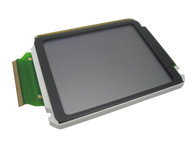
iPod 4G Monochrome — Replacement LCD Screen (2" Grayscale)

iPod 4G Monochrome — Replacement LCD Screen (2" Grayscale)

Regular price $33.23 USD
Regular price Sale price $33.23 USD
Sale Sold out
Screen 20GB / 40GB

Replacement display assembly for iPod 4G Monochrome. Use it for cracked, blank, lined, or backlight-related display problems after separating screen damage from ribbon seating and board-side faults.

Product Overview

This screen listing covers Replacement LCD Screen (2" Grayscale) and its own connector path on the iPod 4th Generation (Monochrome).

Use the Compatible Variants table below to confirm capacity, color, case, or order-number fitment.

Choose this part when your iPod shows backlight not working, White Screen, Black Screen, or LCD display failure; the checks below help confirm the right part before you order.

What Is Included

Replacement LCD Screen (2" Grayscale) Free plastic pry opening tool 1 year warranty

Quick Buying Check

Buy this when

  • backlight not working: Use the display check when the iPod still powers, plays, charges, or syncs and the LCD ribbon or connector check remains the strongest display clue.

Diagnose first when

  • Confirm the iPod still plays, charges, or is recognized so the screen symptom can be separated from a dead device.

Specifications & Fitment

Part Details

Detail Value
Model Number A1059
EMC EMC 1995
Condition Used — factory original Apple part. Normal cosmetic wear expected.
Size 2 inches
Resolution 160x128 pixels
Type Grayscale
Controller Renesas HD66753

Compatible Variants

Order Number Capacity Color Case Compatible Notes
M9787LL/A 20GB Black/Red (U2) thin Yes
M9282LL/A 20GB White thin Yes
PE435A 20GB White (HP) thin Yes
M9268LL/A 40GB White thick Yes
PE436A 40GB White (HP) thick Yes

Diagnostic Failure Cards

Use these model-specific failure cards to decide whether this screen is the right part, a nearby part needs checking first, or escalation makes more sense after simpler checks.

Advanced or board-level cases

Blank, white, black, lined, or backlight display

What you may notice

  • People describe a blank screen, white or black display, missing backlight, lines, or a display that changes after impact or repair.
  • Blank screen, white or black display, missing backlight, or lines on the screen.

Diagnose first when

  • Confirm the iPod still plays, charges, or is recognized so the screen symptom can be separated from a dead device.
  • Inspect the display ribbon and connector if the iPod has been opened or dropped.
  • Look for cracks, liquid residue, display discoloration, or connector damage before ordering.
  • Confirm the iPod still plays, charges, or syncs, then reseat the LCD ribbon and inspect the display connector.

Similar issues to separate

  • The display can be damaged, but display ribbon seating, connector condition, liquid history, or board-side display circuitry may need checking first.
  • Check display / backlight route, connector seating, and board-side damage before ordering.

When this screen fits

  • Choose this display only when the display symptom is tied to this part or its connection path.
  • Choose this screen when the symptom remains isolated to this assembly, its ribbon, or its connector path after first checks.

Check another part first

  • Check ribbon seating, liquid history, and board connector damage before treating the display as a guaranteed fix.

Repair or replacement paths

  • Replace the display only after seating, fitment, and adjacent-part checks still point to that assembly. - Use display-panel replacement when the panel, backlight, or display flex is visibly damaged; continue connector, liquid-damage, or board diagnosis when the display changes after reseating.
  • Ribbon, connector, or ground-path checks

What you may notice

  • A symptom starts after opening the iPod or disturbing an internal flex cable.

Diagnose first when

  • Inspect for liquid, corrosion, residue, torn flex material, or connector damage.

Similar issues to separate

  • Connector seating, ribbon damage, or ground-path issues can involve this part, a nearby connector, or a board path.

Check another part first

  • Check the Replacement Battery (All Capacities) when power, charging, runtime, or swollen-battery behavior is the main problem.
  • Check the Replacement Click Wheel Assembly when controls, wheel, center/select, menu, hold, or unresponsive-button symptoms are the main problem.

Liquid, corrosion, or residue context

What you may notice

  • Symptoms follow liquid exposure, dirty contacts, corrosion, or residue.

Similar issues to separate

  • Liquid or corrosion can involve this part, a nearby connector, or a board path.

Fitment and post-repair traps

Symptoms changed after repair or reassembly

What you may notice

  • People describe a new problem appearing immediately after battery, storage, display, audio, or control work.
  • A new symptom appeared after battery, storage, audio, display, or control work.

Diagnose first when

  • Reopen only as far as needed to inspect the areas touched during the repair.
  • Compare the new symptom with what worked before the repair.
  • Check cable seating, latch position, and part variant before replacing a second part.

Similar issues to separate

  • A post-repair symptom can involve the display, but disturbed ribbons, latches, grounding, connector seating, or the wrong variant part are common checks before ordering again.
  • Check post-repair regression, connector seating, and board-side damage before ordering.

When this screen fits

  • Choose this display only when the part itself was torn, creased, or damaged during service.

Check another part first

  • Check the exact connector or assembly disturbed during the repair before treating the new part as failed.

Repair or replacement paths

  • Correct seating, latch, or variant problems first.
  • Replace the display when the repair damaged that assembly or its flex path.

Fitment and inspection notes

  • Verify the exact generation, capacity/thickness variant, connector, and part listing before ordering; similar-looking iPod parts are not always interchangeable.

Symptom remains after basic checks

What you may see: The iPod still points back to Replacement LCD Screen (2" Grayscale) after cable seating, battery stability, and nearby connector checks.

Check first: Retest with known-good cables or adjacent parts where practical before ordering.

Check next: A nearby cable, connector, battery, storage device, display path, audio path, or board path can mimic a bad screen.

Symptom changes when touched or reseated

What you may see: The symptom changes after moving the part, reseating a cable, or applying light pressure near the connector path.

Check first: Inspect the connector, latch, flex, solder joints, and nearby board area for damage or corrosion.

Check next: This can still be a connection issue rather than a failed screen alone.

Problem began after another repair

What you may see: The issue started immediately after opening the iPod, replacing another part, or disturbing an internal cable.

Check first: Reopen only as far as needed and inspect the exact area touched during the previous repair.

Check next: Post-repair symptoms often trace to seating, latch, screw, or cable issues before Replacement LCD Screen (2" Grayscale) itself is confirmed bad.

Do Not Buy / Problems This Screen Does Not Fix

Situation Start here instead
Variant or capacity does not match this listing This is a different model — check your order number and generation before ordering.
Charging, swelling, runtime, or power is the primary problem Start with the battery, charger, and power checks when charging, runtime, swelling, or no-power behavior is the main problem.
The problem is the Hold switch or headphone jack, not this part Verify the Hold slider, lock indicator, and shared headphone/Hold cable before replacing this part.
Recent service or connector disturbance is the main clue Inspect the connector, latch, ribbon, or assembly disturbed during service before buying another part.
A symptom points to a different part iPod Photo / 4th Gen Color — uses color display (different assembly).

Install Overview

Before You Start

Confirm the model and reset state

Turn Hold off, use the reset sequence for this generation, and confirm the model and variant before opening the iPod.

Open the case slowly

Treat case opening as the highest handling risk. Work around the seams gently and stop if the shell, clips, or internal stack resist.

Protect nearby connectors

Do not pull the halves apart or side-load board sockets. Reseat nearby ribbons and connectors before blaming a replacement screen.

Variant or wrong-part fitment trap

Repair Guide

Repair guide summary: iPod 4th Generation or Photo Display Replacement.

Steps14
SolderingNo

After This Repair

Check What to do
Test image and backlight Check the display before closing the case fully, then confirm brightness and image stability after reassembly.
Watch for pressure New spots, lines, or bowing after closing usually means the internal stack or ribbon routing needs another look.
Still not working? Reseat the display ribbon and inspect the connector before treating the replacement screen as bad.

Worth Knowing

  • Display: 2" Monochrome 160x128
  • Display specs retained, but no OEM display assembly part number is published from the current verified source set.

Frequently Asked Questions

Use these questions to narrow the part path before ordering. They keep each answer focused on a different diagnostic or fitment decision.

What iPod 4th Generation (Monochrome) models does this fit?

This Replacement LCD Screen (2" Grayscale) fits: M9282LL/A (20GB White), M9268LL/A (40GB White), M9787LL/A (20GB Black/Red (U2)), PE435A (20GB White (HP)), PE436A (40GB White (HP)).

Do I need to solder?

No, this installation does not require soldering.

How do I know if this LCD screen needs replacement?

Symptoms that can point to this LCD screen include: backlight not working, White Screen, Black Screen, LCD display failure. Check fitment, connectors, and nearby parts before treating symptoms as proof.

What should I check before replacing this screen?

Reseat the display ribbon and inspect the latch before replacing the LCD. Check whether the iPod still plays or syncs so a display-only symptom stays separate from a dead-device route. Choose this screen only when the display panel or flex remains the isolated failure. Check disturbed ribbon and connector paths first when the symptom began after service.

Can water damage, liquid, or corrosion make this screen the right repair path?

Inspect the display connector and nearby board area before replacing the screen. Do not treat a new LCD as confirmed when corrosion remains active on the connector or board. This screen may help only after the display connector and board-side corrosion risk are controlled. Check corrosion and connector damage first when liquid history is present. Liquid-damage work may require professional cleaning or board repair before parts replacement is reliable.

Why people land on this part

Also searched as: charge blank, turn blank, no display, no backlight, screen is black, screen is white, screen with white, battery white screen, replaced battery white, screen very warm, battery the backlight, iPod 4th generation monochrome LCD screen replacement, iPod 4 gen screen repair, iPod 4g LCD replacement, backlight not working, LCD display failure, blank screen.

  • Genuine Apple Parts
  • One Year Warranty
  • Satisfaction Guaranteed
View full details