
Repair guide · iPod 4th Gen and iPod Photo
iPod 4th Gen and iPod Photo back panel replacement
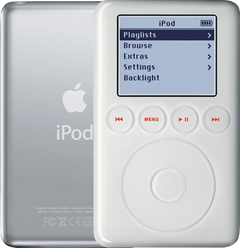
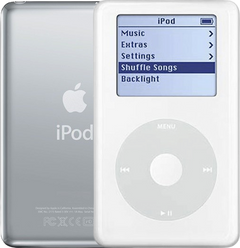
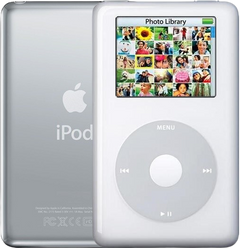
This guide covers the polished steel back, or backplate, of the iPod 4th Gen (A1059) and the iPod Photo (A1099), and explains what the plastic dock connector bezel is. A replacement back comes as a bare shell, unless you choose it with the headphone jack already fitted on the back's page: the headphone jack board with its Hold switch, its flex cable, the plastic bracket and the bracket's screws all move across from your old back. Choose the back by case depth first, thin or thick, then by the capacity engraving you want to see. Backs and bezels are for dents, scratches and fit; neither fixes an electronics fault. There is no soldering, and it is a Moderate job.
Which back fits: thin or thick, 4th Gen or Photo?
Measure the depth first: thin and thick backs are not interchangeable, and a mismatched back simply won't shut. With the depth settled, pick the capacity you want engraved; a back swapped in the past may already show a different capacity from the drive inside. A standard back won't carry the U2 edition's engraved signatures or the HP logo. On the U2 iPod Photo, a white bezel fits but shows against the black trim. Not sure which you have? Identify your iPod
Before you start
- Is it the back you need?A replacement back fixes dents, scratches and a case that won't sit right. It can't fix charging, sound, storage or screen faults, and neither can a replacement dock bezel: the 30-pin port belongs to the logic board, where it is soldered on.
- Measure the caseHold a ruler across the iPod from front to back. The 4th Gen is about 0.57 in (14.5 mm) thin or 0.69 in (17.5 mm) thick; the iPod Photo about 0.63 in (16 mm) thin or 0.75 in (19 mm) thick.
- Check for a swollen batteryA center button that sits low or feels jammed is the usual sign that the battery behind the wheel is swelling. If so, unplug the iPod, stop charging it and never press on, bend or pierce the battery. If the iPod is very hot or smells, don't open it: put it on a non-flammable surface away from anything that can burn, keep dry sand nearby, let it cool and contact us. If the battery smokes, sparks, hisses, pops or suddenly puffs up, cover it with all the sand at once, then get out of the room for half an hour and air it out. If it's still burning or you can't smother it, call the fire service. Don't touch the iPod until the half hour is up. If it is swollen, replace the battery first (our battery guide), then carry on with this repair.
- Set up the benchWork on a hard, non-flammable surface with a soft cloth on it, and keep a container of dry sand within reach.
- Ground yourselfWear an anti-static wrist strap, or at least touch bare metal first, before you reach inside.
Tools
- Plastic opening tools, one wide and one thinFor the case clips. Each part comes with one plastic pry tool.
- Plastic spudgerFor the jack cable's connector and the battery plug.
- T6 Torx screwdriverFor the two silver screws on the jack board.
- Fine Phillips screwdriver (#00 or PH-000)For the three silver screws holding the jack bracket to the back.
- Anti-static wrist strap or matThe logic board is exposed while the case is open.
- Soft cloth and a small traySo neither back gets scratched, and the two kinds of screw stay apart.
- Wall charger and headphones you know workFor the test before closing.
Step by step
New to opening this iPod? How to open the iPod 4th Gen and iPod Photo
-
Step 1: Unplug it, switch it off and lock Hold
Disconnect any cable, charger or computer first. Switch the iPod off by holding Play/Pause until the screen goes dark, then slide the Hold switch to locked, so its orange bar shows.
-
Step 2: Release the case clips
Our opening guide has the detail. In short: with the screen up and the dock connector toward you, start on the right-hand long side with the wide plastic tool, its edge tilted toward the steel back, and free the five tabs on that side. Then the two clips beside the dock connector (lightly past the thin steel there), the five tabs on the left-hand side, and the top edge.
-
Step 3: Turn it over and open the back like a book
The jack's orange flex cable still links the back with the logic board. Holding the two halves together with your fingers, turn the iPod over so the screen faces the cloth, dock connector away from you (don't let the front drop away from the back), then lift the back along one long side like a book cover and lay it flat beside the front half, inside up, keeping that cable loose. If it tightens as the back opens, stop and ease the back closer to the front.
Never pull the back straight off: the cable's socket can tear off the logic board.
-
Step 4: Unplug the battery, then the jack cable
Ease the small white battery plug out of its socket on the logic board by its body, not the wires. Then lift the jack cable's connector straight up off the logic board with the flat end of the spudger. The old back is now free: lay it inside up next to the replacement.
-
Step 5: Take the jack board out of the old back
Unscrew the two silver T6 screws on the headphone jack board, then lift the board free, its flex cable still plugged in underneath. Leave the cable on it: it moves across too.
-
Step 6: Take out the bracket
Remove the three silver Phillips screws holding the plastic bracket, which carries the white Hold slider, and lift it out. Keep these screws apart from the T6 ones, and keep the slider: you need it in the replacement back.
-
Step 7: Fit them into the replacement back
Set the bracket, with the Hold slider in place, into the replacement back where it sat in the old one and turn the three Phillips screws in, starting each by hand. Then lay the jack board in its place and refit the two silver T6 screws the same way.
-
Step 8: Dock bezel: we fit that one
Changing the dock bezel? We haven't written up that swap yet: choose We Fix It on the bezel page and we'll fit it. Don't lever at the dock opening: the steel there bends first.
-
Step 9: Reconnect: jack cable, then battery
Lay the replacement back beside the front. Headphone cable next, jack-board end first: that end sits under a small black latch on the jack board's underside, you can't see it, and it slips out easily while the case is open. If you aren't sure it is fully in, reseat it now, while the logic-board end is still unplugged: take out the jack board's two silver T6 screws, turn the board over, flip the latch up, push the cable fully in, close the latch and screw the board back. Then press the cable's connector straight down onto its socket on the logic board. The Hold check in the test confirms both ends: the lock icon must come and go with the switch. Plug the battery in last, by the plug's body.
-
Step 10: Test before closing
Rest the replacement back loosely in place, switch Hold off and connect a wall charger. Check the screen shows a clear picture. Slide Hold on and off: the lock icon should come and go. Play a song through headphones to check both ears, and try the wheel and every button, the center one included. Then disconnect the charger and check it keeps running on its battery.
If Hold or the sound doesn't work, disconnect the charger, unplug the battery, lift the jack cable off the logic board, reseat the jack-board end (two silver T6 screws out, board turned over, latch up, cable fully in, latch closed, screws back), press the board end back down, and plug the battery back in last.
-
Step 11: Snap the replacement back on
Line the halves up and press them together from one side across to the other with even pressure until every clip catches. Check the dock opening: nothing should block the connector.
If it won't close without force, stop: the back may be the wrong depth, or a cable is caught at the edge.
Close it up and test
- A flush seamEven all the way round, with no gap at the corners.
- Hold and sound workThe lock icon follows the switch, and the headphones play in both ears.
- No screws left overTwo silver T6 and three silver Phillips went into the replacement back.
If it doesn't work afterwards
- A lock icon, and the wheel does nothing
- The jack cable is most likely not fully in at one end. Disconnect the charger, open it and unplug the battery. Lift the cable's connector off the logic board first, then reseat the end under the jack board (two silver T6 screws out, board turned over, latch up, cable fully in, latch closed, screws back), press the connector back down onto the logic board, and plug the battery in last. Hold switch not working
- No sound in the headphones
- The jack cable may be half seated, or its latch on the jack board open. Disconnect the charger, open it and unplug the battery. Lift the cable's connector off the logic board first, then reseat the end under the jack board (two silver T6 screws out, board turned over, latch up, cable fully in, latch closed, screws back), press the connector back down onto the logic board, and plug the battery in last. Headphone jack not working
- The replacement back won't close
- Check its depth against your case: a thin back won't close over thick-case parts. Also look for a cable caught at the seam.
- It still won't charge or sync
- Neither the back nor the bezel affects that: the charging port is part of the logic board. iPod won't charge
Questions
Thin or thick: how do I tell?
By depth, not by the engraving. The 4th Gen is about 0.57 in (14.5 mm, 20GB) or 0.69 in (17.5 mm, 40GB) deep; the iPod Photo about 0.63 in (16 mm; 20GB, 30GB) or 0.75 in (19 mm; 40GB, 60GB).
Does the replacement back come with the headphone jack?
Not as standard: the back is a bare shell, and the jack board with its Hold switch, the flex cable, the bracket and its three screws move across from your old back. The back's page also offers it with the headphone jack already fitted.
Can I get a different capacity engraved?
On the iPod Photo, yes, within the same depth: 20GB or 30GB on a thin back, 40GB or 60GB on a thick one. The 4th Gen has one engraving per depth: 20GB thin, 40GB thick.
I have a U2, HP or Harry Potter edition. Will a standard back match?
It fits, but the U2 signature engraving, the HP logo and the Harry Potter edition's rear engraving aren't on a standard back.
Will a replacement dock bezel fix charging?
No. The bezel is trim only; the port sits on the logic board.
Can a thick back let me fit a bigger drive?
It is one of the parts: going from a thin to a thick build also needs an 8 mm drive, thick drive bumpers and a thick-case headphone jack. Our hard drive guide covers it.
Can you do it for me?
Yes. Choose We Fix It on the back's page and mail your iPod in: we fit it and send it back. Turnaround is typically 3 to 5 business days, with a 1-year limited warranty.