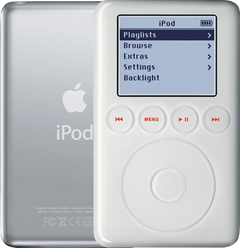
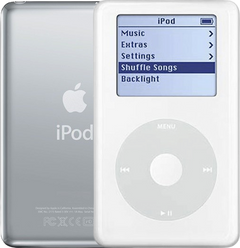
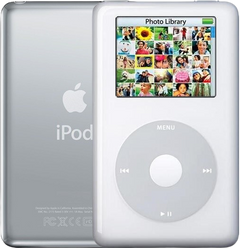
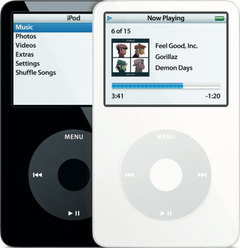
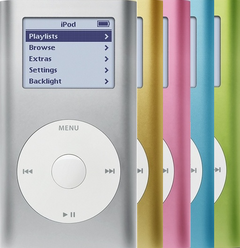


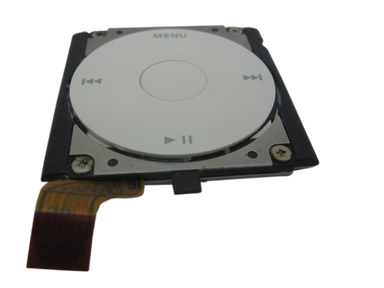
Representative photo. You receive the part named above.
Is this the right part?
For the iPod Mini 1st GenModel A1051
Doing it yourself?
iPod Mini 1st/2nd Gen click wheel and center button replacement guide ›iPod Mini 1G — Replacement Click Wheel (632-0246-A)
For the iPod Mini 1st Gen
Used (Apple Original) · Model A1051
$105.95
Sold out
Not for sale right now
We are not selling this part at the moment.
- Used (Apple Original). Tested: installed in a working iPod and checked before it ships.
- 1-year limited warranty · 30-day returns from delivery
- Free pry tool in the box
- Completed repairs aren't refundable. If a part we fitted fails within a year, we repair it again.
Questions about this part? Chat with us or email sales@imods.com.
Not sure what's wrong? Get your free repair quotePart details
About this part
Overview
Replacement control input part for iPod Mini 1G. Use it when the wheel, buttons, center Select area, or flex is physically damaged or still fails after Hold state, frozen software state, and connector seating are checked.
Fitment snapshot
What Is Included
What this part might fix
Help pages, step by step, for problems this part might fix:
Most likely fixed by this part
Can also be the cause
- Not working after a repair: click wheel cable damaged in the repair
Fit and specs
Specifications & Fitment
Part Details
| Detail | Value |
|---|---|
| Model Number | A1051 |
| EMC | EMC 1984 |
| Condition | Used — factory original Apple part. Normal cosmetic wear expected. |
| OEM Part | 632-0246-A |
| Controller | Synaptics T1005 |
| Type | Capacitive click wheel |
| Text Color | Gray (all body colors) |
Compatible Variants
| Order Number | Capacity | Color | Case | Compatible | Notes |
|---|---|---|---|---|---|
| M9436LL/A | 4GB | Blue | — | Yes | — |
| M9437LL/A | 4GB | Gold | — | Yes | — |
| M9434LL/A | 4GB | Green | — | Yes | — |
| M9435LL/A | 4GB | Pink | — | Yes | — |
| M9160LL/A | 4GB | Silver | — | Yes | — |
Not compatible with
- iPod Mini 2nd Generation click wheel (
632-0303-A) — the two mini generations use different click wheels and they do not work across generations in either direction. Buy the wheel sold for your own mini; on this one the button text is gray inset on every body color.
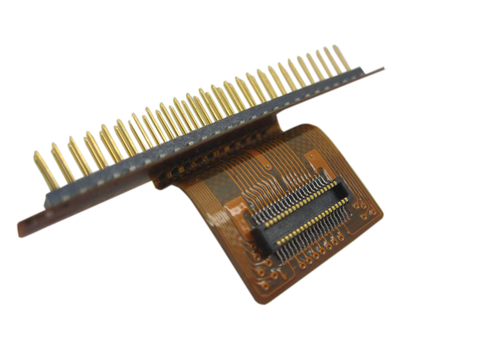
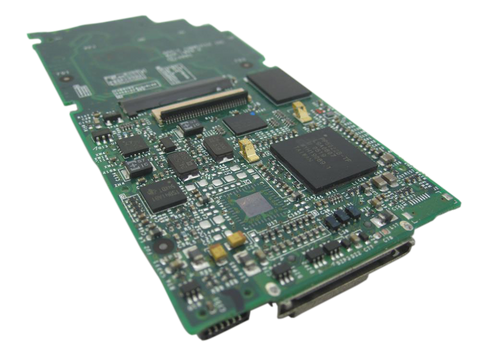
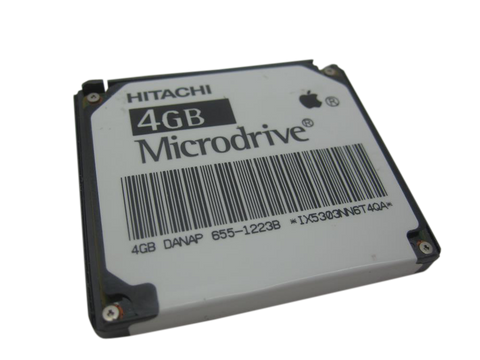
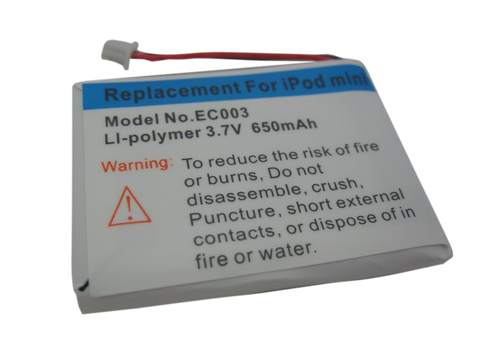
The click wheel is one of the parts that is not shared between the two minis, so do not read across from the parts that are. The battery pack, the aluminum tube, the hard-drive flex cable, the headphone-jack / Hold-switch assembly (820-1597-A) and the glass display lens are each sold as one part for both mini generations; the wheel, the screen and the logic board are not. Every other part needs its own check before you assume a cross-generation fit.
Install and repair
Step-by-step guide
iPod Mini 1st/2nd Gen click wheel and center button replacement
Tools: Thin plastic pry tool, Spudger, Small snap-ring pliers or a small flat tool, Masking tape, Anti-static wrist strap or mat, Phillips #00 screwdriver, hair dryer and tweezers (only if needed)
- Lock itUnplug any cable, then slide Hold on and let the screen go blank. The top cap can stay on for this job.
- Pry off the bottom capWork the plastic pry tool into the seam of the white cap at the dock connector end and lift it off, prying at points where there are no clips. It may be glued as well as clipped.
Install Overview
Rather not open it? Choose We Fix It above: mail your iPod in and we fit it. Turnaround is typically 1–3 business days on our bench. 1-year limited warranty.
Questions
Frequently Asked Questions
Do I need to solder?
No, this installation does not require soldering. Difficulty: Moderate. Estimated time: 15 minutes.
How do I know if this click wheel needs replacement?
Symptoms that can point to this click wheel include: Click Wheel Not Working, broken wheel, scroll wheel trouble, and button trouble after Hold, reset, battery, storage, and connector checks.
What else should I replace at the same time?
Mini 1G click wheels use gray icons across all body colors; replace casing separately only for visible shell damage. Battery service is commonly checked while the Mini is open; do not treat battery fitment as the click-wheel failure mechanism. If the wheel went dead straight after a battery job, reseat the orange click-wheel ribbon and refit the metal retaining bracket before ordering a wheel — owners report that as the commonest new fault after a battery swap.
What if only the center or Select button fails?
Confirm Hold is off first. On the mini the center switch is part of the click wheel assembly, so a center button that does nothing while the scroll ring still works points to this part. A center button that feels stuck is often the wheel sitting slightly out of line with the housing: while gently pressing down on the wheel, nudge it until it slides properly into place.
Is this for a full-size hard-drive iPod?
The iPod mini is a separate Apple product line from full-size hard-drive iPods. This is the iPod mini 1st Generation.
Is my mini a 1st or 2nd Gen?
Turn it over: 4GB or 6GB engraved on the back means a 2nd Gen (EMC 2044); nothing engraved means a 1st Gen (EMC 1984). Click Wheel lettering in a color other than gray also means a 2nd Gen, and the part number on the click wheel cable tells the two apart. The two wheels look the same but do not work in each other's iPod.
Free diagnostic
Broken iPod? We can help.
Mail us your iPod and we will test it and send you a free repair quote. If you don't like our price, we will ship your iPod back at our expense.
How mail-in repair works
Order the free diagnostic
Choose your iPod. Add our shipping box and prepaid label if you need one.
Mail us your iPod
Pack it with your work order. No printer? Put a note in the box with your name, return address, email, order number and what is wrong.
Approve your quote
We test it and email your free repair quote. Most repairs are finished within 1 to 3 business days after you approve the quote.