
Hard drive
for the iPod 3rd Gen A1040
- 1-year limited warranty
Is this the right part?
For the iPod 3rd Gen 30GBModel A1040
Also for the iPod 3rd Gen: 10GB $44.90 installed · 15GB $47.90 installed · 20GB $65.90 installed · 40GB $72.90 installed · See all
Doing it yourself?
iPod 3rd Gen hard drive replacement guide ›iPod 3G — Replacement Hard Drive (30GB)
For the iPod 3rd Gen 30GB
Used (Apple Original) · Model A1040
$80.90
Also for the iPod 3rd Gen: 10GB $44.90 installed · 15GB $47.90 installed · 20GB $65.90 installed · 40GB $72.90 installed · See all
Sold out
Not for sale right now
We are not selling this part at the moment.
- Used (Apple Original). Tested: installed in a working iPod and checked before it ships.
- 1-year limited warranty · 30-day returns from delivery
- Free pry tool in the box
- Completed repairs aren't refundable. If a part we fitted fails within a year, we repair it again.
- US shipping is about $6 to $9 by USPS Ground Advantage; free on orders of $200 or moreYou pay the postage to mail your iPod to us, or add our box and prepaid label. Shipping back to you is about $6 to $9 at checkout; free on orders of $200 or more
Questions about this part? Chat with us or email sales@imods.com.
Not sure what's wrong? Get your free repair quotePart details
About this part
Overview
Replacement hard drive for iPod 3G. Use it for failed hard-drive behavior, restore trouble, or storage upgrades after the battery is stable and the drive cable seating has been checked.
Fitment snapshot
What Is Included
What this part might fix
Help pages, step by step, for problems this part might fix:
Most likely fixed by this part
- Not showing up in iTunes
- Frozen
- Stuck in disk mode
- Won't sync
- Keeps turning off
- Stuck on Apple logo
- Won't restore
- Won't play music
- Dropped
- Clicking noise
- Skipping songs
- Sad face icon
- Folder icon
Can also be the cause
Fit and specs
Specifications & Fitment
Part Details
| Detail | Value |
|---|---|
| Model Number | A1040 |
| EMC | EMC 1961 |
| Condition | Used — factory original Apple part. Normal cosmetic wear expected. |
| Drive Model | MK3004GAH |
| Capacity | 30GB |
| Form Factor | 1.8" IDE/ATA (50-pin Toshiba MCD-D50 form factor) |
| RPM | 4200 |
| Manufacturer | Toshiba |
| Interface | 50-pin Toshiba MCD-D50 |
| Drive Height | 8mm |
| Platters | 2 |
Compatible Variants
| Order Number | Capacity | Color | Case | Compatible | Notes |
|---|---|---|---|---|---|
| M8948LL/A | 30GB | White | thick | Yes— stock match | — |
| M9245LL/A | 40GB | White | thick | Yes— fits (not stock) | Same 8mm thick drive class — a capacity downgrade for this unit (stock: MK4004GAH) |
| M8976LL/A | 10GB | White | thin | No— wrong case depth | Thick part is not compatible with thin case — risk of LCD damage. Use Replacement Hard Drive (10GB) instead. |
| M8946LL/A | 15GB | White | thin | No— wrong case depth | Thick part is not compatible with thin case — risk of LCD damage. Use Replacement Hard Drive (15GB) instead. |
| M9460LL/A | 15GB | White | thin | No— wrong case depth | Thick part is not compatible with thin case — risk of LCD damage. Use Replacement Hard Drive (15GB) instead. |
| M9244LL/A | 20GB | White | thin | No— wrong case depth | iPod 3rd Generation 10/15/20GB thin drive. Use Replacement Hard Drive (20GB) instead. |
Not compatible with
- iPod 3rd Generation 10/15/20GB thin units — an 8 mm drive does not go into the thin case at all, and forcing it risks the display; use that capacity's own listing
- Not listed for the 4th Gen, iPod Photo or later iPods, nor the iPod mini: use that model's own hard-drive listing
Compatible & Upgrade Drives
The 3rd generation takes 1.8-inch parallel-ATA drives with the 50-pin press-fit connector. The factory matrix ran MK1003GAL (10GB), MK1504GAL (15GB) and MK2004GAL (20GB) at 5mm in the thin case, and MK3004GAH (30GB) and MK4004GAH (40GB) at 8mm in the thick case. Match the connector and the drive height to your case depth: a 5mm drive will run in an 8mm bay with the thick bumper set, but an 8mm drive will not go into a thin case at all.
- MK4007GAL — 40 GB, 5mm. Listed in places as a thin-case 40GB drive, but owner reports contest it. We treat it as untested and do not stock it for this model.
- MK2006GAL / MK4006GAH: 06-series drives don't work in a 3rd Gen, so we don't sell them for this model.
- Toshiba drives with a ribbon-cable connector belong to later iPod families. They are not drop-ins here, whatever a listing says — this model’s interface is 50-pin, not a ribbon connector and not 44-pin.
- The other route out of a mechanical drive is our flash mod service, which replaces the drive with an adapter and an SD card (we fit it by mail).
Install and repair
Step-by-step guide
iPod 3rd Gen hard drive replacement
Tools: Plastic opening tools (two), Plastic spudger, Anti-static wrist strap or mat, Soft cloth, FireWire charger, A computer with iTunes or the Finder
- Unplug it, switch it off, lock itUnplug any cable, then switch the iPod off: press and hold Play/Pause. Slide the Hold switch to locked, so the orange shows, and lay it face up on the cloth.
- Free the clipsAngle a plastic opening tool toward the steel back and work it into the seam near the middle of a long side. Release the clips from the middle toward each end, then down the other long side, then the two on the bottom edge. Our opening guide covers every move.
Install Overview
Rather not open it? Choose We Fix It above: mail your iPod in and we fit it. Turnaround is typically 1–3 business days on our bench. 1-year limited warranty.
After fitting, restore the iPod (a restore erases everything on it). On this model a restore that stops at a picture of a plug must finish on the FireWire power adapter.
Questions
Frequently Asked Questions
Restore & sync
Does a USB dock cable charge this iPod?
No. The 3rd generation charges over FireWire only. A USB dock cable fits the 30-pin port and syncs perfectly well, but Apple’s own user guide for this iPod says plainly: "You can’t charge iPod using USB." Use a FireWire wall adapter, a computer FireWire port, or the FireWire side of Apple’s combination cable — and note Apple’s own warning not to plug that cable’s USB and FireWire ends into the same computer at the same time. An iPod that seems dead on USB is very often only flat.
How do I reset this iPod, and how do I put it in Disk Mode?
Reset: slide Hold on and then off, then hold Menu + Play/Pause until the Apple logo appears. Disk Mode: do that reset, and as the logo appears hold Previous + Next until the Disk Mode screen shows. To leave Disk Mode, reset it again: Menu + Play/Pause until the Apple logo appears. This is a touch-wheel iPod, so the Menu + Select reset and the Center + Play/Pause Disk Mode that later click-wheel iPods use do nothing here.
Does a new hard drive need to be formatted first?
No — and you should not format it yourself. A replacement drive needs a restore when it is first installed; until then the iPod can show a folder icon or sit in Disk Mode, which is expected, not a fault. Connect it and let the restore run (on Windows, iTunes for Windows), and the restore lays down the iPod's own file system and software. Apple's guide is blunt about the cost: "If you choose to restore, all data is erased from your iPod." Copy anything that exists only on the old drive before you start.
Choosing and fitting this drive
Can I use flash storage instead of this hard drive?
Yes: our flash mod service fits flash storage by mail. Order it on the flash mod service page for your model, with a new battery if you like.
What first checks matter when an iPod 3rd Generation has battery or power symptoms?
Start with FireWire power: if it starts on the FireWire charger but dies unplugged, the battery is the likely cause; if it is dead even on a known-good FireWire charger and cable, the logic board is more likely. The 3rd Generation uses a 3.7 V lithium-ion battery and charges only from FireWire power through the 30-pin dock connector; USB syncs it but does not charge it. For Very Low Battery, Apple-logo loops, or no power after a repair: charge it on the FireWire charger and reseat the battery connector.
How do I know my iPod is a 3rd Generation, and which case depth is it?
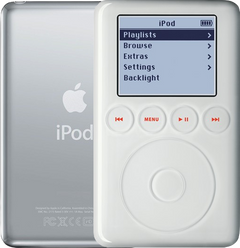
Go by the hardware, not the engraving. The 3rd Generation is the iPod with a row of four touch-sensitive buttons in a line above the touch wheel and a 30-pin dock connector; A1040 is printed on the back. For depth, stand it on edge: the 10/15/20GB build is the thin one, about 0.62 in (15.7 mm) deep and 5.6 oz, and the 30/40GB build is visibly deeper, about 0.73 in (18.5 mm) and 6.2 oz. Decide depth by the case, because a rear shell swapped by a previous owner carries the capacity of the shell, not of the drive inside.
Can a thin 5 mm drive go in a thick 30/40GB iPod?
Yes, with the thick-drive bumper set (sold separately): the 5 mm drive sits in an 8 mm bay, and without the thicker bumpers it can rattle and shift. The other direction does not work — an 8 mm drive will not go into a thin 10/15/20GB case, and forcing it risks the display. A full thin-to-thick conversion also needs the thick backplate and the thick headphone-jack assembly, not just the drive.
Is this an iPod Classic?
Apple's 'Classic' branding started with the 6th Generation (2007). This is the iPod 3rd Generation (2003), model A1040. Apple's official name for this model is iPod (Dock Connector).
Free diagnostic
Broken iPod? We can help.
Mail us your iPod and we will test it and send you a free repair quote. If you don't like our price, we will ship your iPod back at our expense.
How mail-in repair works
Order the free diagnostic
Choose your iPod. Add our shipping box and prepaid label if you need one.
Mail us your iPod
Pack it with your work order. No printer? Put a note in the box with your name, return address, email, iMods order number and what is wrong.
Approve your quote
We test it and email your free repair quote. Most repairs are finished within 1 to 3 business days after you approve the quote.