
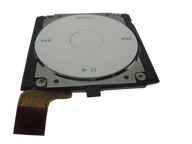
Representative photo. You receive the part named above.
iPod Mini 2nd Generation — Replacement Click Wheel (Pink)
Used (Apple Original) · Model A1051
$105.95
Also for the iPod Mini 2nd Gen: Blue $105.95 · Green $105.95 · Silver $105.95 · See all
Sold out
Not for sale right now
We are not selling this part at the moment.
- Used (Apple Original). Tested: installed in a working iPod and checked before it ships.
- 1-year limited warranty · 30-day returns from delivery
- Free pry tool in the box
- Completed repairs aren't refundable. If a part we fitted fails within a year, we repair it again.
Part details
About this part
Overview
Replacement control input part for iPod Mini 2nd Generation. Use it when the wheel, buttons, center Select area, or flex is physically damaged or still fails after Hold state, frozen software state, and connector seating are checked.
Fitment snapshot
Product Overview
Choose this click wheel listing to restore wheel, button, and center-Select input on the iPod Mini 2nd Generation when the control assembly or its flex is damaged or unresponsive.
Use Part Details for the confirmed part-number reference. Use the Compatible Variants table below to confirm capacity, color, or order-number fitment.
Choose this part when your iPod shows Frozen / Unresponsive or Click Wheel Not Working; the checks below help confirm the right part before you order.
Choose Your Option
This part comes in multiple variants. Confirm your iPod's generation, color, and order number before ordering.
Used factory original Apple pink click wheel for iPod Mini 2nd Gen. Match by Mini generation and color.
You're viewing this optionWhat Is Included
Condition: Used factory-original part. Quantity and exclusions: The listed part, set, pair, or configuration above is supplied with exactly one plastic pry tool. No other parts, tools, adhesives, or materials are included unless they are explicitly listed above.
Quick Buying Check
Buy this when
- Click Wheel Not Working: Use the controls check after checking Hold state, force-restart behavior, ribbon seating, and whether the issue affects the whole wheel or just one button.
Diagnose first when
- Do not substitute Mini click wheels across generations. Match the click wheel to Mini 2nd Generation specifically.
- Confirm the capacity match before ordering: 4GB, 6GB.
- Confirm the color variant before ordering: Pink.
- Try the simple power, cable, connector, or reset checks before ordering — reset is Menu + Select, held until the Apple logo appears.
- If the problem started immediately after opening the iPod, inspect the parts that were disturbed first — on this model that is usually the orange click-wheel ribbon.
Fit and specs
Specifications & Fitment
Part Details
| Detail | Value |
|---|---|
| Model Number | A1051 |
| EMC | EMC 2044 |
| Condition | Used — factory original Apple part. Normal cosmetic wear expected. |
| OEM Part | 632-0303-A |
| Controller | Developed for Apple by Synaptics |
| Type | Capacitive click wheel |
| Interface | Mini 2nd Generation click-wheel flex connector |
| Color | Color-matched text to case |
Compatible Variants
| Order Number | Capacity | Color | Case | Compatible | Notes |
|---|---|---|---|---|---|
| M9802LL/A | 4GB | Blue | — | Yes— compatible | Color swap — physically fits, different color from original |
| M9806LL/A | 4GB | Green | — | Yes— compatible | Color swap — physically fits, different color from original |
| M9804LL/A | 4GB | Pink | — | Yes | — |
| M9800LL/A | 4GB | Silver | — | Yes— compatible | Color swap — physically fits, different color from original |
| M9803LL/A | 6GB | Blue | — | Yes— compatible | Color swap — physically fits, different color from original |
| M9807LL/A | 6GB | Green | — | Yes— compatible | Color swap — physically fits, different color from original |
| M9805LL/A | 6GB | Pink | — | Yes | — |
| M9801LL/A | 6GB | Silver | — | Yes— compatible | Color swap — physically fits, different color from original |
is not compatible with
- iPod Mini 1st Generation click-wheel assemblies
- Other click-wheel colors when a color-matched restoration is required
- Housing, top bezel, bottom bezel, battery, or storage drive
- iPod Mini 1st Generation click wheel (632-0246-A) — seats physically, no electrical response (Tier-0 verified)
Install and repair
Repair considerations
Run these checks before replacing the click wheel — they confirm the click wheel is the right fix and not a nearby fault:
- Replace Click Wheel or control assembly
- Recenter or sparingly reattach a shifted rubber button pad
Install Overview
Before You Start
For pre-open diagnosis, unlock Hold and hold Menu + Select for about 6 seconds, until the Apple logo appears. Guides that say Menu + Play describe the older, pre-click-wheel iPods. Before opening, lock Hold so the orange bar is visible, then confirm the model and variant.
Treat case opening as the highest handling risk. Work around the seams gently and stop if the shell, clips, or internal stack resist.
Do not pull the halves apart or side-load board sockets. Reseat nearby ribbons and connectors before blaming a replacement click wheel.
Repair steps
Documented repair-procedure steps for replacing the click wheel on this model (from teardown guides; confirm against your unit before starting):
- Carefully slide the iPod out of its casing by pushing on the logic board near the bottom edge of the click wheel.
- Continue to pull back on the black plastic tab and use your other hand to press down on the click wheel and begin to slide it out of the iPod.
- Continue to pull back on the black plastic tab, use your other hand to press down on the click wheel, and begin to slide it out of the iPod.
- Use a spudger to pull back on the small black plastic tab holding the click wheel in place.
- It's important to press down on the click wheel as you slide it out, otherwise the click wheel could be scratched by the iPod's metal casing.
Disassembly Guide
Disassembly guide summary: iPod Mini Click Wheel Replacement.
Show all 7 installation steps
Carefully slide a small flathead screwdriver or Jimmy into the seam between the metal casing and white plastic bottom. Lever up the white bottom bezel, taking care not to damage the soft plastic.
A small pair of snap-ring pliers is the best tool to take out the metal retaining bracket. You can also lever out the metal retaining bracket beneath the bottom bezel with a flathead screwdriver. Release the bracket by pressing in the corner metal arms first.
Lift the released bracket away and set it aside.
With a spudger or fingertip, carefully disconnect the orange click wheel ribbon from the logic board.
With a spudger, draw back on the small black plastic tab securing the click wheel in place.
Keep pulling back the black plastic tab while pressing down on the click wheel with your other hand, then start sliding the wheel out of the iPod. Press down on the click wheel while sliding it out so the iPod metal casing does not scratch it. To protect the click wheel during removal or installation, cover it with blue painter's masking tape; the tape removes cleanly when the work is finished.
Keep sliding the click wheel outward until it releases from the iPod.
Product-specific placement, reassembly, and check
- Prepare and access. Confirm the exact model and listing fit first. Use the existing steps as a disassembly guide, gather the specified tools, disconnect power where applicable, and keep screws and cable positions organized.
- Place Replacement Click Wheel (Pink). Align the control part with its locating features and seat only the matching ribbon or mechanical interface for this listing.
- Reassemble without force. Reverse only the access steps needed for this repair, keep cables clear of case edges and screw posts, and close clips in stages.
- Validate before final closure. Before final closure, test navigation and every affected button; reopen the fit if a control binds, sits low, or does not register consistently.
Stop condition: Stop if a connector, latch, screw, clip, housing edge, or the replacement part resists normal alignment. Recheck model fit, orientation, cable routing, and trapped hardware instead of forcing it.
After This Repair
| Check | What to do |
|---|---|
| Test every control | Check Menu, Select, Play/Pause, Previous, Next, scrolling, and Hold behavior before closing the case fully. |
| If controls are still odd | Reseat the control ribbon, confirm the Hold switch is off, and inspect any ground strap or latch touched during service. |
Troubleshooting
Failure Signs
Use these checks to decide whether this click wheel is the right part, whether a nearby part should be checked first, or whether the symptom needs more diagnosis.
| Symptom | What it means & what to check |
|---|---|
| Center / Select button does not respond or stops clicking |
What you may see: People describe the center, middle, or Select button as no longer clicking, selecting, or responding.
Check first: Confirm Hold is off before judging the controls.
Most likely cause: A button-only symptom can involve the click-wheel assembly, contact path, board-side switch, or how the assembly is seated.
Look elsewhere when: If the lock symbol is active or the Hold slider is not behaving correctly, check the headphone jack / hold-switch assembly before blaming the click wheel.
|
| Hold switch can look like click-wheel failure |
What you may see: The iPod may appear locked, ignore controls, or behave differently when the Hold switch position changes.
Check first: Check whether the lock indicator changes when the Hold switch moves.
Most likely cause: On this model the Hold switch belongs to the headphone jack / hold-switch assembly, not the click wheel.
Look elsewhere when: Check the headphone jack / hold-switch assembly first when the device is locked or the Hold slider is suspect. |
| Click wheel is partly or fully unresponsive |
What you may see: People describe the scroll ring, buttons, or the whole control area as intermittent, partly responsive, or completely dead.
Check first: Confirm Hold is off.
Most likely cause: Whole-wheel symptoms can involve the click-wheel assembly, ribbon seating, ground path, or contamination on contacts.
Look elsewhere when: Check Hold switch, logic-board connector damage, and liquid/corrosion evidence before treating the click wheel as a guaranteed fix. |
| Ribbon, storage connector, or ground-path checks |
What you may see: A symptom starts after opening the iPod or disturbing an internal flex cable. Check first: Inspect for liquid, corrosion, residue, torn flex material, or connector damage. Most likely cause: Connector seating, ribbon damage, or ground-path issues can involve this part, a nearby connector, or a board path. Look elsewhere when: Check the Headphone Jack / Hold Switch Assembly when headphone audio, one-ear sound, crackling, or hold-switch behavior is the main problem.
|
| Controls stopped responding after a repair |
What you may see: A common repair pattern is that the iPod powers up after battery, hold-switch, or click-wheel work, but the controls no longer move or select normally.
Check first: Reopen only as far as needed to inspect ribbon seating and latch position.
Most likely cause: Post-repair control failure can point to a disturbed click-wheel ribbon, loose latch, missing ground path, or nearby hold-switch ribbon issue.
Look elsewhere when: If the symptom began during battery or headphone/hold work, inspect those disturbed ribbons before ordering another click wheel. |
| fully dead | Try force restart first. If it stays dead after a known-good charge source for 30+ minutes, check battery, then dock connector, then logic board. |
Do Not Buy This Click Wheel Yet If...
| Situation | Start here instead |
|---|---|
| Variant or capacity does not match this listing | If your Mini is a 1st Generation, use its click wheel (632-0246-A). The two Mini wheels look identical and seat in either unit but give no response across generations (owner-verified). |
| A symptom points to a different part | Start with battery for power/runtime symptoms; hard-drive cable for folder, clicking, or restore symptoms; dock-port bracket only when the internal metal bracket that locates the port is bent or missing (the 30-pin port itself is part of the logic board on this model); logic board for board-side damage or multi-system symptoms before buying this part. |
| You see a folder icon, clicking noise, or restore failure | A folder with an exclamation mark means the iPod cannot find its storage — the drive, its ribbon cable, or the software on it; a sad-face iPod icon is the same message in the older style. Check the drive or flash media, storage cable, adapter seating, formatting, and restore path before replacing any part. |
| Charging, swelling, runtime, or power is the primary problem | A swollen battery can press on the LCD in this model. Replace the battery first if the case is bulging, then check whether display symptoms remain. |
| The problem is the Hold switch or headphone jack, not this part | Diagnose the exact-model headphone-jack/Hold assembly and its connector before choosing another part. |
What Owners Report
These are anecdotal owner reports, not guarantees or authoritative proof that a particular part will fix a symptom. Use them as a troubleshooting starting point: confirm the symptom, run the quick checks, then match the fix.
Which mini is this, and which parts swap
Symptoms. An owner reads a model number off the back panel and asks which mini generation it belongs to; another, weighing the two generations, asks what actually differs and whether a battery from one fits the other.
Quick diagnosis.
- Every iPod mini carries the same model number — A1051, on both generations — so the number alone cannot answer the question. A reading like "A1050" is worth re-checking against the engraving, because A1051 is what the mini family prints.
- The reliable external tell is the capacity engraving: 4 GB or 6 GB printed on the back means this model; no capacity printed means the first-generation mini. This generation shipped in Silver, Blue, Pink and Green, with the click-wheel button text matched to the case color; the first-generation mini has gray inset wheel text on every color, no capacity engraving, and the Gold color this generation dropped.
- Backup discriminators for a worn back panel: the EMC number (EMC 2044 here, EMC 1984 on the first-generation mini), a 6 GB capacity (this generation only), or the order number (M9800LL/A, M9802LL/A, M9804LL/A, M9806LL/A — Silver, Blue, Pink, Green at 4 GB; M9801LL/A, M9803LL/A, M9805LL/A, M9807LL/A the same colors at 6 GB — an even final digit means 4 GB, odd means 6 GB).
What swaps, and what does not.
- Battery: shared — packs interchange between the two mini generations (the EC003/EC007 class); owners in this thread and the parts record agree.
- Drive flex cable and headphone jack: shared — the drive flex cable is one part for both mini generations (owner-verified), as is the headphone-jack assembly (820-1597-A).
- Click wheel: generation-matched only — wheels do not interchange between the generations in either direction. This generation's wheel is 632-0303-A, sold per case color; color-matched button text is its signature.
- Display: generation-matched by the printed-capacity rule — a screen pulled from a donor with no capacity mark on the back belongs to the first-generation mini and is the wrong part here; a donor engraved 4 GB or 6 GB matches.
- Logic board: two part numbers, both this generation — 820-1648-A and 820-1804-A are both 2nd-generation boards and either fits any 4GB or 6GB unit; the capacity lives on the drive, not the board.
Cautions.
- Never buy boards or wheels on "A1051" alone — the number is identical across both generations and identifies nothing. Insist on the capacity-engraving or EMC discriminator before paying for a generation-matched part.
Community signal. Reported by 2 owners.
Worth Knowing
- Mini 2nd Generation exclusive — colored text matching case. The first-generation mini has gray inset wheel text on every color; on this generation the wheel text matches the case color.
-
What differs across the four colors, and what does not. Only one thing differs: the color of the wheel and of its printed button text. All four are the same part,
632-0303-A, with the same connector, the same fit and the same install, and this page sells the Pink one. A wheel in another color physically fits and works — it simply will not match the case, which is what the Compatible Variants table means by "color swap". What does not cross is the generation: a first-generation mini wheel (632-0246-A) seats in either unit and gives no response.
Questions
Frequently Asked Questions
Use these questions to narrow the part path before ordering. They keep each answer focused on a different diagnostic or fitment decision.
What Replacement Click Wheel (Pink) models does this fit?
This Replacement Click Wheel (Pink) fits: M9804LL/A (4GB Pink), M9805LL/A (6GB Pink).
Do I need to solder?
No, this installation does not require soldering. Difficulty: Moderate. Estimated time: 15 minutes.
How do I know if this click wheel needs replacement?
Symptoms that can point to this click wheel include: Frozen / Unresponsive, Click Wheel Not Working. Check fitment, connectors, and nearby parts before treating symptoms as proof.
What else should I replace at the same time?
Battery and Click Wheel are both accessed during disassembly — inspect the battery while open. Click wheel removal requires case disassembly — inspect casing condition.
Is this for a full-size hard-drive iPod?
The iPod mini is a separate Apple product line from full-size hard-drive iPods. This is the iPod mini 2nd Generation.
How do I confirm this is the right part for my iPod?
Use the Quick Buying Check, Failure Signs, and Do Not Buy sections together before ordering. The symptom should still point to this click wheel after nearby parts and fitment are separated.
Is this sometimes called a scroll wheel?
Some marketplace listings use older wheel wording, but Apple's official term is Click Wheel.
You May Also Want
Search terms
Why people land on this part
Use the checks above to separate this click wheel from nearby parts before ordering.
Some buyers search for "menu button" or "engraved"; confirm the checks above point to this same part before ordering.
Some buyers search for "lock switch"; confirm the checks above point to this same part before ordering.
Also searched as: flex damage, lock icon, stopped working, iPod mini 2nd gen pink click wheel, click wheel unresponsive, click wheel connector, click wheel plugged, click wheel work, clickwheel, iPod mini 2nd gen scroll wheel, Frozen / Unresponsive, Click Wheel Not Working, ribbon cable, click wheel ribbon, seat connector, center button, hold button, 632 0246 a, flex cable, ipod mini 2g, orange ribbon, wheel flex.
Free diagnostic
Broken iPod? We can help.
Mail us your iPod and we will test it and send you a free repair quote. If you don't like our price, we will ship your iPod back at our expense.
How mail-in repair works
Order the free diagnostic
Choose your iPod. Add our shipping box and prepaid label if you need one.
Mail us your iPod
Pack it with your work order. No printer? Put a note in the box with your name, return address, email, order number and what is wrong.
Approve your quote
We test it and email your free repair quote. Most repairs are finished within 3 to 5 business days after you approve the quote.